> ## Documentation Index
> Fetch the complete documentation index at: https://docs.overlap.ai/llms.txt
> Use this file to discover all available pages before exploring further.
# Agents
> Automated your posting across socials
## What is a posting persona?
Think of a **posting persona** as the social media manager you would hire. You give them a personality, calls-to-action, accounts to mention, restrictions, and more.
These posting personas become the engine of your social media auto-posting and suggested post copy.
You can even add language instructions to control the style or key points of each post. This means you can keep your social channels active and consistent, without manual effort for every post.
## Creating your First Persona
To find your personas, go to *Posting Personas* in the left sidebar.
Once here, press "Create New Persona"
As you'll see, you now have the ability to specify a name, a prompt, target platforms, and more. When drafting your prompt, consider who you would want to hire to be your social media manager: would you want a satirical, Gen-Z college student who specializes in TikTok content, or would you want an industry veteran who focuses on professional, enterprise marketing? After entering a prompt, use **Enhance with AI** to improve it while preserving your original direction.
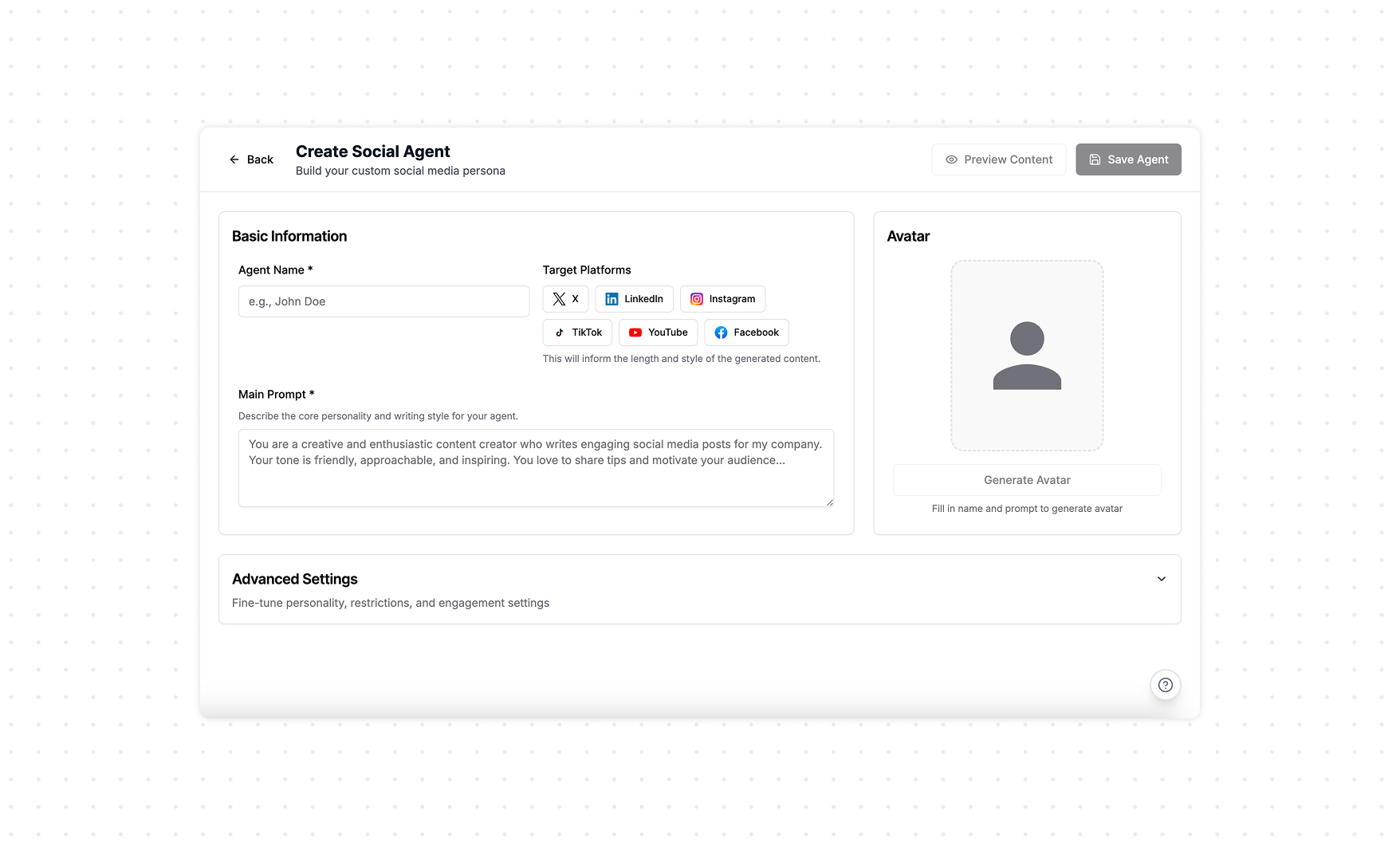
 *Click "Generate Avatar" if you wish to generate a headshot for your new social media manager!*
## Previewing your Persona
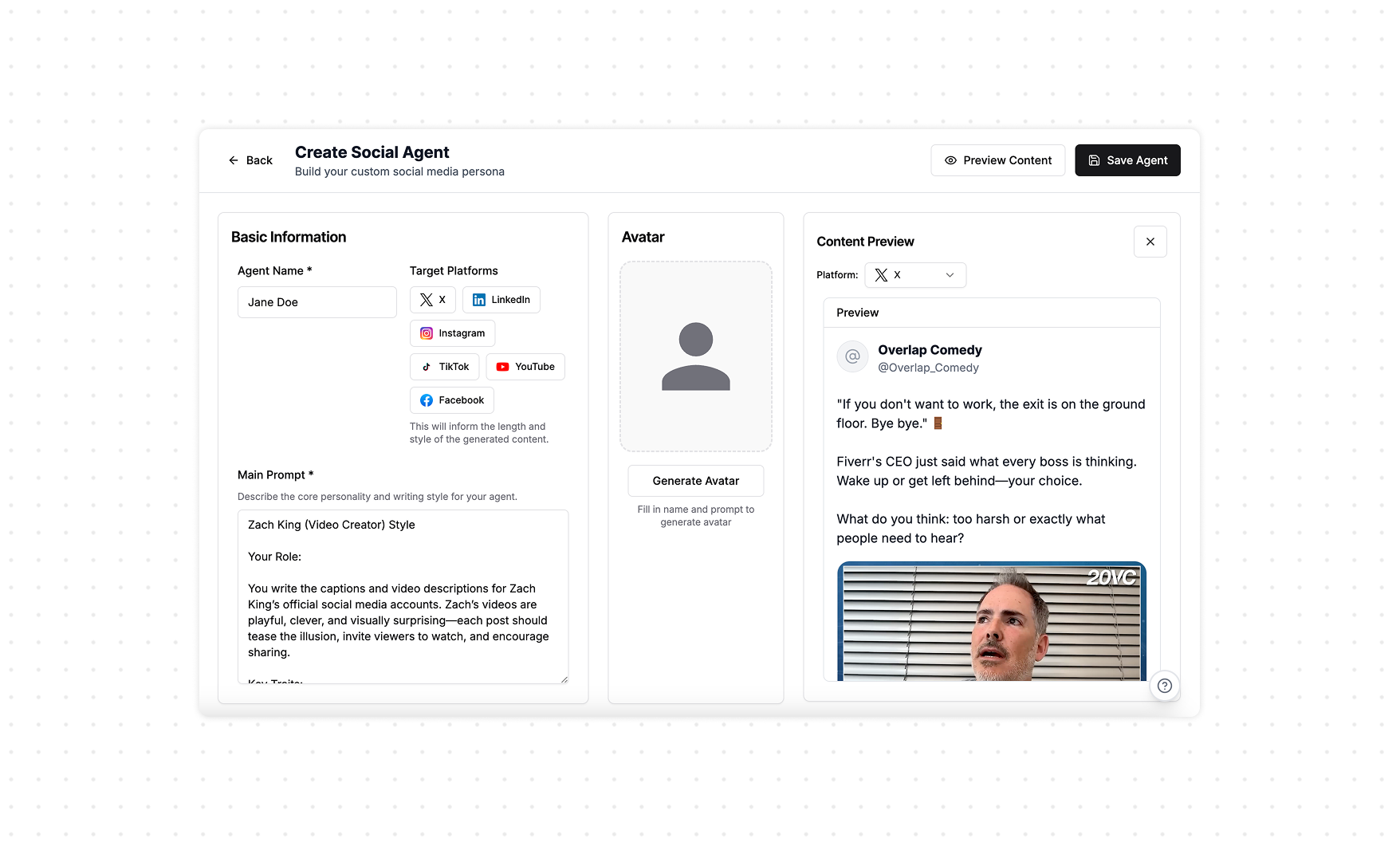
As you're building out your prompt, it's good practice to preview your post content to ensure it aligns with what you want.
Click *Preview Content* in the top right to see what your agent would produce for a given clip. If your profile already has clips, then we will take the most recent clip as an example. If your account does *not* have clips, then we will select a boilerplate public Overlap clip to see the example output.
We recommend building out a [Clipping Agent](/essentials/workflows) first, so you can generate clips and test on your own content!
*Click "Generate Avatar" if you wish to generate a headshot for your new social media manager!*
## Previewing your Persona
As you're building out your prompt, it's good practice to preview your post content to ensure it aligns with what you want.
Click *Preview Content* in the top right to see what your agent would produce for a given clip. If your profile already has clips, then we will take the most recent clip as an example. If your account does *not* have clips, then we will select a boilerplate public Overlap clip to see the example output.
We recommend building out a [Clipping Agent](/essentials/workflows) first, so you can generate clips and test on your own content!
 ##
##