> ## Documentation Index
> Fetch the complete documentation index at: https://docs.overlap.ai/llms.txt
> Use this file to discover all available pages before exploring further.
# Linking
> Link your socials to setup posting from your dashboard

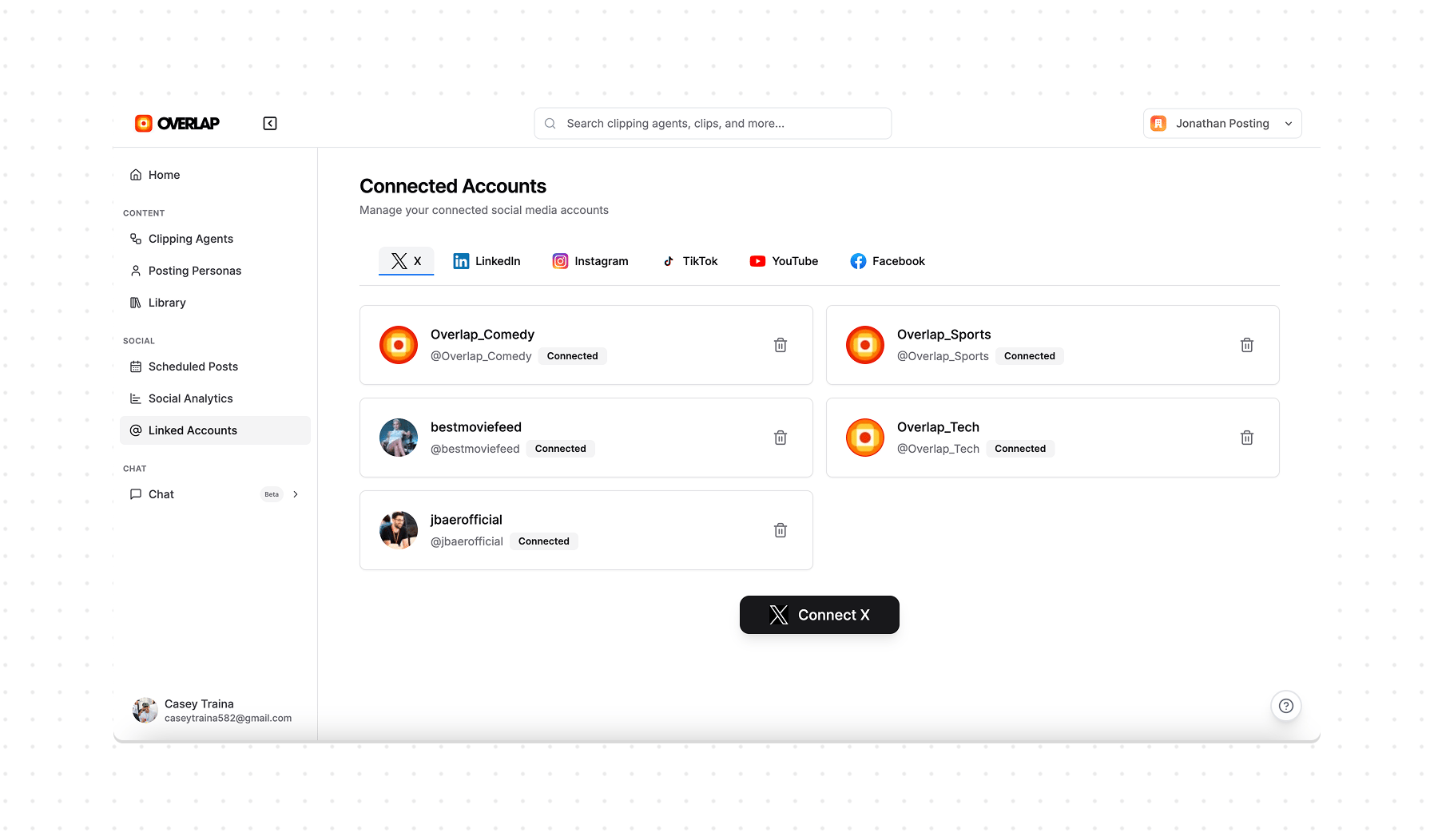 To link your account, press on *Linked Accounts* in the left sidebar and select the desired platform. You will be rerouted to a third party account linking service and once your account is linked, you may return to this page.
You can also start onboarding from chat. When the assistant asks you to link social accounts, use the platform buttons above the chat input to open the same account-linking flow. You can choose *Skip for now* or tell the assistant to skip, and onboarding will continue without linked accounts.
If linking an Instagram account, it must be a business or creator account and linked to a Facebook page.
If your YouTube channel does not appear during the Google account selection step, see [YouTube Channels Not Showing](/essentials/faq/youtube-channels-not-showing).
To link your account, press on *Linked Accounts* in the left sidebar and select the desired platform. You will be rerouted to a third party account linking service and once your account is linked, you may return to this page.
You can also start onboarding from chat. When the assistant asks you to link social accounts, use the platform buttons above the chat input to open the same account-linking flow. You can choose *Skip for now* or tell the assistant to skip, and onboarding will continue without linked accounts.
If linking an Instagram account, it must be a business or creator account and linked to a Facebook page.
If your YouTube channel does not appear during the Google account selection step, see [YouTube Channels Not Showing](/essentials/faq/youtube-channels-not-showing).