> ## Documentation Index
> Fetch the complete documentation index at: https://docs.overlap.ai/llms.txt
> Use this file to discover all available pages before exploring further.
# Reframe editor
> Use the Reframe editor in Studio to control how each scene is cropped into vertical, either as a fixed crop or an animated camera move.
## Opening the Reframe editor
The Reframe editor lives inside [Studio](/essentials/editing). Open a clip and click `Reframe` beside the preview to enter `Edit Mode`.
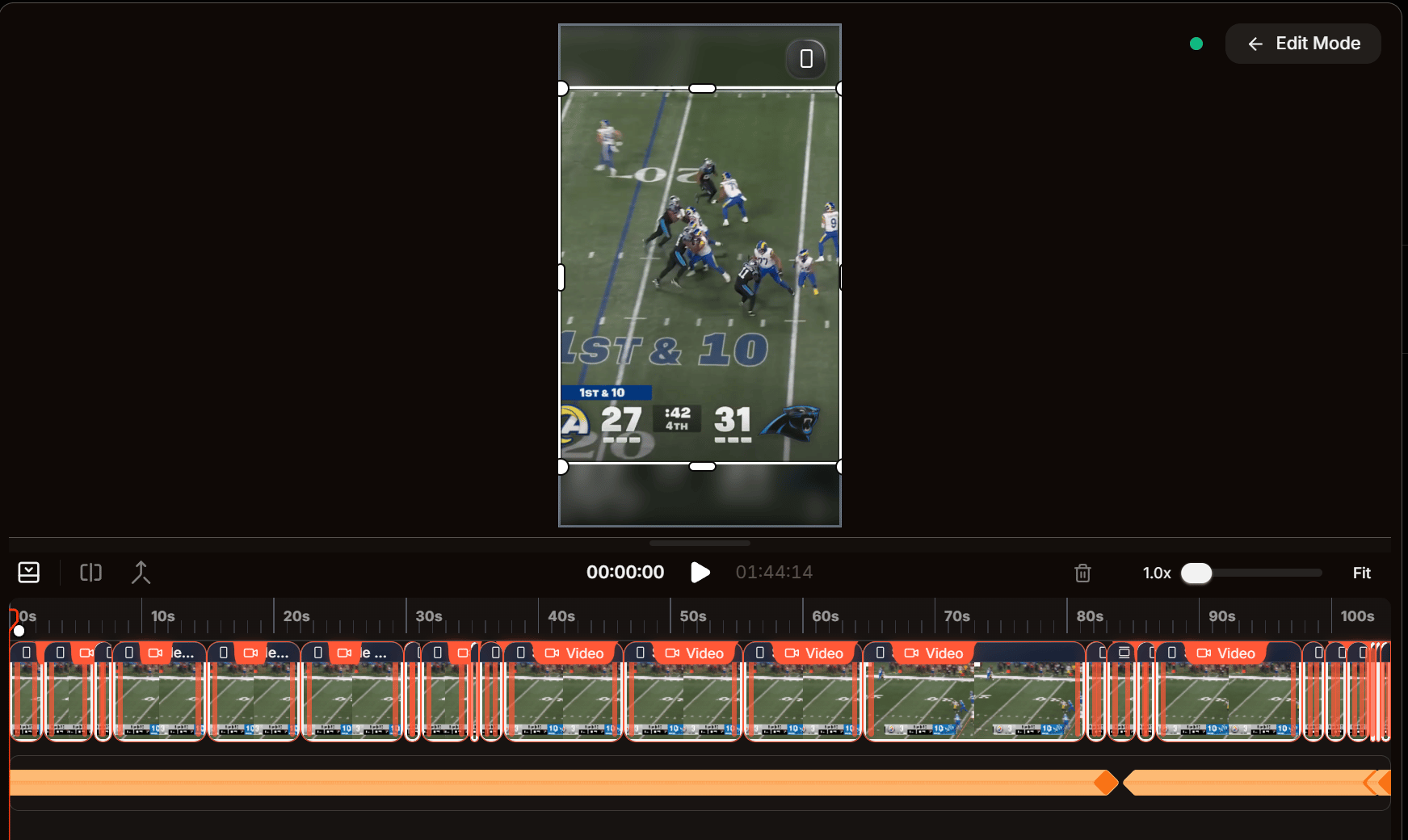 The clip is split into **scenes**, and each is reframed independently. Whatever scene the playhead is in is the scene the right-side panel edits, so move the playhead to switch scenes.
## Static vs. Pan
`Scene Mode` at the top of the panel decides how the current scene's crop behaves over time.
The clip is split into **scenes**, and each is reframed independently. Whatever scene the playhead is in is the scene the right-side panel edits, so move the playhead to switch scenes.
## Static vs. Pan
`Scene Mode` at the top of the panel decides how the current scene's crop behaves over time.
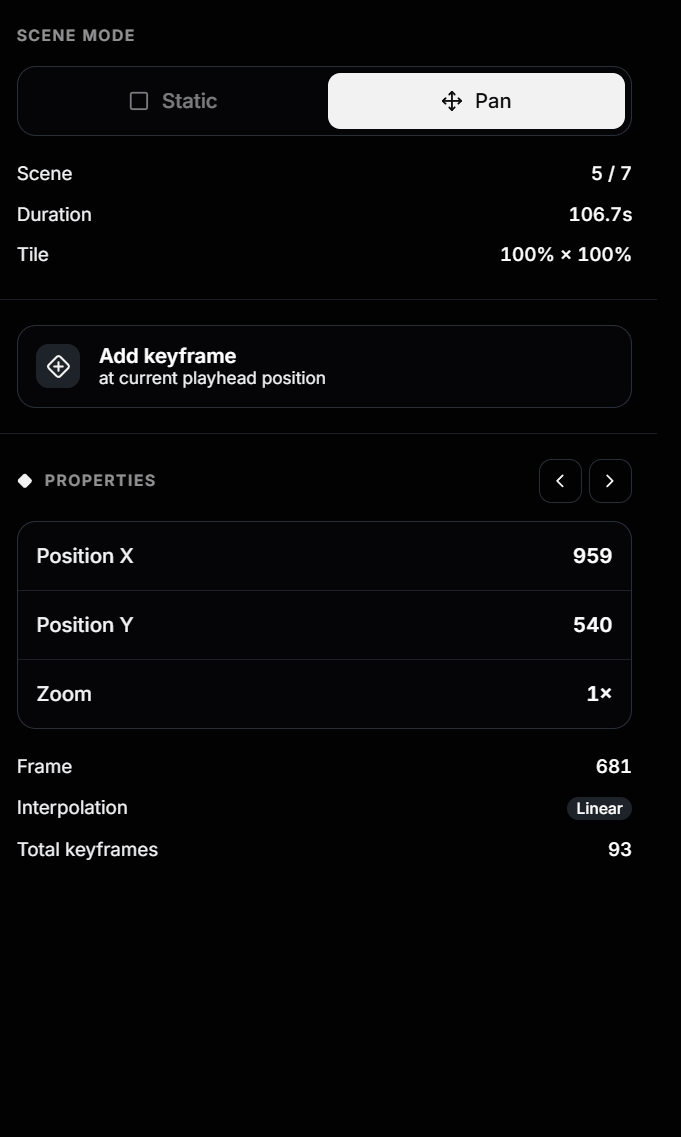 * **Static** — one fixed crop for the whole scene. Set **Position X**, **Position Y**, and **Zoom** once. Best for steady shots; there are no keyframes in this mode.
* **Pan** — an animated camera move driven by **keyframes**, which Overlap smoothly interpolates between. Best when the subject moves or you want a push-in. The `Add keyframe` and keyframe-navigation controls only appear here.
Switching a scene from Pan to Static collapses its movement into a fixed crop. Switching back re-enables keyframe editing.
The scene info below the toggle shows **Scene** (current / total), **Duration** (seconds), and **Tile** (the scene's output region as a percentage of the frame).
## Keyframes
Each keyframe pins a crop **Position X**, **Position Y**, and **Zoom** to a single frame. As the clip plays, Overlap animates the crop between them. A scene needs at least two keyframes to move.
**Add a keyframe:** in `Pan` mode, scrub to the frame you want, reframe the crop, and click **Add keyframe** (it's created at the playhead).
**Edit a keyframe:** move the playhead onto it — the `Properties` header then shows which keyframe you're on (e.g. `Keyframe 3 of 6 in scene`). If the playhead isn't on a keyframe, the panel prompts you to move onto one. Adjust each value by **dragging** to scrub or **clicking** to type:
| Property | What it controls |
| -------------- | ---------------------------------------------------------------------- |
| **Position X** | Horizontal center of the crop (source pixels). Higher moves right. |
| **Position Y** | Vertical center of the crop (source pixels). Higher moves down. |
| **Zoom** | How tight the crop is. `1×` is widest; larger pushes in. Minimum `1×`. |
Read-only details below show the keyframe's **Frame**, the scene's **Interpolation** (e.g. `Linear`), and **Total keyframes** for the clip.
**Navigate and delete:** use the `‹` / `›` arrows in the `Properties` header to jump between keyframes. Select keyframes to reveal the **Delete** bar at the bottom of the panel.
## Reading the keyframe timeline
The timeline under the preview stacks the scene strip on top and **keyframe diamonds** below.
* **Static** — one fixed crop for the whole scene. Set **Position X**, **Position Y**, and **Zoom** once. Best for steady shots; there are no keyframes in this mode.
* **Pan** — an animated camera move driven by **keyframes**, which Overlap smoothly interpolates between. Best when the subject moves or you want a push-in. The `Add keyframe` and keyframe-navigation controls only appear here.
Switching a scene from Pan to Static collapses its movement into a fixed crop. Switching back re-enables keyframe editing.
The scene info below the toggle shows **Scene** (current / total), **Duration** (seconds), and **Tile** (the scene's output region as a percentage of the frame).
## Keyframes
Each keyframe pins a crop **Position X**, **Position Y**, and **Zoom** to a single frame. As the clip plays, Overlap animates the crop between them. A scene needs at least two keyframes to move.
**Add a keyframe:** in `Pan` mode, scrub to the frame you want, reframe the crop, and click **Add keyframe** (it's created at the playhead).
**Edit a keyframe:** move the playhead onto it — the `Properties` header then shows which keyframe you're on (e.g. `Keyframe 3 of 6 in scene`). If the playhead isn't on a keyframe, the panel prompts you to move onto one. Adjust each value by **dragging** to scrub or **clicking** to type:
| Property | What it controls |
| -------------- | ---------------------------------------------------------------------- |
| **Position X** | Horizontal center of the crop (source pixels). Higher moves right. |
| **Position Y** | Vertical center of the crop (source pixels). Higher moves down. |
| **Zoom** | How tight the crop is. `1×` is widest; larger pushes in. Minimum `1×`. |
Read-only details below show the keyframe's **Frame**, the scene's **Interpolation** (e.g. `Linear`), and **Total keyframes** for the clip.
**Navigate and delete:** use the `‹` / `›` arrows in the `Properties` header to jump between keyframes. Select keyframes to reveal the **Delete** bar at the bottom of the panel.
## Reading the keyframe timeline
The timeline under the preview stacks the scene strip on top and **keyframe diamonds** below.
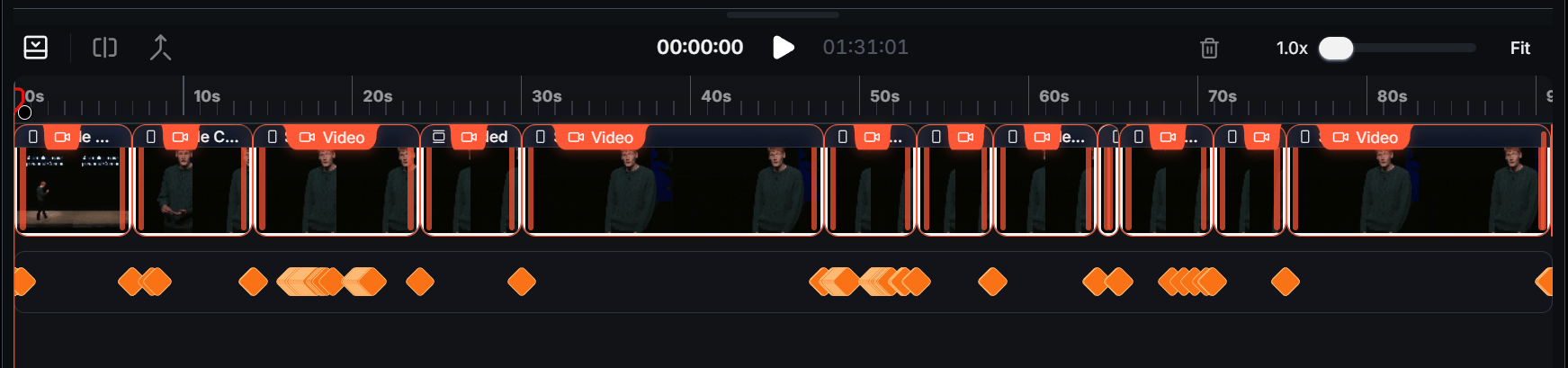 * Each **tile** in the top row is one scene.
* Each **diamond** below is a keyframe; clusters mean several close together.
* The **playhead** selects the scene the panel edits. Use the zoom / `Fit` control (top right) to spread out tightly packed keyframes.
* Right-click a scene tile and choose **Copy Reframe Layout**, then right-click another tile and choose **Paste Reframe Layout** to reuse crop positions, layout, and pan keyframes across that scene's duration.
* When two crop regions touch in the preview, click the small swap arrow between them to switch their positions in the current scene.
## A practical reframing flow
1. Click `Reframe` to enter Edit Mode.
2. For each scene, choose `Static` (fixed crop) or `Pan` (camera move).
3. For Static, set position and zoom once.
4. For Pan, scrub to each key moment, reframe, and click **Add keyframe**.
5. Step through with `‹` / `›` to check the move, then play the clip before exporting.
* Each **tile** in the top row is one scene.
* Each **diamond** below is a keyframe; clusters mean several close together.
* The **playhead** selects the scene the panel edits. Use the zoom / `Fit` control (top right) to spread out tightly packed keyframes.
* Right-click a scene tile and choose **Copy Reframe Layout**, then right-click another tile and choose **Paste Reframe Layout** to reuse crop positions, layout, and pan keyframes across that scene's duration.
* When two crop regions touch in the preview, click the small swap arrow between them to switch their positions in the current scene.
## A practical reframing flow
1. Click `Reframe` to enter Edit Mode.
2. For each scene, choose `Static` (fixed crop) or `Pan` (camera move).
3. For Static, set position and zoom once.
4. For Pan, scrub to each key moment, reframe, and click **Add keyframe**.
5. Step through with `‹` / `›` to check the move, then play the clip before exporting.