> ## Documentation Index
> Fetch the complete documentation index at: https://docs.overlap.ai/llms.txt
> Use this file to discover all available pages before exploring further.
# Workflows
> Build, organize, and publish the workflows that power your clip creation
## What is a workflow?
A **workflow** is the automation you use to turn source content into publish-ready outputs inside Overlap.
Each workflow combines three layers:
* A **trigger** that tells Overlap when to start
* **Editing** logic that shapes the clip
* An **export** step that defines what gets produced
You can keep multiple workflows in the same workspace, turn them on only when you are ready, and use different workflows for different shows, formats, or channels.
## Managing your workflows
Open **Workflows** from the left sidebar to see every workflow in your workspace.
From this screen you can:
* Search for a workflow by name
* Create a new workflow with **New**
* Switch between **List** and **Cards** views
* Use **Select** for bulk actions
* Review each workflow's **status**, **last run**, **triggers**, and **exports**
In the current workflow list, a workflow marked **Listening** is active and waiting for its trigger. A workflow marked **Off** is saved but not actively listening for new inputs.
If you created workflows before the newer product naming, you may still see older workflow names that include **Clipping Agent**. Those are still managed from the same workflows screen.
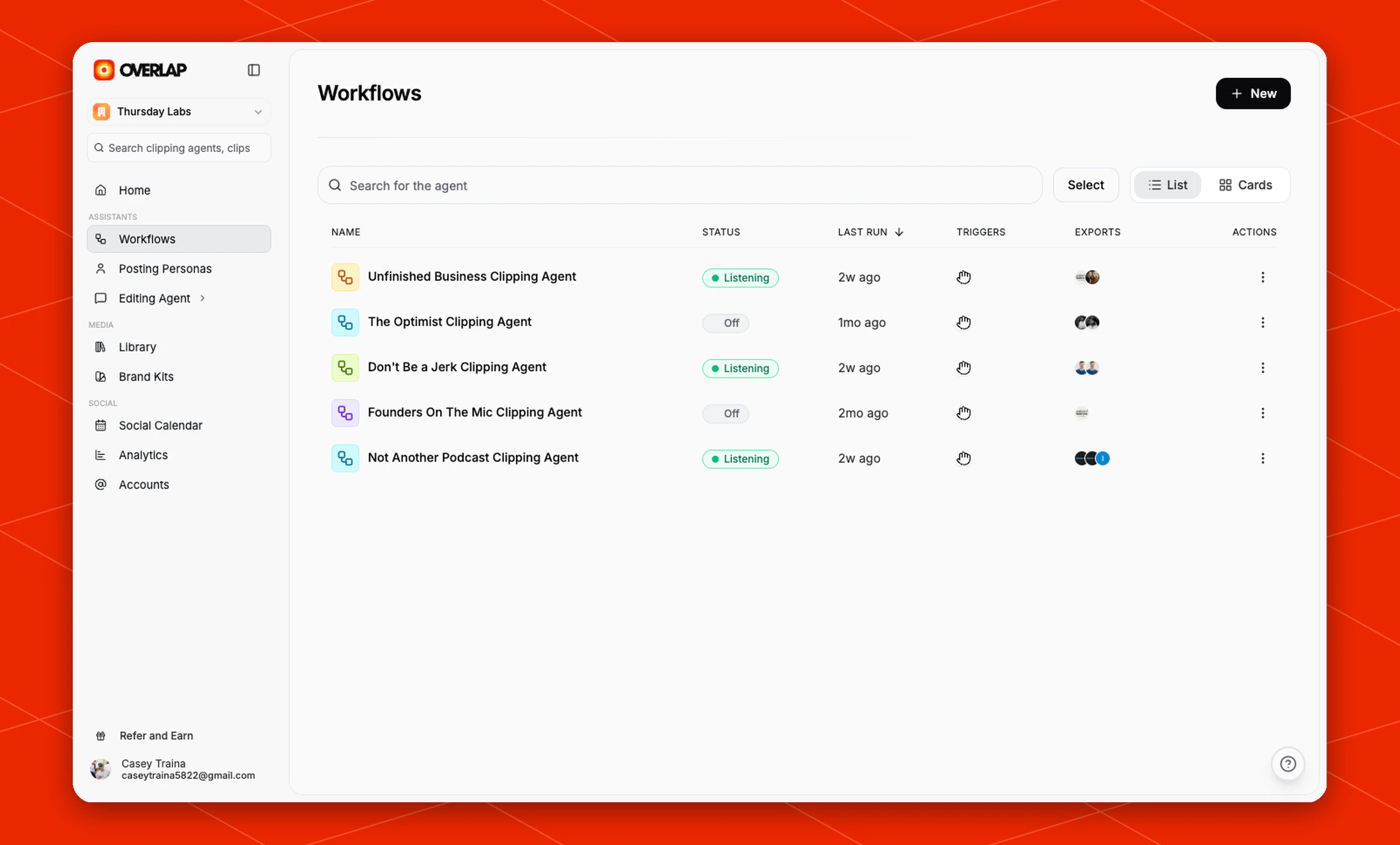 Use **List** view when you want to compare run state, triggers, and exports quickly across multiple workflows. Switch to **Cards** when you want a higher-level visual scan of what is in the workspace.
## Creating a workflow
Click **New** in the top-right corner of the workflows page to open the workflow builder.
The builder is organized into three core stages:
1. **Trigger**
2. **Editing**
3. **Export**
This gives you a simple way to think about every workflow:
* How does it start?
* What should happen to the content?
* What should Overlap produce at the end?
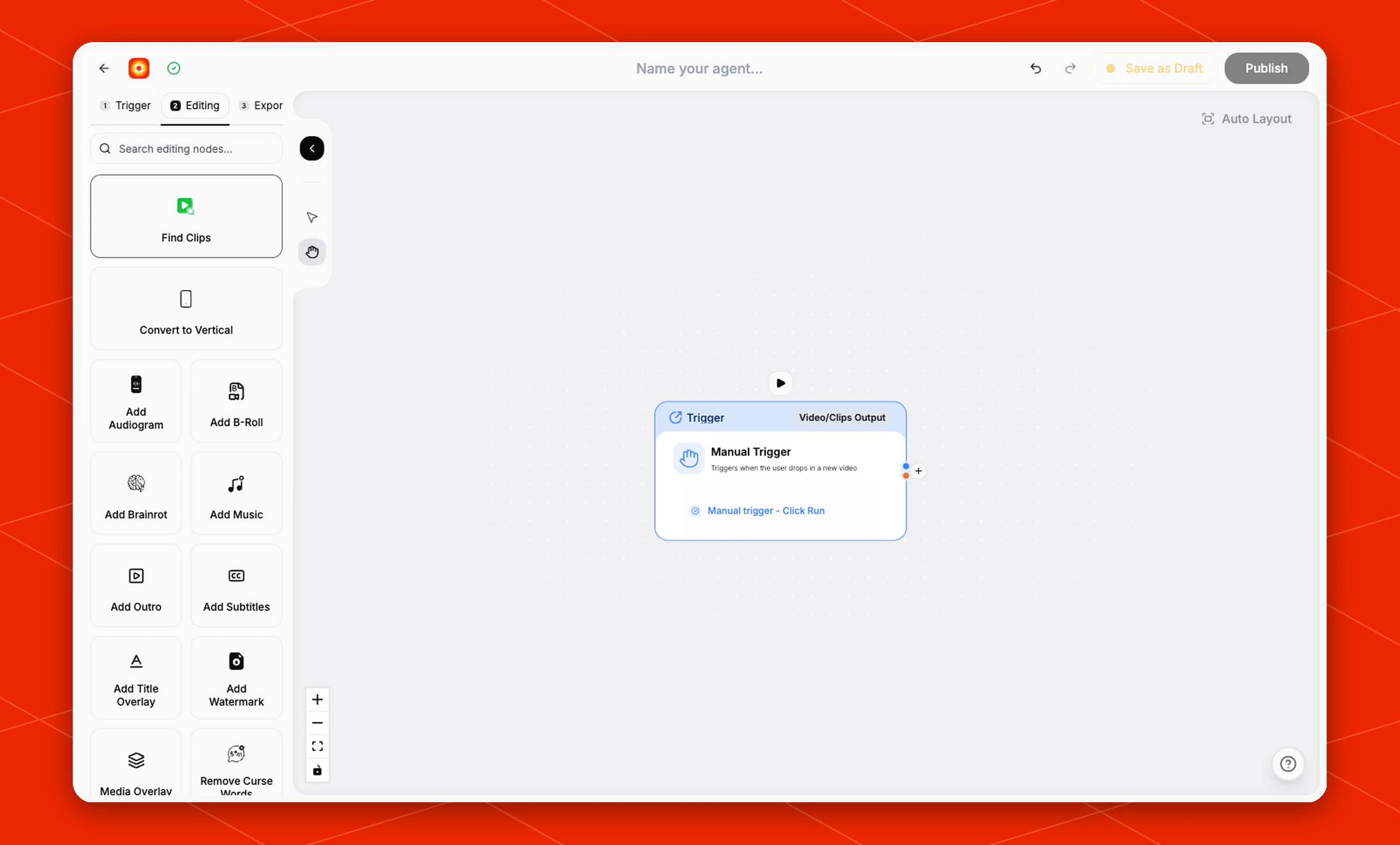
For a first build, start with the empty canvas, then click **Manual Trigger** to place the starting node on the canvas. After that, move into **Editing** to add the next step, such as **Find Clips**.
Use **List** view when you want to compare run state, triggers, and exports quickly across multiple workflows. Switch to **Cards** when you want a higher-level visual scan of what is in the workspace.
## Creating a workflow
Click **New** in the top-right corner of the workflows page to open the workflow builder.
The builder is organized into three core stages:
1. **Trigger**
2. **Editing**
3. **Export**
This gives you a simple way to think about every workflow:
* How does it start?
* What should happen to the content?
* What should Overlap produce at the end?
For a first build, start with the empty canvas, then click **Manual Trigger** to place the starting node on the canvas. After that, move into **Editing** to add the next step, such as **Find Clips**.
 ## Choosing how the workflow starts
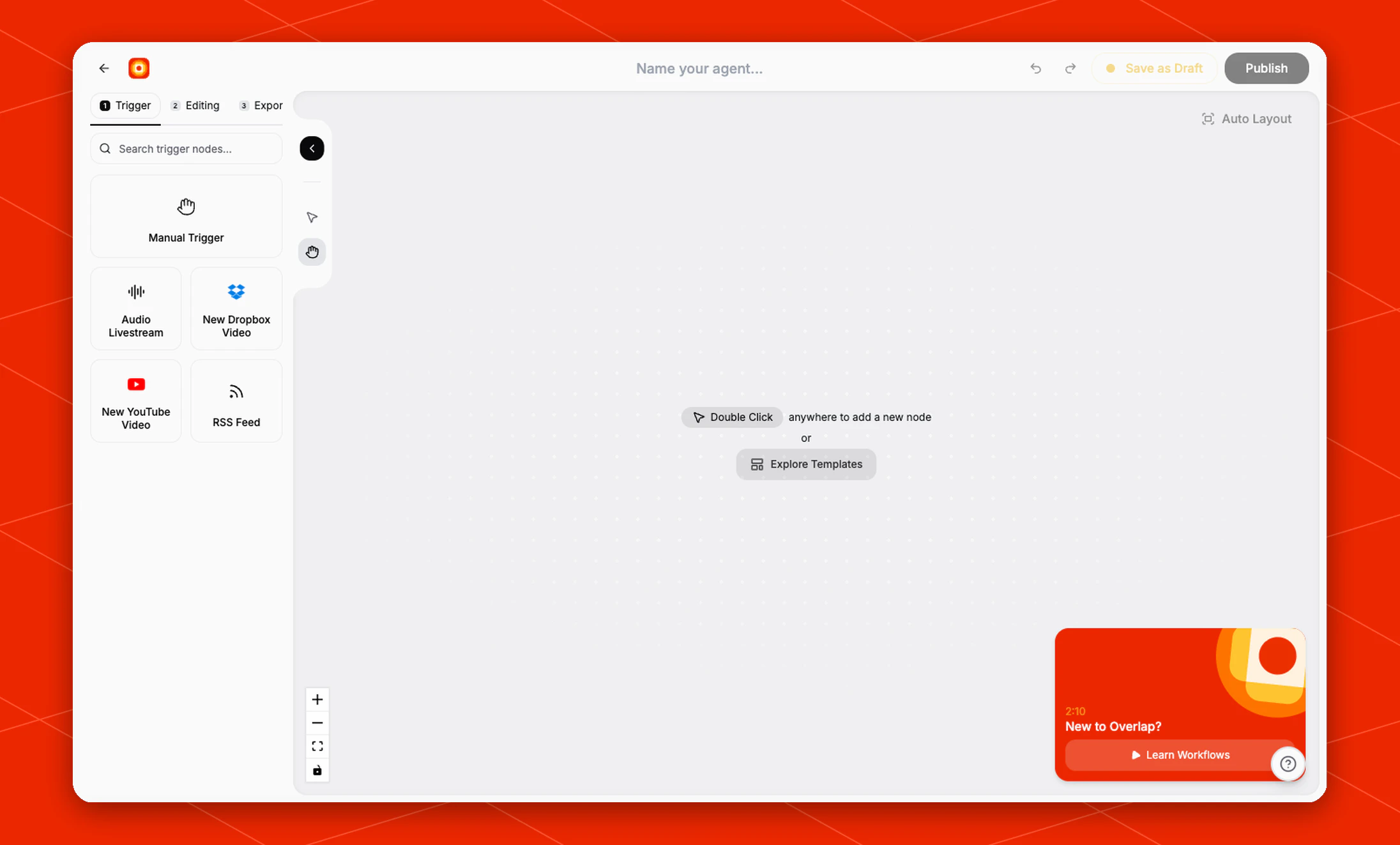
The first step is your **trigger**. This determines what wakes the workflow up.
In the current builder, the trigger panel includes options such as:
* **Manual Trigger**
* **Audio Livestream**
* **New Dropbox Video**
* **New YouTube Video**
* **RSS Feed**
Use a manual trigger when you want to launch the workflow yourself. Use an automatic trigger when you want Overlap to watch a source and begin processing as soon as new content appears.
## Building the flow
After choosing a trigger, move through the **Editing** and **Export** stages to shape the final result.
You can build from scratch or use the canvas helpers already in the builder:
* **Double Click** anywhere on the canvas to add a new node
* **Explore Templates** if you want to start from a prebuilt structure
Think of each node as one piece of the job. Together, those nodes define how the workflow processes content from input to output.
## Connecting nodes together
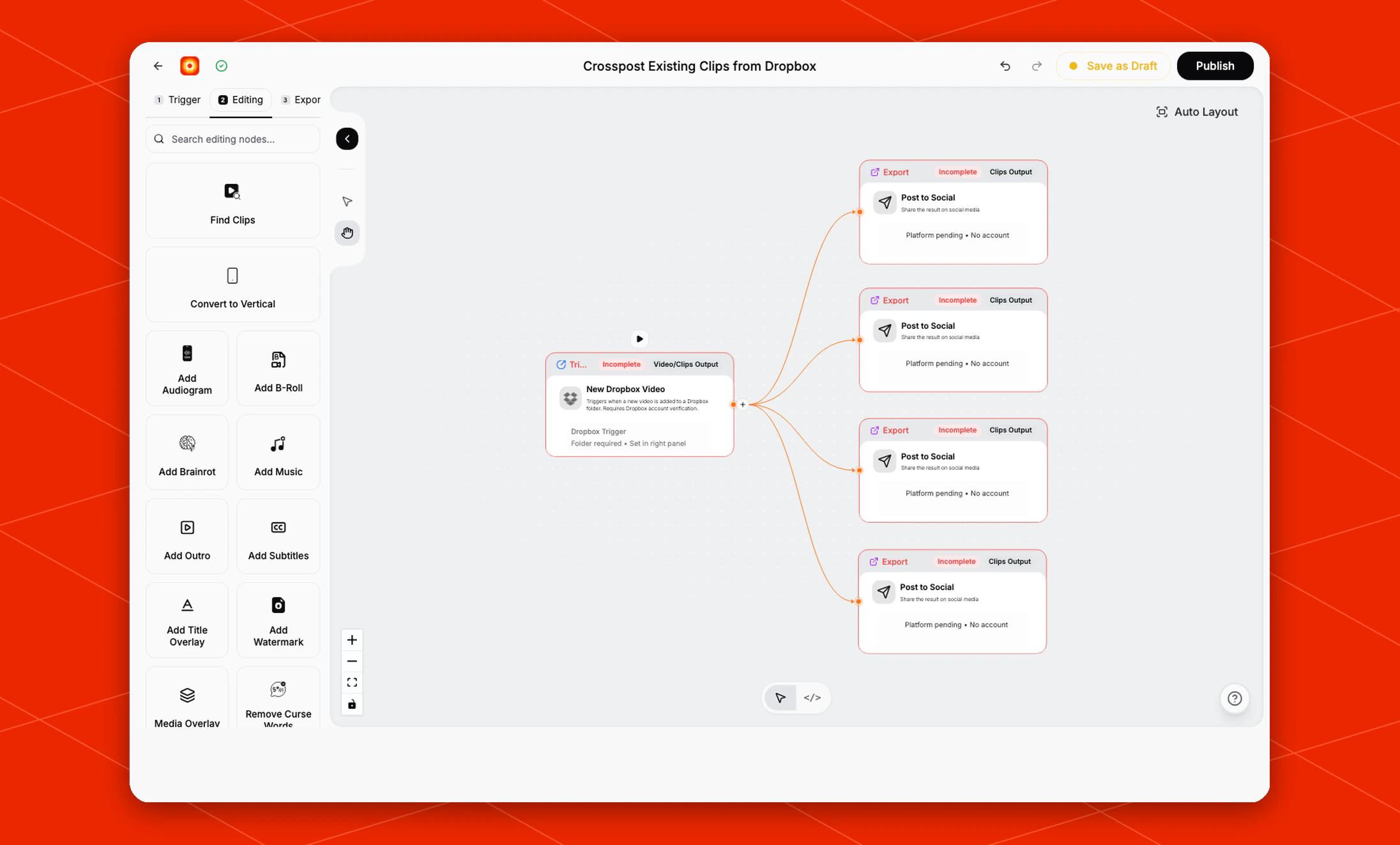
Once you add nodes to the canvas, connect them in the order you want Overlap to run them.
A good way to think about it is:
* The trigger starts the workflow
* Each downstream node performs the next step
* The final connected nodes define what gets exported at the end
If you want one workflow to create multiple outputs, you can branch the flow and connect different downstream paths to different export outcomes.
## Choosing how the workflow starts
The first step is your **trigger**. This determines what wakes the workflow up.
In the current builder, the trigger panel includes options such as:
* **Manual Trigger**
* **Audio Livestream**
* **New Dropbox Video**
* **New YouTube Video**
* **RSS Feed**
Use a manual trigger when you want to launch the workflow yourself. Use an automatic trigger when you want Overlap to watch a source and begin processing as soon as new content appears.
## Building the flow
After choosing a trigger, move through the **Editing** and **Export** stages to shape the final result.
You can build from scratch or use the canvas helpers already in the builder:
* **Double Click** anywhere on the canvas to add a new node
* **Explore Templates** if you want to start from a prebuilt structure
Think of each node as one piece of the job. Together, those nodes define how the workflow processes content from input to output.
## Connecting nodes together
Once you add nodes to the canvas, connect them in the order you want Overlap to run them.
A good way to think about it is:
* The trigger starts the workflow
* Each downstream node performs the next step
* The final connected nodes define what gets exported at the end
If you want one workflow to create multiple outputs, you can branch the flow and connect different downstream paths to different export outcomes.
 ## Saving and publishing
In the top-right corner of the builder, you can save the workflow in different states:
* **Save as Draft** keeps your progress without turning the workflow on
* **Publish** makes the workflow live so it can begin listening for its trigger
Drafts are useful while you are still refining the flow. Publish when the workflow is ready to run on real content.
## A practical workflow setup
A common pattern is to create separate workflows for different content goals, for example:
* One workflow for long-form episode clipping
* One workflow for short-form social content
* One workflow for a specific ingestion source like YouTube, Dropbox, or RSS
This keeps each workflow focused and makes it easier to understand what is active, what is still in draft, and what is producing results.
See how Overlap can turn your content pipeline into a repeatable workflow.
## Saving and publishing
In the top-right corner of the builder, you can save the workflow in different states:
* **Save as Draft** keeps your progress without turning the workflow on
* **Publish** makes the workflow live so it can begin listening for its trigger
Drafts are useful while you are still refining the flow. Publish when the workflow is ready to run on real content.
## A practical workflow setup
A common pattern is to create separate workflows for different content goals, for example:
* One workflow for long-form episode clipping
* One workflow for short-form social content
* One workflow for a specific ingestion source like YouTube, Dropbox, or RSS
This keeps each workflow focused and makes it easier to understand what is active, what is still in draft, and what is producing results.
See how Overlap can turn your content pipeline into a repeatable workflow.