> ## Documentation Index
> Fetch the complete documentation index at: https://docs.overlap.ai/llms.txt
> Use this file to discover all available pages before exploring further.
# Campaigns
> Compare campaigns, pause or resume them, browse posts, and read campaign updates.
> **Campaigns** is the first page you see when you sign in. It shows every campaign and every post side by side.
## The campaigns table
The header shows how many campaigns you have and how many are active. Use the date range picker to choose which posts are counted: **This month** (the default), **Last month**, **Last 30 days**, **Last 90 days**, or **All time**.
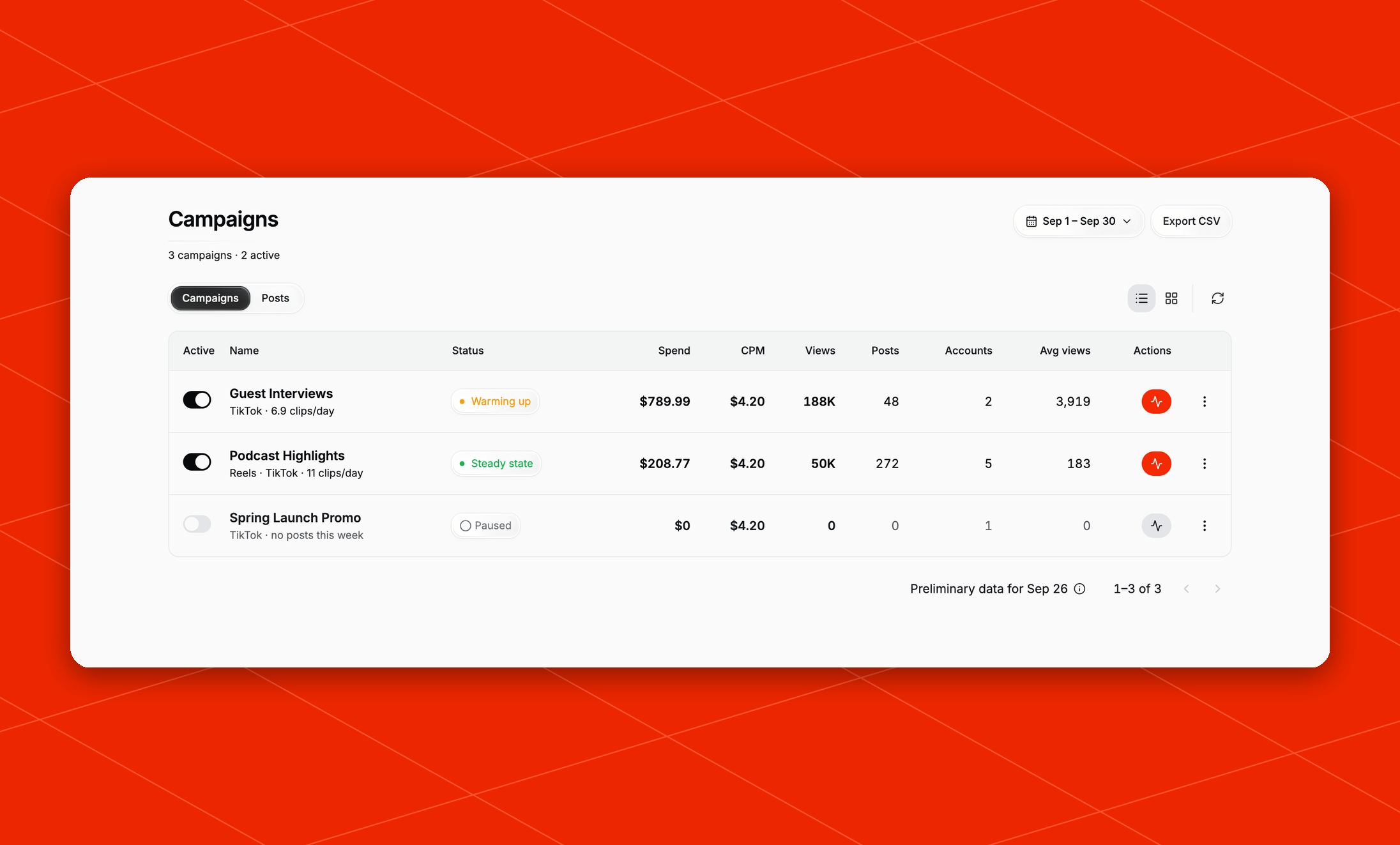 Each campaign row shows:
| Column | What it shows |
| ----------------------------------- | -------------------------------------------------------------------------------------------------------------------------------------------------------------------------------------------------- |
| **Active** | A switch to pause or resume the campaign. |
| **Name** | The campaign name, the platforms it posts to, and how many clips it posts a day. A second line appears when posts are waiting, for example *12 posts held while paused* or *4 posts moved to Oct*. |
| **Status** | The campaign's current phase (see below). |
| **Spend** | What this campaign has billed so far this billing period, plus views delivered since its last invoice, at the campaign's rate. |
| **CPM** | What you're effectively paying per 1,000 views. It's shown in green when it's below your agreed rate, which can happen once a campaign reaches its cap. |
| **Views**, **Posts**, **Avg views** | Delivery for posts published in the selected date range. |
| **Accounts** | How many accounts the campaign posts to. |
| **Actions** | Opens the campaign's [updates](#campaign-updates). A red count means there are updates you haven't read. |
Click **⋮** at the end of a row to **Rename** the campaign or **View posts** for just that campaign.
### Campaign status
| Status | Meaning |
| ---------------- | ---------------------------------------------------------------------------------------------------------------------------------------- |
| **Warming up** | Days 1–14. Posting volume is deliberately small while new accounts build trust with the platforms, so views are lower during this phase. |
| **Ramping** | Days 15–21. Posting volume is increasing. |
| **Steady state** | Day 22 onward. The campaign is running at full volume. |
| **Paused** | You've paused the campaign. Nothing new is posted. |
| **Ended** | The campaign has finished. It can't be resumed. |
### List and card views
Use the **List view** and **Card view** buttons next to **Refresh** to switch layouts. Cards show each campaign's views, spend, CPM, and posts, with a strip across the top that says how many new updates it has. Click a card to open its updates. Its **⋮** menu also has **Pause** or **Resume**.
### Why today's numbers change
Views are the total views earned so far by the posts published in your date range. Platforms keep reporting views for days after a post goes out, so recent numbers keep climbing. Today's posts are still collecting views, which is why the table footer says **Preliminary data**. Click **Refresh** for the latest numbers.
## Pause or resume a campaign
Flip the **Active** switch on a campaign's row. Each switch affects only its own campaign.
**When you pause:**
* Posts that were scheduled are held, and no new clips are posted.
* You're sent an invoice for any views delivered but not yet billed. See [When you're billed](/managed/billing#when-youre-billed).
* The row shows how many posts are being held.
**When you resume:**
* Held posts are rescheduled with their original spacing. The first one can take up to about 12 hours to go out.
* Clipping and posting pick up where they left off.
Pausing doesn't remove anything that's already posted. Those posts stay live and keep earning views.
## When a campaign reaches its monthly cap
When a campaign has billed its full monthly cap, it stops posting for the rest of the month. Any remaining scheduled posts move to the next month. The row shows how many moved, for example *4 posts moved to Oct*. Posting restarts automatically on the 1st.
Your cap is a hard limit: you're never billed more than your cap in a month.
## Choose which accounts belong to a campaign
Click a campaign's row to open its **Posting to** list:
Each campaign row shows:
| Column | What it shows |
| ----------------------------------- | -------------------------------------------------------------------------------------------------------------------------------------------------------------------------------------------------- |
| **Active** | A switch to pause or resume the campaign. |
| **Name** | The campaign name, the platforms it posts to, and how many clips it posts a day. A second line appears when posts are waiting, for example *12 posts held while paused* or *4 posts moved to Oct*. |
| **Status** | The campaign's current phase (see below). |
| **Spend** | What this campaign has billed so far this billing period, plus views delivered since its last invoice, at the campaign's rate. |
| **CPM** | What you're effectively paying per 1,000 views. It's shown in green when it's below your agreed rate, which can happen once a campaign reaches its cap. |
| **Views**, **Posts**, **Avg views** | Delivery for posts published in the selected date range. |
| **Accounts** | How many accounts the campaign posts to. |
| **Actions** | Opens the campaign's [updates](#campaign-updates). A red count means there are updates you haven't read. |
Click **⋮** at the end of a row to **Rename** the campaign or **View posts** for just that campaign.
### Campaign status
| Status | Meaning |
| ---------------- | ---------------------------------------------------------------------------------------------------------------------------------------- |
| **Warming up** | Days 1–14. Posting volume is deliberately small while new accounts build trust with the platforms, so views are lower during this phase. |
| **Ramping** | Days 15–21. Posting volume is increasing. |
| **Steady state** | Day 22 onward. The campaign is running at full volume. |
| **Paused** | You've paused the campaign. Nothing new is posted. |
| **Ended** | The campaign has finished. It can't be resumed. |
### List and card views
Use the **List view** and **Card view** buttons next to **Refresh** to switch layouts. Cards show each campaign's views, spend, CPM, and posts, with a strip across the top that says how many new updates it has. Click a card to open its updates. Its **⋮** menu also has **Pause** or **Resume**.
### Why today's numbers change
Views are the total views earned so far by the posts published in your date range. Platforms keep reporting views for days after a post goes out, so recent numbers keep climbing. Today's posts are still collecting views, which is why the table footer says **Preliminary data**. Click **Refresh** for the latest numbers.
## Pause or resume a campaign
Flip the **Active** switch on a campaign's row. Each switch affects only its own campaign.
**When you pause:**
* Posts that were scheduled are held, and no new clips are posted.
* You're sent an invoice for any views delivered but not yet billed. See [When you're billed](/managed/billing#when-youre-billed).
* The row shows how many posts are being held.
**When you resume:**
* Held posts are rescheduled with their original spacing. The first one can take up to about 12 hours to go out.
* Clipping and posting pick up where they left off.
Pausing doesn't remove anything that's already posted. Those posts stay live and keep earning views.
## When a campaign reaches its monthly cap
When a campaign has billed its full monthly cap, it stops posting for the rest of the month. Any remaining scheduled posts move to the next month. The row shows how many moved, for example *4 posts moved to Oct*. Posting restarts automatically on the 1st.
Your cap is a hard limit: you're never billed more than your cap in a month.
## Choose which accounts belong to a campaign
Click a campaign's row to open its **Posting to** list:
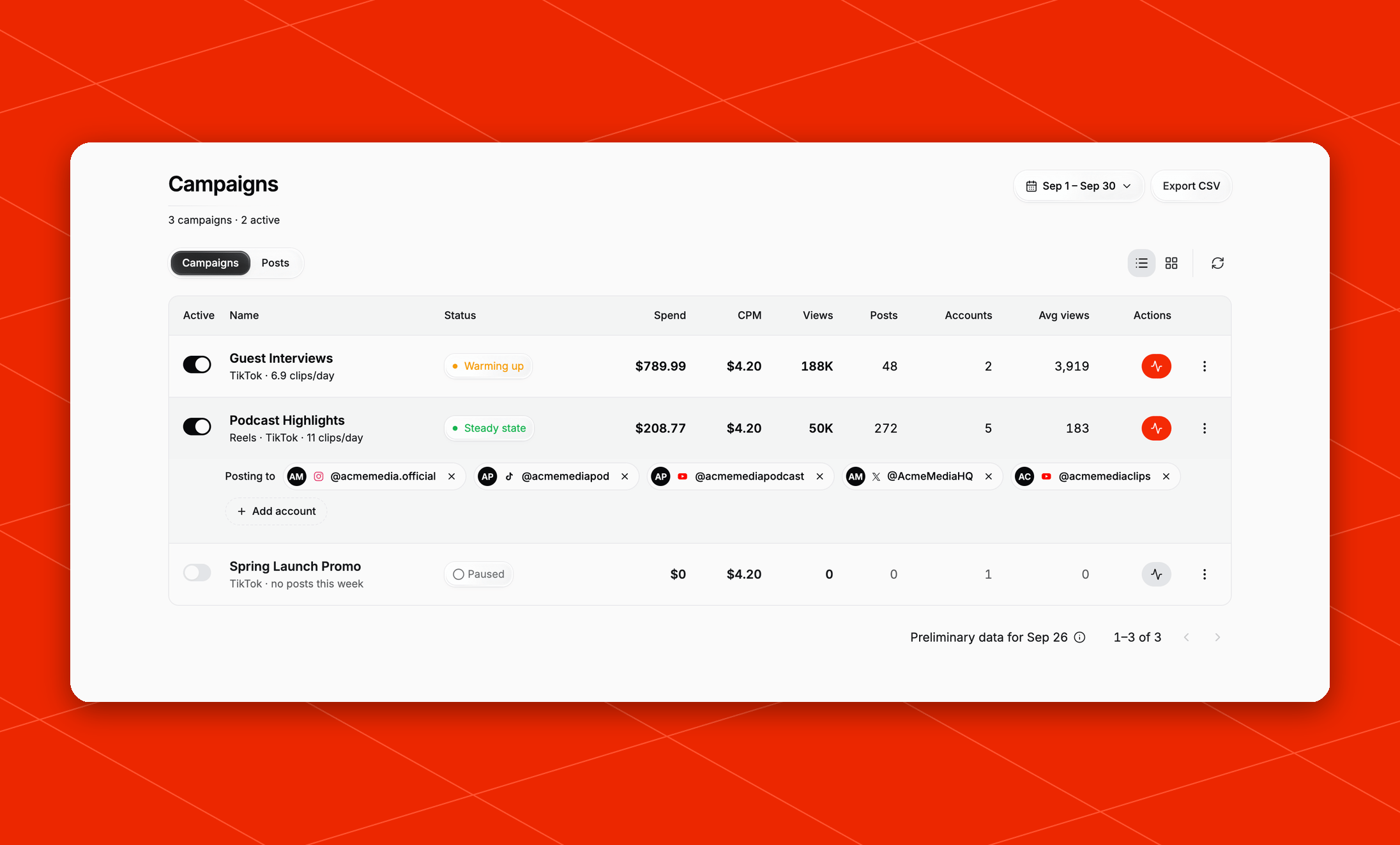 * Click **Add account** to add one of your linked accounts to the campaign.
* Click **✕** on an account to remove it. Every campaign needs at least one account, so you can't remove the last one.
You can also do this one account at a time from the [Accounts](/managed/accounts) page.
An account the campaign is actively posting through always shows in its list. To change where a campaign publishes, contact your Overlap team.
## Browse posts
Open the **Posts** tab to see each post individually. Every row shows its thumbnail and caption, campaign, account, publish date, views, likes, shares, and spend. Click **Open post** to see it on the platform. Platforms are labeled by format: **Reels** for Instagram, **Shorts** for YouTube, plus **TikTok** and **X**.
* **Filter** by campaign or account.
* **Sort** by newest or oldest, most views, most likes, most shares, or highest or lowest spend.
* Posts that are **trending right now** are marked 🔥 and appear at the top when you use the default sort without filters.
The spend shown for each post is an estimate of the value it delivered. Your [invoices](/managed/billing#invoices) show what you're actually charged.
## Export to CSV
Click **Export CSV** to download every post in the selected date range. If you're on the **Posts** tab, the export uses your current filters.
## Campaign updates
Overlap keeps a running log of what each campaign is doing. Open it with the button in a row's **Actions** column, or by clicking a card in card view.
* Click **Add account** to add one of your linked accounts to the campaign.
* Click **✕** on an account to remove it. Every campaign needs at least one account, so you can't remove the last one.
You can also do this one account at a time from the [Accounts](/managed/accounts) page.
An account the campaign is actively posting through always shows in its list. To change where a campaign publishes, contact your Overlap team.
## Browse posts
Open the **Posts** tab to see each post individually. Every row shows its thumbnail and caption, campaign, account, publish date, views, likes, shares, and spend. Click **Open post** to see it on the platform. Platforms are labeled by format: **Reels** for Instagram, **Shorts** for YouTube, plus **TikTok** and **X**.
* **Filter** by campaign or account.
* **Sort** by newest or oldest, most views, most likes, most shares, or highest or lowest spend.
* Posts that are **trending right now** are marked 🔥 and appear at the top when you use the default sort without filters.
The spend shown for each post is an estimate of the value it delivered. Your [invoices](/managed/billing#invoices) show what you're actually charged.
## Export to CSV
Click **Export CSV** to download every post in the selected date range. If you're on the **Posts** tab, the export uses your current filters.
## Campaign updates
Overlap keeps a running log of what each campaign is doing. Open it with the button in a row's **Actions** column, or by clicking a card in card view.
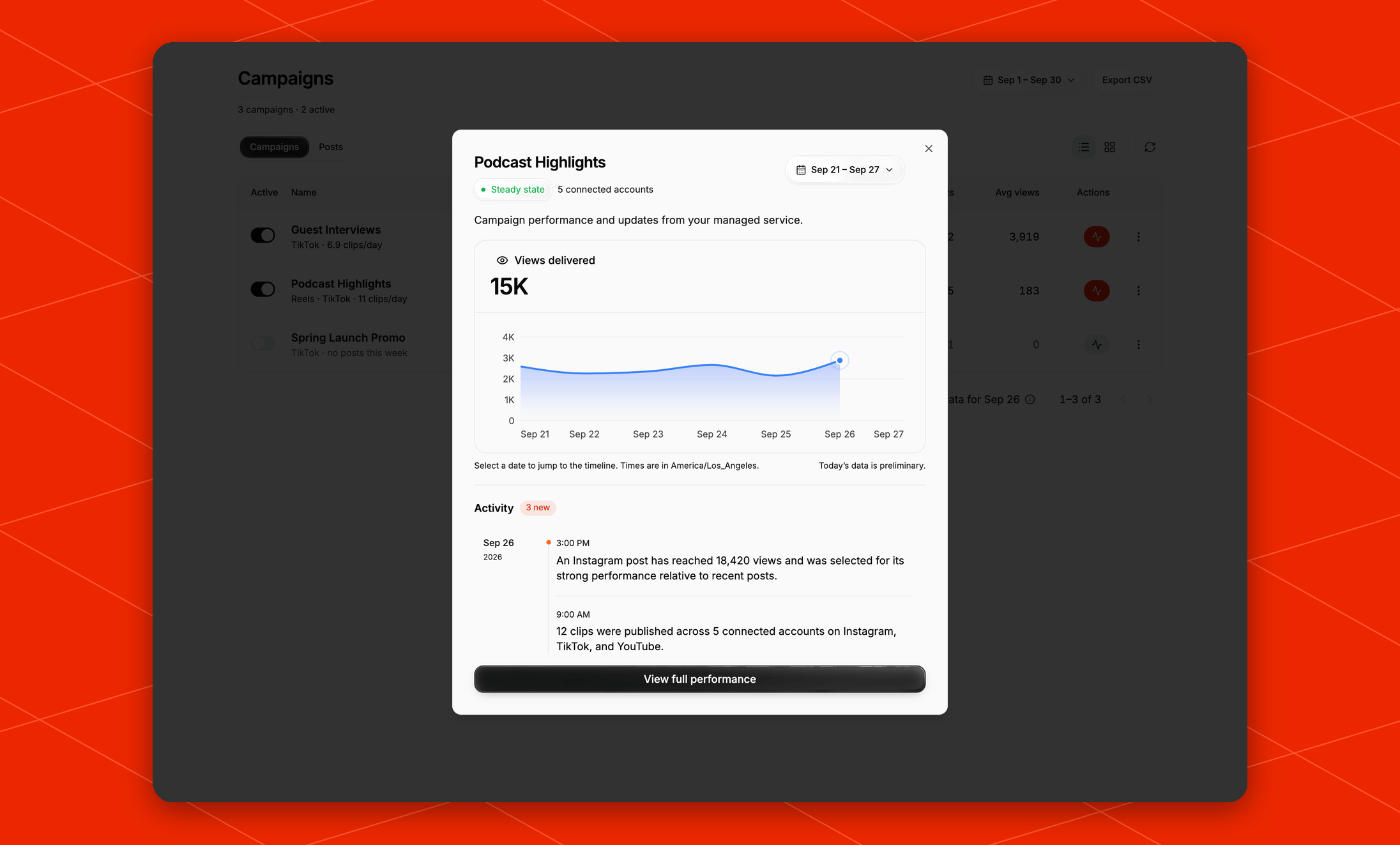 The window shows:
* **Views delivered**: a chart of one week's views, grouped by the day each post was published. Use the week picker at the top to look at earlier weeks. Click a date on the chart to jump to that day's updates. Times are shown in your local timezone.
* **Activity**: a timeline of updates, newest first, such as:
* a source finished clipping and new clips are ready
* a daily summary of what was posted
* a post started trending
* the campaign's posting setup was changed, turned on, or turned off
Click **Load older updates** to go further back, or **View full performance** to open the [Performance](/managed/performance) page for that campaign. Updates are marked as read when you close the window.
The window shows:
* **Views delivered**: a chart of one week's views, grouped by the day each post was published. Use the week picker at the top to look at earlier weeks. Click a date on the chart to jump to that day's updates. Times are shown in your local timezone.
* **Activity**: a timeline of updates, newest first, such as:
* a source finished clipping and new clips are ready
* a daily summary of what was posted
* a post started trending
* the campaign's posting setup was changed, turned on, or turned off
Click **Load older updates** to go further back, or **View full performance** to open the [Performance](/managed/performance) page for that campaign. Updates are marked as read when you close the window.