> ## Documentation Index
> Fetch the complete documentation index at: https://docs.overlap.ai/llms.txt
> Use this file to discover all available pages before exploring further.
# Set Up Your First Campaign
> Open your sign-up link, connect your sources and accounts, set a budget, and launch.
> Setup takes a few minutes. Your progress saves as you go, so you can close the tab and pick up where you left off.
## 1. Open your sign-up link
Your Overlap contact sends you a sign-up link. Open it and create an account, or sign in if you already have one. Overlap then sets up your workspace and takes you straight to campaign setup.
Each sign-up link is for one person, the first person who uses it. To bring in teammates, finish setup and then invite them from **Settings → Members**. See [Managing your Team](/essentials/team).
If the link doesn't work:
* **"This sign-up link isn't valid."** Check that you copied the whole link.
* **"This sign-up link has been turned off."** or **"already been used by someone else"**. Ask your Overlap contact for a new link.
* If you're signed in to the wrong account, choose **Use a different account**.
## 2. Walk through setup
Setup has five or six steps, depending on how you pay. You'll see a **Payment** step only if you pay by card. If you pay by invoice, that step is skipped.
Press **Continue** (or **Enter**) to move forward and **Back** to change an earlier answer. You can't use the rest of the dashboard until you launch your first campaign.
Add the content you want clipped. You need at least one source.
* **YouTube**: start typing a channel name to search, then click a channel to add it. Click **Playlists** to add just one playlist. You can also paste a channel link or an @handle.
* **Dropbox**: connect your Dropbox account and pick the folder your campaign should watch for new videos.
* **Drive**, **RSS**, **SharePoint**, **Frame.io**: paste a folder, feed, or project link.
* **Upload**: add video or audio files from your computer.
* **Keyword** and **Person**: type a topic or a name, then press **Enter**. Your Overlap team uses these to find and guide clips. Choosing **Clip anything related to "…"** in the YouTube search adds your search text as a keyword.
Each source shows **Syncing** while it saves, then **Listening**.
New videos on YouTube channels and playlists, podcast feeds, and connected Dropbox folders are picked up automatically. Your Overlap team handles the other source types, including single videos, pasted folder links, and uploads.
Choose where your clips are posted. Click **Connect +** next to a platform to link an account. Instagram, YouTube, TikTok, and X are listed first. Click **More platforms** for LinkedIn, Facebook, Threads, Snapchat, and Bluesky.
Newly linked accounts are selected automatically. If you've linked several accounts on one platform, open that platform's picker to choose which ones the campaign uses. You need at least one selected account.
If the connection window doesn't open, allow pop-ups for the site and try again. For platform-specific help, see [Linking Accounts](/essentials/linking).
*Card billing only.* Add the card your invoices will be charged to. Nothing is charged during setup. The form is secure, and your card number never reaches Overlap.
You can change the card later from the [Billing](/managed/billing#payment-method) page.
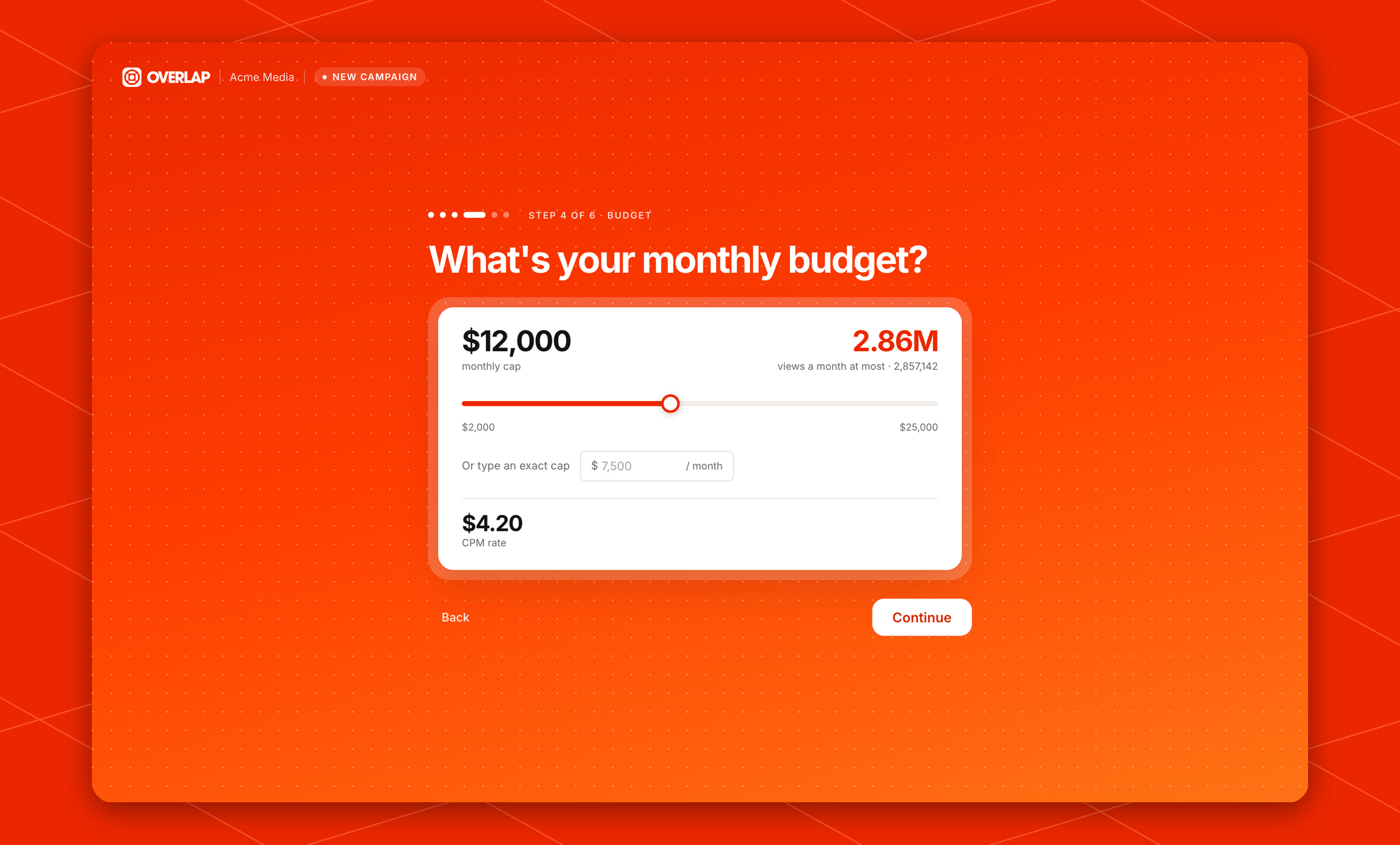
Set your **monthly cap**, the most your campaign can bill in a calendar month. Drag the slider or type an exact amount under **Or type an exact cap**. The slider starts at your plan's minimum. A small tick marks the budget you agreed with Overlap.
Next to the cap you'll see the most views that amount buys at your CPM rate. This is an upper limit, not a guaranteed number of views.
 Optional. Describe anything you don't want clipped, in plain language. For example: *no politics, skip anything that sounds like legal advice, and don't touch ep 88.*
As you type, Overlap turns your note into short tags under **Saved as**. Clips are chosen with these restrictions in mind.
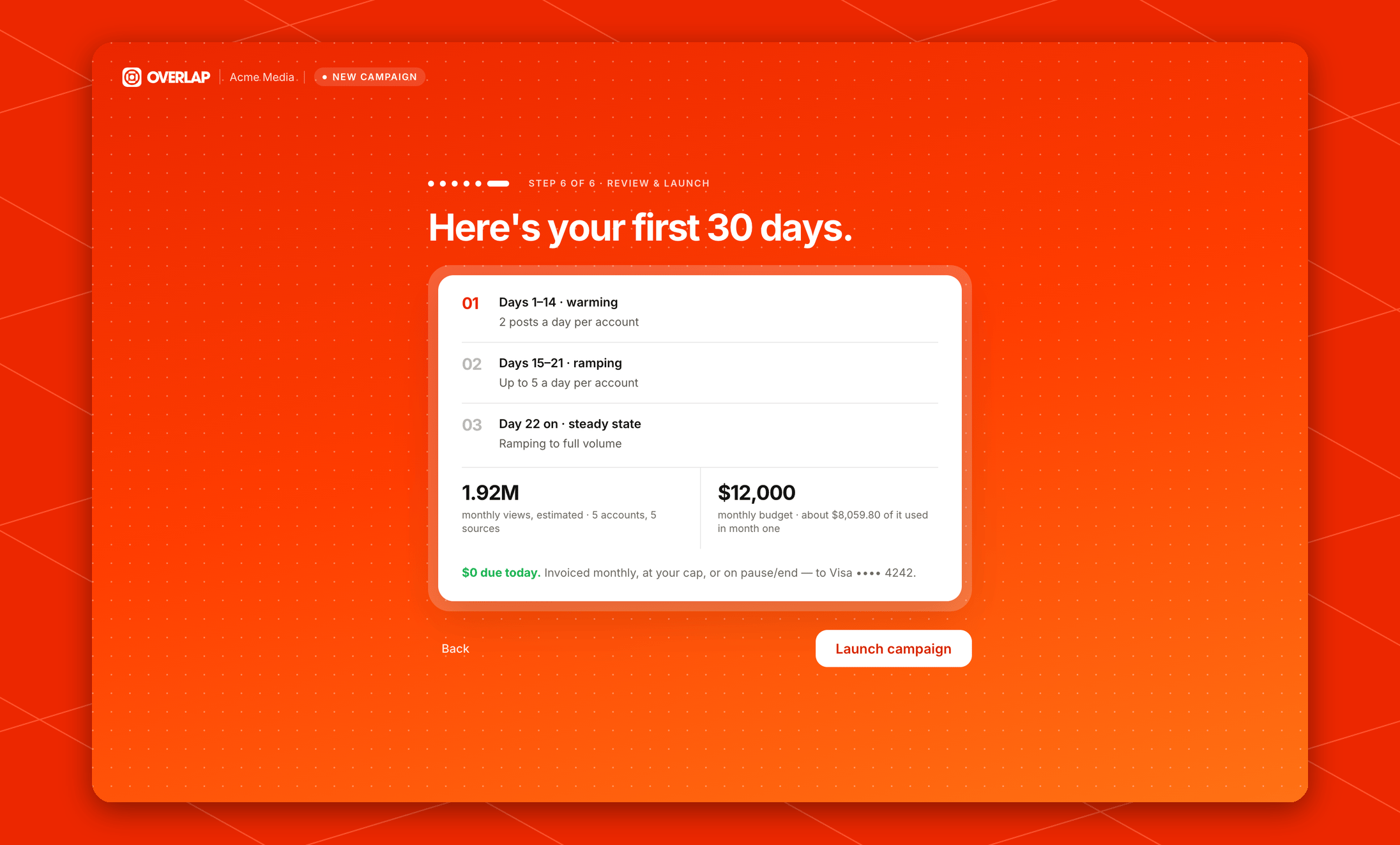
Review your plan and estimates, then click **Launch campaign**.
New accounts ramp up gradually so platforms treat them as healthy:
| Phase | When | Posting volume |
| ------------ | ---------- | ------------------------- |
| Warming | Days 1–14 | 2 posts a day per account |
| Ramping | Days 15–21 | Up to 5 a day per account |
| Steady state | Day 22 on | Ramping to full volume |
The estimated monthly views and first-month spend are projections, not guarantees. The page also confirms that **\$0** is due today.
Optional. Describe anything you don't want clipped, in plain language. For example: *no politics, skip anything that sounds like legal advice, and don't touch ep 88.*
As you type, Overlap turns your note into short tags under **Saved as**. Clips are chosen with these restrictions in mind.
Review your plan and estimates, then click **Launch campaign**.
New accounts ramp up gradually so platforms treat them as healthy:
| Phase | When | Posting volume |
| ------------ | ---------- | ------------------------- |
| Warming | Days 1–14 | 2 posts a day per account |
| Ramping | Days 15–21 | Up to 5 a day per account |
| Steady state | Day 22 on | Ramping to full volume |
The estimated monthly views and first-month spend are projections, not guarantees. The page also confirms that **\$0** is due today.
 After launch you land on the [Campaigns](/managed/campaigns) page. Your first campaign is named after your organization, for example *Acme · Campaign 1*. You can rename it at any time.
## Frequently asked questions
Contact your Overlap team through **Contact Support** in the profile menu, and they'll update your campaign.
Your Overlap team sets up additional campaigns. Contact them with the sources and accounts you'd like to use.
Your workspace hasn't been set up for the managed service. Open your sign-up link again, or contact your Overlap team.
If loading takes longer than usual, you'll see **Reload** and **Sign out** options. Reloading usually fixes it. If it doesn't, contact support.
After launch you land on the [Campaigns](/managed/campaigns) page. Your first campaign is named after your organization, for example *Acme · Campaign 1*. You can rename it at any time.
## Frequently asked questions
Contact your Overlap team through **Contact Support** in the profile menu, and they'll update your campaign.
Your Overlap team sets up additional campaigns. Contact them with the sources and accounts you'd like to use.
Your workspace hasn't been set up for the managed service. Open your sign-up link again, or contact your Overlap team.
If loading takes longer than usual, you'll see **Reload** and **Sign out** options. Reloading usually fixes it. If it doesn't, contact support.