> ## Documentation Index
> Fetch the complete documentation index at: https://docs.overlap.ai/llms.txt
> Use this file to discover all available pages before exploring further.
# Managed Service Overview
> How Overlap's managed service works and what you'll find in your dashboard.
> With the managed service, Overlap clips and posts your content for you, and you pay only for the views we deliver.
 ## How it works
You tell us what to clip and where to post. Overlap finds the best moments in your content, turns them into short-form clips, and publishes them to your social accounts. You're billed at a fixed rate per 1,000 views delivered (your **CPM rate**). You can't be billed more than the **monthly cap** you set.
Your dashboard lets you:
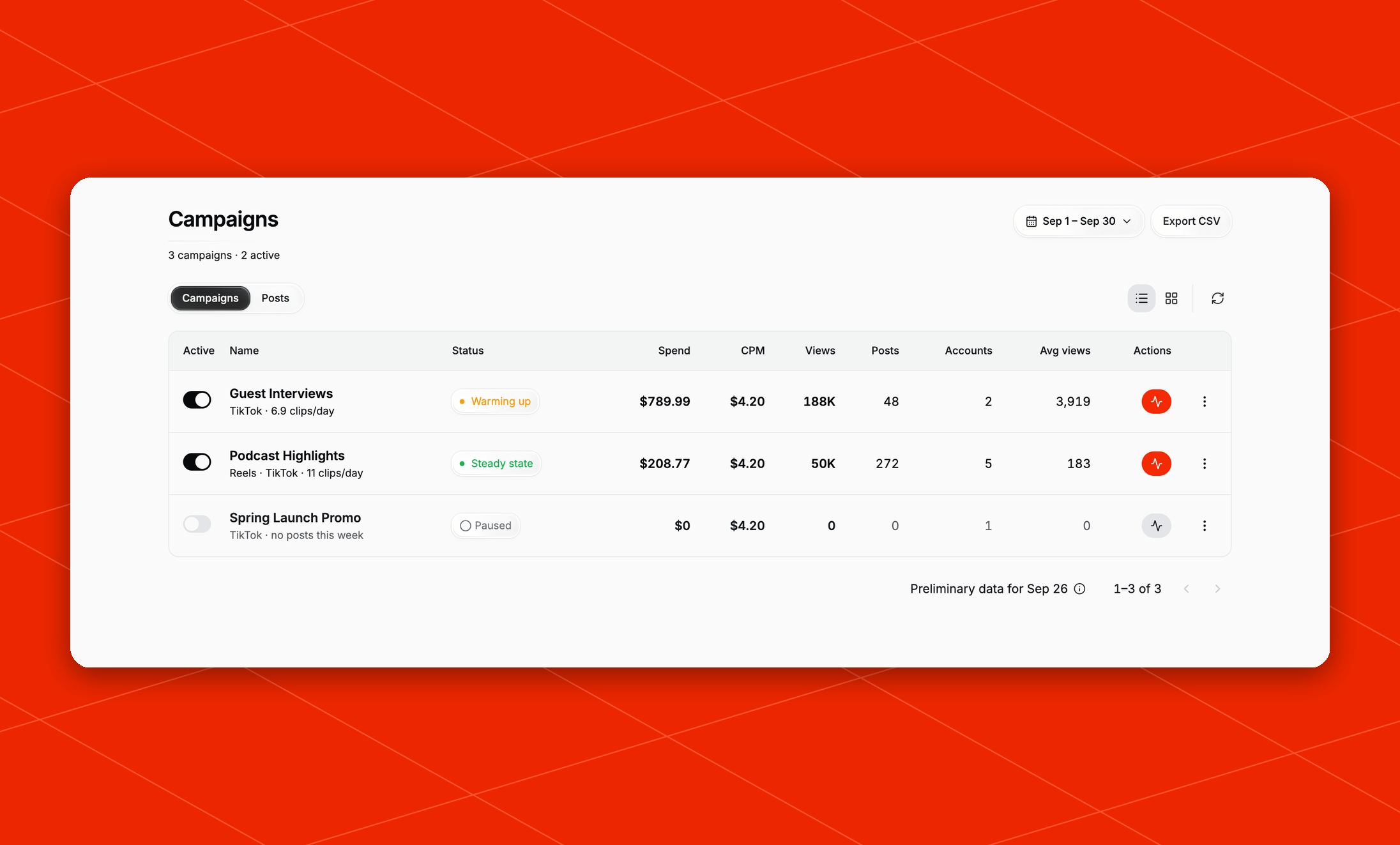
* follow the views, posts, and spend of each campaign
* pause or resume a campaign at any time
* connect or unlink social accounts
* see what your campaign has been doing, day by day
* review your invoices and update your payment method
## Key terms
| Term | What it means |
| ------------------- | -------------------------------------------------------------------------------------------------------------------------------------------------------------- |
| **Campaign** | One ongoing run of clipping and posting: your sources, the accounts it posts to, and its monthly cap. |
| **Source** | Where clips come from. A source can be a YouTube channel or playlist, a podcast feed, a Dropbox folder, a link, an upload, or a keyword or person to look for. |
| **CPM rate** | What you pay per 1,000 views delivered. You agree on it with Overlap before you sign up. |
| **Monthly cap** | The most a campaign can bill in one calendar month. When a campaign reaches its cap, posting stops until the next month. |
| **Views delivered** | The views your campaign's posts earn, as reported by each platform. See [What counts as a view](/managed/billing#what-counts-as-a-view). |
| **Guardrails** | Topics and content you don't want clipped. |
## Finding your way around
The left sidebar has five sections:
| Section | Use it to |
| ----------------------------------- | ------------------------------------------------------------------------------------------------------------------------------------- |
| [Performance](/managed/performance) | See how one campaign is doing this month compared with its target. |
| [Campaigns](/managed/campaigns) | Compare your campaigns, pause or resume them, browse posts, and read campaign updates. This is the page you land on when you sign in. |
| [Accounts](/managed/accounts) | Connect or unlink social accounts and choose which campaigns each account belongs to. |
| [Billing](/managed/billing) | See this month's spend, your invoices, and your payment method. |
| Settings | Manage your profile, security, notifications, organization details, and [team members](/essentials/team). |
The profile menu in the bottom left has **Contact Support**, **Speak with founders**, a **Theme** picker, and **Sign out**.
## Get started
Open your sign-up link and walk through setup.
Learn how views turn into invoices.
## How it works
You tell us what to clip and where to post. Overlap finds the best moments in your content, turns them into short-form clips, and publishes them to your social accounts. You're billed at a fixed rate per 1,000 views delivered (your **CPM rate**). You can't be billed more than the **monthly cap** you set.
Your dashboard lets you:
* follow the views, posts, and spend of each campaign
* pause or resume a campaign at any time
* connect or unlink social accounts
* see what your campaign has been doing, day by day
* review your invoices and update your payment method
## Key terms
| Term | What it means |
| ------------------- | -------------------------------------------------------------------------------------------------------------------------------------------------------------- |
| **Campaign** | One ongoing run of clipping and posting: your sources, the accounts it posts to, and its monthly cap. |
| **Source** | Where clips come from. A source can be a YouTube channel or playlist, a podcast feed, a Dropbox folder, a link, an upload, or a keyword or person to look for. |
| **CPM rate** | What you pay per 1,000 views delivered. You agree on it with Overlap before you sign up. |
| **Monthly cap** | The most a campaign can bill in one calendar month. When a campaign reaches its cap, posting stops until the next month. |
| **Views delivered** | The views your campaign's posts earn, as reported by each platform. See [What counts as a view](/managed/billing#what-counts-as-a-view). |
| **Guardrails** | Topics and content you don't want clipped. |
## Finding your way around
The left sidebar has five sections:
| Section | Use it to |
| ----------------------------------- | ------------------------------------------------------------------------------------------------------------------------------------- |
| [Performance](/managed/performance) | See how one campaign is doing this month compared with its target. |
| [Campaigns](/managed/campaigns) | Compare your campaigns, pause or resume them, browse posts, and read campaign updates. This is the page you land on when you sign in. |
| [Accounts](/managed/accounts) | Connect or unlink social accounts and choose which campaigns each account belongs to. |
| [Billing](/managed/billing) | See this month's spend, your invoices, and your payment method. |
| Settings | Manage your profile, security, notifications, organization details, and [team members](/essentials/team). |
The profile menu in the bottom left has **Contact Support**, **Speak with founders**, a **Theme** picker, and **Sign out**.
## Get started
Open your sign-up link and walk through setup.
Learn how views turn into invoices.