> ## Documentation Index
> Fetch the complete documentation index at: https://docs.overlap.ai/llms.txt
> Use this file to discover all available pages before exploring further.
> Add background music to clips in a workflow.
# Add music
> Add background music to every clip that reaches this node.
### Schema
* **Input**: Video or clips from an upstream trigger or editing node
* **Output**: Video or clips with background music applied
## Add the node
Open **Workflows** from the left sidebar and click **New** to open the workflow builder.
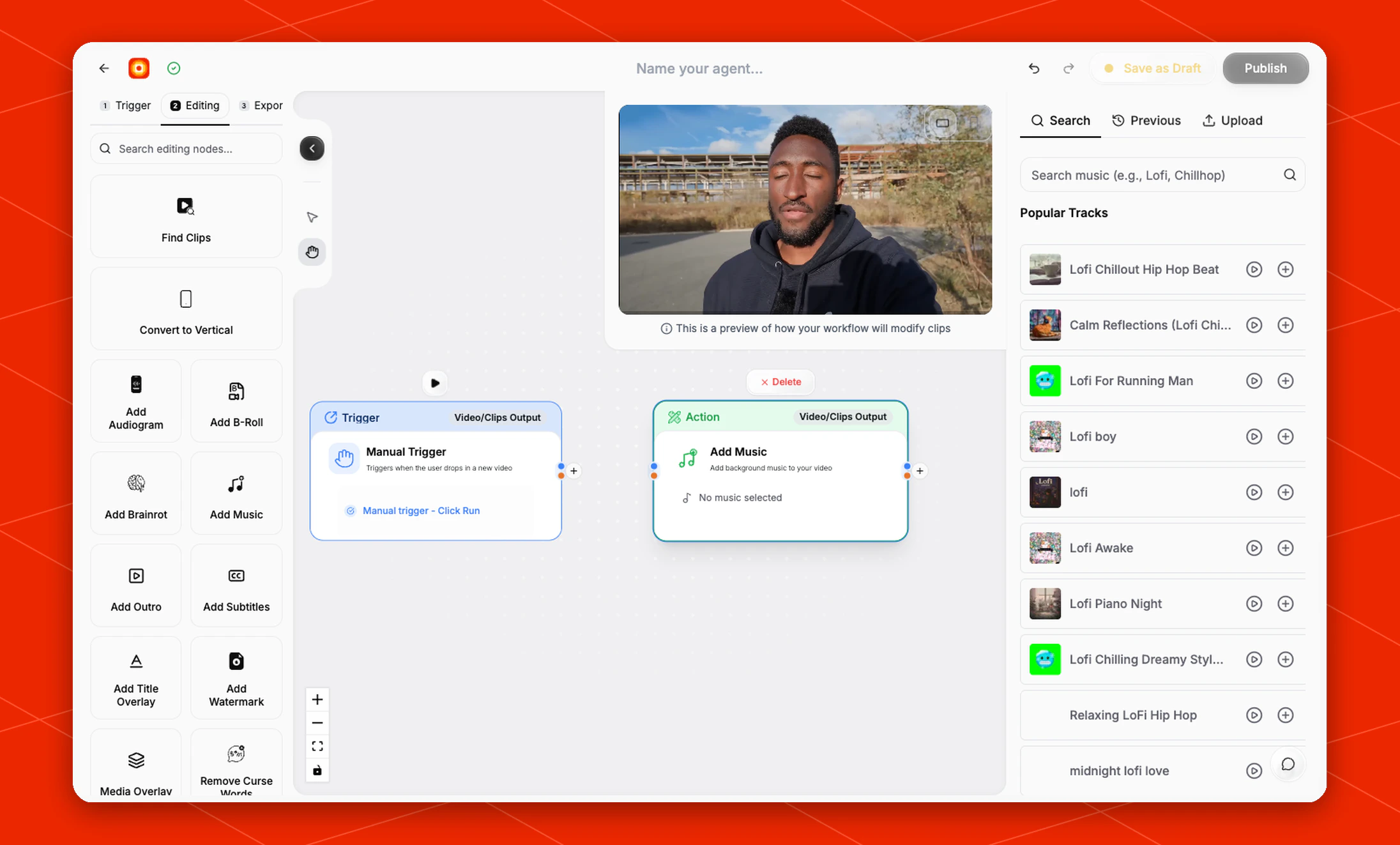
Add a trigger first, then continue in the **Editing** stage. Choose **Add Music** from the editing node panel. Overlap adds an action node to the canvas.
Click **No music selected** inside the node to open the music picker on the right side.
 ## Choose music
The music picker opens with a clip preview and three tabs:
* **Search**
* **Previous**
* **Upload**
Use **Search** to find a track by style or mood. The current search field suggests examples such as `Lofi` and `Chillhop`, and the panel also lists **Popular Tracks**.
Click the play button on a track to preview it. Click the plus button to add that track to the node.
## Upload music
Use **Upload** when you want to use your own music instead of a track from the picker.
After music is selected, the node updates from **No music selected** to the chosen music, and downstream nodes receive clips with the background music applied.
## Build the rest of the workflow
Use **Add Music** after the workflow has a video or clip source. A common flow is [Manual Trigger](/nodes/manual-trigger) -> [Find Clips](/nodes/findclips) -> **Add Music** -> [Add Subtitles](/nodes/subtitles) -> **Post to Social**.
Finish the workflow with an export node, then click **Publish** when the workflow is ready.
## Choose music
The music picker opens with a clip preview and three tabs:
* **Search**
* **Previous**
* **Upload**
Use **Search** to find a track by style or mood. The current search field suggests examples such as `Lofi` and `Chillhop`, and the panel also lists **Popular Tracks**.
Click the play button on a track to preview it. Click the plus button to add that track to the node.
## Upload music
Use **Upload** when you want to use your own music instead of a track from the picker.
After music is selected, the node updates from **No music selected** to the chosen music, and downstream nodes receive clips with the background music applied.
## Build the rest of the workflow
Use **Add Music** after the workflow has a video or clip source. A common flow is [Manual Trigger](/nodes/manual-trigger) -> [Find Clips](/nodes/findclips) -> **Add Music** -> [Add Subtitles](/nodes/subtitles) -> **Post to Social**.
Finish the workflow with an export node, then click **Publish** when the workflow is ready.