> ## Documentation Index
> Fetch the complete documentation index at: https://docs.overlap.ai/llms.txt
> Use this file to discover all available pages before exploring further.
> Start a workflow from a continuous audio livestream.
# Audio
> Record an audio livestream while the workflow is active and send the recording into the rest of your workflow.
The **Audio Livestream** trigger is for workflows that should listen to a live audio source instead of waiting for an uploaded file or a published feed item. Use it for always-on streams, live radio, Icecast/Shoutcast sources, direct audio URLs, or playlist-based streams.
### Schema
* **Input**: A livestream URL
* **Output**: Recorded livestream content for downstream workflow nodes
If no recording schedule is set, the workflow records continuously whenever it is active. Add a schedule when you only need specific live windows.
## Add the node
Open **Workflows** from the left sidebar and click **New** to open the workflow builder.
In the **Trigger** stage, choose **Audio Livestream**. Overlap adds the trigger node to the canvas, selects it, and moves the left panel forward to **Editing** so you can continue building the workflow.
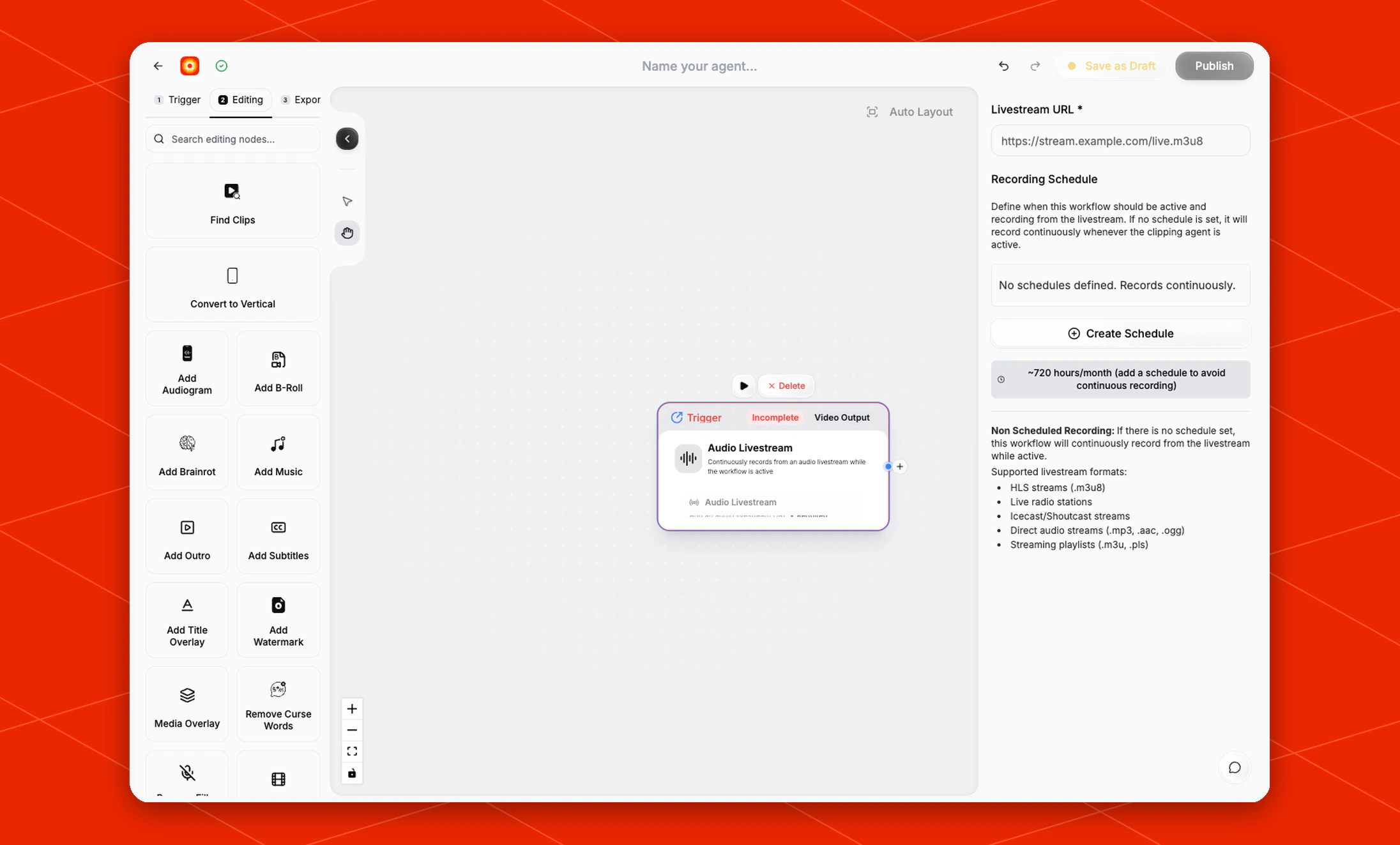
Click the **Audio Livestream** field inside the node on the canvas whenever you need to reopen its settings on the right side.
 ## Configure the livestream
In the right-side settings panel, fill in **Livestream URL**.
The current settings panel lists these supported livestream formats:
* HLS streams, such as `.m3u8`
* Live radio stations
* Icecast/Shoutcast streams
* Direct audio streams, such as `.mp3`, `.aac`, or `.ogg`
* Streaming playlists, such as `.m3u` or `.pls`
Until the URL is added, the node shows **Incomplete** on the canvas.
## Set a recording schedule
By default, the settings panel shows **No schedules defined. Records continuously.** It also estimates about `720 hours/month` for continuous recording and recommends adding a schedule to avoid recording all the time.
Click **Create Schedule** when the stream should only record during planned windows.
## Configure the livestream
In the right-side settings panel, fill in **Livestream URL**.
The current settings panel lists these supported livestream formats:
* HLS streams, such as `.m3u8`
* Live radio stations
* Icecast/Shoutcast streams
* Direct audio streams, such as `.mp3`, `.aac`, or `.ogg`
* Streaming playlists, such as `.m3u` or `.pls`
Until the URL is added, the node shows **Incomplete** on the canvas.
## Set a recording schedule
By default, the settings panel shows **No schedules defined. Records continuously.** It also estimates about `720 hours/month` for continuous recording and recommends adding a schedule to avoid recording all the time.
Click **Create Schedule** when the stream should only record during planned windows.
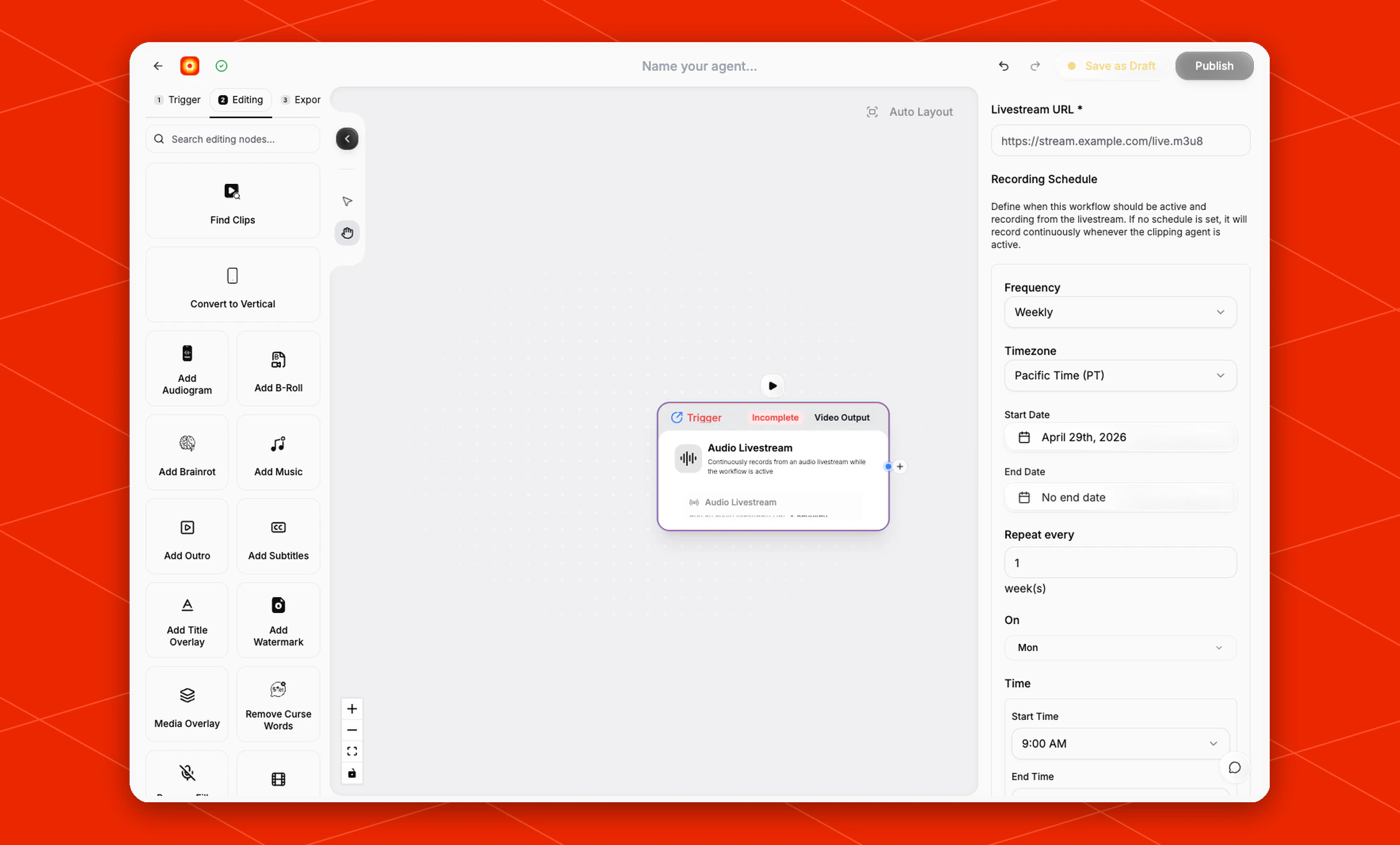 The schedule form lets you define the recording cadence with fields such as **Frequency**, **Timezone**, **Start Date**, **End Date**, **Repeat every**, **On**, and **Time**.
## Build the rest of the workflow
After the trigger is configured, continue in **Editing** with nodes such as [Find Clips](/nodes/findclips), [Add Audiogram](/nodes/audiogram), [Add Subtitles](/nodes/subtitles), or [Reframe](/nodes/reframe). Finish with an export node, then click **Publish** when the workflow is ready to record from the livestream.
The schedule form lets you define the recording cadence with fields such as **Frequency**, **Timezone**, **Start Date**, **End Date**, **Repeat every**, **On**, and **Time**.
## Build the rest of the workflow
After the trigger is configured, continue in **Editing** with nodes such as [Find Clips](/nodes/findclips), [Add Audiogram](/nodes/audiogram), [Add Subtitles](/nodes/subtitles), or [Reframe](/nodes/reframe). Finish with an export node, then click **Publish** when the workflow is ready to record from the livestream.