> ## Documentation Index
> Fetch the complete documentation index at: https://docs.overlap.ai/llms.txt
> Use this file to discover all available pages before exploring further.
> Start a workflow when a new video appears in a Dropbox folder.
# Dropbox
> Start a workflow automatically when a new video is added to a monitored Dropbox folder.
The **New Dropbox Video** trigger is for workflows that should watch a Dropbox folder and send new videos into the rest of your workflow. Use it when a shared folder is where new source videos arrive. Dropbox account verification is required before Overlap can monitor folders.
### Schema
* **Input**: The Dropbox folder to monitor
* **Output**: The new Dropbox video that starts the workflow
## Add the node
Open **Workflows** from the left sidebar and click **New** to open the workflow builder.
In the **Trigger** stage, choose **New Dropbox Video**. Overlap adds the trigger node to the canvas, selects it, and moves the left panel forward to **Editing** so you can continue building the workflow.
Click the **New Dropbox Video** node on the canvas whenever you need to reopen its settings on the right side.
 ## Choose the Dropbox folder
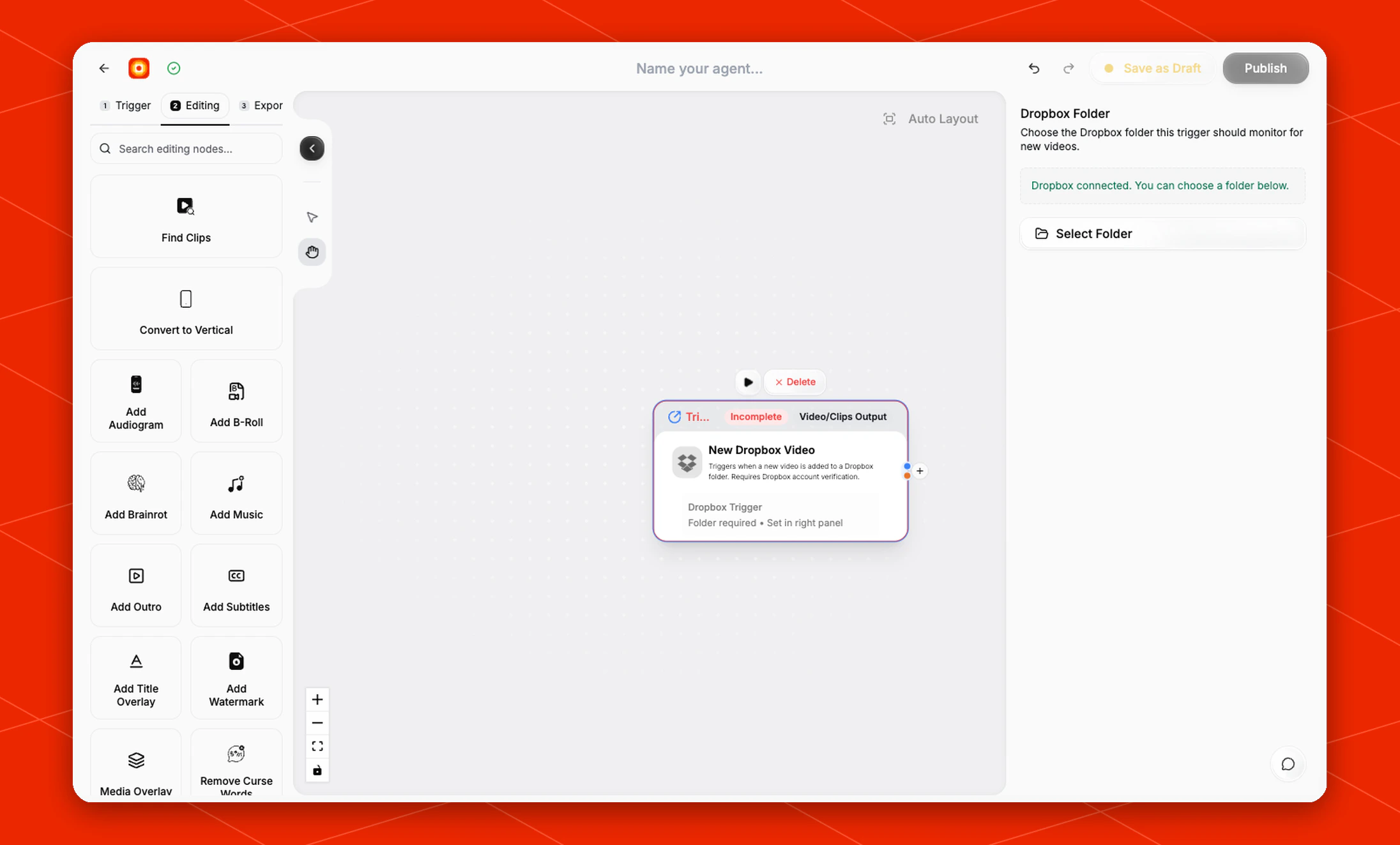
In the right-side settings panel, use **Dropbox Folder** to choose the folder this trigger should monitor for new videos.
If Dropbox is already connected, the panel shows **Dropbox connected. You can choose a folder below.** Click **Select Folder** and choose the folder that should start the workflow when new videos are added.
Until a folder is selected, the node shows **Incomplete** and displays **Folder required • Set in right panel** on the canvas.
If the panel asks you to connect or verify Dropbox, complete that step first, then return to **Select Folder**.
## Build the rest of the workflow
After the trigger is configured, continue in **Editing** with nodes such as [Find Clips](/nodes/findclips), [Add Subtitles](/nodes/subtitles), or [Reframe](/nodes/reframe). Finish with an export node, then click **Publish** when the workflow is ready to listen for new Dropbox videos.
## Choose the Dropbox folder
In the right-side settings panel, use **Dropbox Folder** to choose the folder this trigger should monitor for new videos.
If Dropbox is already connected, the panel shows **Dropbox connected. You can choose a folder below.** Click **Select Folder** and choose the folder that should start the workflow when new videos are added.
Until a folder is selected, the node shows **Incomplete** and displays **Folder required • Set in right panel** on the canvas.
If the panel asks you to connect or verify Dropbox, complete that step first, then return to **Select Folder**.
## Build the rest of the workflow
After the trigger is configured, continue in **Editing** with nodes such as [Find Clips](/nodes/findclips), [Add Subtitles](/nodes/subtitles), or [Reframe](/nodes/reframe). Finish with an export node, then click **Publish** when the workflow is ready to listen for new Dropbox videos.