> ## Documentation Index
> Fetch the complete documentation index at: https://docs.overlap.ai/llms.txt
> Use this file to discover all available pages before exploring further.
> Find the best moments in an input video and pass clip outputs to the rest of a workflow.
# Findclips
> Find Clips scans incoming video and creates clip outputs from your length, model, prompt, and keyword guidance.
The **Find Clips** node is for selecting moments from the source video. It does not apply visual edits such as subtitles, reframing, b-roll, watermarks, or outros. Add those editing nodes after Find Clips when you want to change how the clips look.
### Schema
* **Input**: Video or clip output from a trigger or earlier node
* **Output**: Clips selected from the input video
## Add the node
Open **Workflows** from the left sidebar and click **New** to open the workflow builder.
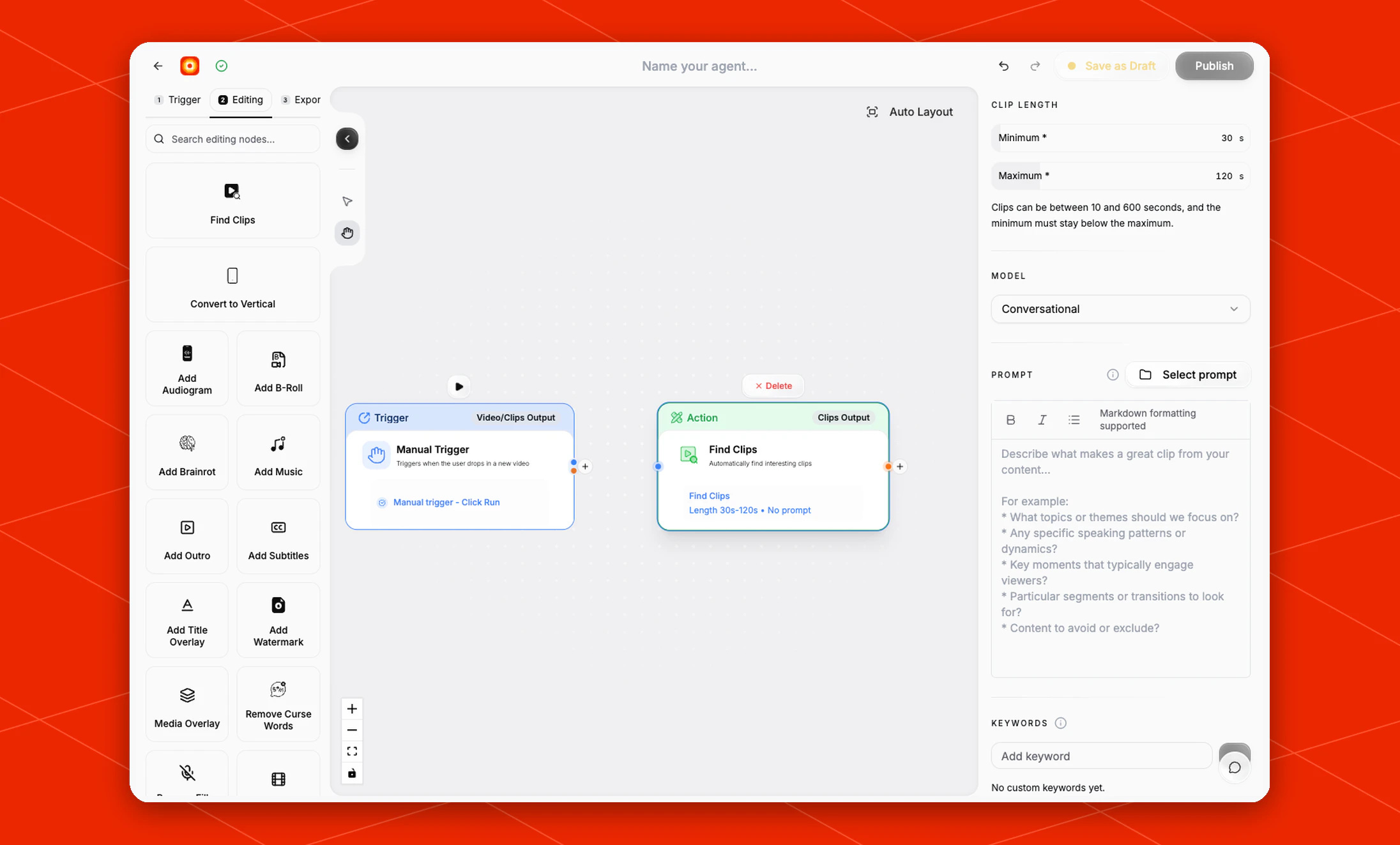
Add a trigger first, such as **Manual Trigger**, **New YouTube Video**, **RSS Feed**, or another source node. In the **Editing** stage, choose **Find Clips**. Overlap adds the action node to the canvas and connects it to the previous video output.
Click the **Find Clips** node on the canvas whenever you need to reopen its settings on the right side.
 ## Configure clip length
Use **Minimum** and **Maximum** under **Clip Length** to set the target duration range for generated clips.
The current defaults are:
* **Minimum**: `30 s`
* **Maximum**: `120 s`
Clips can be between `10` and `600` seconds, and the minimum must stay below the maximum.
## Choose the model
Use **Model** to choose how Overlap should evaluate the source video.
The current options are:
* **Conversational**: for spoken conversations, podcasts, interviews, and similar talk-driven videos
* **Multimodal**: for sports or other videos where non-verbal context is important
## Guide clip selection
Use **Prompt** to describe what makes a good clip for this workflow. You can type directly into the editor or click **Select prompt** to choose a saved prompt.
Good prompts usually name the audience, topic, or type of moment you want. For example:
* Find clips where the guest shares practical advice for founders.
* Surface energetic moments with clear reactions or surprising claims.
* Focus on segments about AI trends and avoid housekeeping or intro chatter.
Use **Keywords** when certain terms, names, products, or topics should influence what the node looks for. The node starts with no custom keywords.
## Runtime configuration
When you manually launch a workflow that includes Find Clips, open **Runtime Configuration** to add one-run guidance without changing the saved workflow.
* **Prompt adjustment** adds temporary instructions to the saved Find Clips prompt.
* **Timestamp ranges** accepts source-video start and end times. Use **Guaranteed clips** to include exact ranges as clips, or **Search within** to find individual clips inside those ranges.
## Build the rest of the workflow
After Find Clips, continue with editing nodes such as [Add Subtitles](/nodes/subtitles), [Convert to Vertical](/nodes/reframe), [Watermarks, Outros, etc.](/nodes/branding), or [Audiogram](/nodes/audiogram). Finish with an export node so the workflow has a destination for the clips it creates.
## Configure clip length
Use **Minimum** and **Maximum** under **Clip Length** to set the target duration range for generated clips.
The current defaults are:
* **Minimum**: `30 s`
* **Maximum**: `120 s`
Clips can be between `10` and `600` seconds, and the minimum must stay below the maximum.
## Choose the model
Use **Model** to choose how Overlap should evaluate the source video.
The current options are:
* **Conversational**: for spoken conversations, podcasts, interviews, and similar talk-driven videos
* **Multimodal**: for sports or other videos where non-verbal context is important
## Guide clip selection
Use **Prompt** to describe what makes a good clip for this workflow. You can type directly into the editor or click **Select prompt** to choose a saved prompt.
Good prompts usually name the audience, topic, or type of moment you want. For example:
* Find clips where the guest shares practical advice for founders.
* Surface energetic moments with clear reactions or surprising claims.
* Focus on segments about AI trends and avoid housekeeping or intro chatter.
Use **Keywords** when certain terms, names, products, or topics should influence what the node looks for. The node starts with no custom keywords.
## Runtime configuration
When you manually launch a workflow that includes Find Clips, open **Runtime Configuration** to add one-run guidance without changing the saved workflow.
* **Prompt adjustment** adds temporary instructions to the saved Find Clips prompt.
* **Timestamp ranges** accepts source-video start and end times. Use **Guaranteed clips** to include exact ranges as clips, or **Search within** to find individual clips inside those ranges.
## Build the rest of the workflow
After Find Clips, continue with editing nodes such as [Add Subtitles](/nodes/subtitles), [Convert to Vertical](/nodes/reframe), [Watermarks, Outros, etc.](/nodes/branding), or [Audiogram](/nodes/audiogram). Finish with an export node so the workflow has a destination for the clips it creates.