> ## Documentation Index
> Fetch the complete documentation index at: https://docs.overlap.ai/llms.txt
> Use this file to discover all available pages before exploring further.
> Send workflow clips to Overlap's social posting layer.
# Post to social
> Share the clips produced by a workflow through connected social accounts.
The **Post to Social** export node is for workflows that should end by sending finished clips toward social publishing. Use it after the workflow has created or edited clips and you want those clips to become outgoing posts in Overlap.
### Schema
* **Input**: Clips Output
* **Output**: Social posts for connected accounts
## Add the node
Open **Workflows** from the left sidebar and click **New** to open the workflow builder.
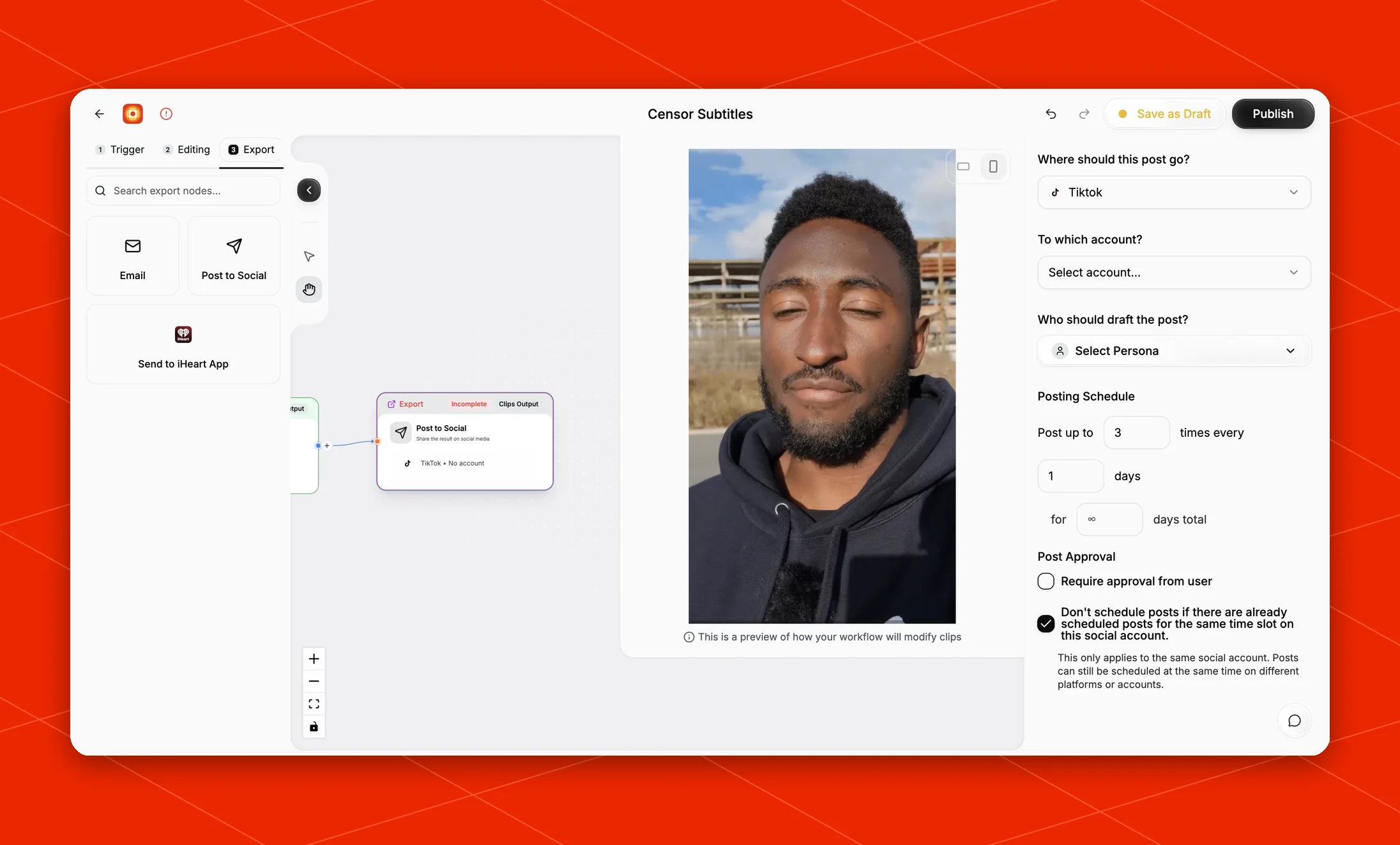
After you have a trigger and any editing nodes in place, open the **Export** stage and choose **Post to Social**. Overlap adds the export node to the canvas with **Clips Output** as its input. Click the node on the canvas to open its settings on the right side.
 ## Configure the destination
In the right-side settings panel, choose where the generated posts should go.
The current settings include:
* **Where should this post go?**: choose the social platform, such as TikTok.
* **To which account?**: choose the connected account that should publish the posts.
* **Who should draft the post?**: choose the posting persona that should draft the post copy.
If no destination is ready, the node shows **Incomplete** and displays the selected platform with **No account**. Connect the account you want to post from, then return to the workflow and confirm the export node is ready.
Use [Linking your Socials](/essentials/linking) when you need to connect or reauthorize an account. To create a persona without leaving the workflow, choose **Add New Persona** and use **Enhance with AI** to improve the prompt you entered. You can also use **Posting Personas** from the left sidebar to create or adjust personas.
When the source includes stored speaker metadata, Overlap can give the posting persona the speakers' names, roles, companies, and context while drafting the caption. The persona only uses that metadata when the clip transcript supports the connection. This does not perform external research, and clips without stored speaker context continue using their existing people names.
## Visibility
Some platforms add a **Visibility** control below the destination settings. It applies to every post this node creates.
* **YouTube** and **YouTube Shorts**: choose **Public**, **Unlisted**, or **Private**.
* **Facebook**: choose **Public** or **Draft**.
Choosing **Draft** for Facebook sends each post to the Drafts tab of your Meta Business Suite instead of publishing it to the Page. The clip still moves through the normal workflow: it is scheduled on the [Social Calendar](/essentials/social-calendar) like any other post, and when its scheduled time arrives Overlap creates the draft. Publish it yourself from Meta Business Suite when you are ready.
Two things to know about Facebook drafts:
* Facebook keeps drafts and published posts in separate places, so a draft has no public link and reports no views, likes, or comments. Overlap does not collect analytics for it.
* Because the draft is not live, it does not count as a published post on the Page.
Leaving Visibility on **Public** keeps the existing behavior — the post publishes to the Page at its scheduled time.
## Posting Cadence
Use **Posting Schedule** to control how aggressively the workflow schedules posts.
The cadence is written as:
* **Post up to**: the maximum number of posts Overlap should schedule in each cadence window
* **times every**: the length of the cadence window
* **for**: how long the workflow should keep scheduling posts from the generated output
For example, **Post up to 3 times every 1 days for ∞ days total** means Overlap can schedule up to three posts per day and keep spreading available posts into future days until there are no more posts to place.
Turn on **Require approval from user** when you want posts to wait for manual approval before they publish. Approval-required posts can be reviewed from [Social Calendar](/essentials/social-calendar).
The **Don't schedule posts if there are already scheduled posts for the same time slot on this social account** setting ensures that posts are not double-booked for the same time slot. When this option is enabled, the workflow will not schedule a post if another post is already scheduled at that time for the selected account, even if you run the workflow multiple times. For example, if the cadence is set to 1 post per day and you run the workflow 3 times in one day, with this option turned off, you would end up with 3 posts scheduled for the same day. With it turned on, the workflow will only schedule one post per day, spreading additional posts into future days without exceeding the cadence limit.
## Build the rest of the workflow
Use **Post to Social** at the end of a complete workflow path. A common flow is [New YouTube Video](/nodes/youtube) -> [Find Clips](/nodes/findclips) -> [Add Subtitles](/nodes/subtitles) -> **Post to Social**.
After the workflow creates outgoing posts, use [Social Calendar](/essentials/social-calendar) to review scheduled posts, adjust copy or timing, and approve anything that requires manual review before publishing.
## Configure the destination
In the right-side settings panel, choose where the generated posts should go.
The current settings include:
* **Where should this post go?**: choose the social platform, such as TikTok.
* **To which account?**: choose the connected account that should publish the posts.
* **Who should draft the post?**: choose the posting persona that should draft the post copy.
If no destination is ready, the node shows **Incomplete** and displays the selected platform with **No account**. Connect the account you want to post from, then return to the workflow and confirm the export node is ready.
Use [Linking your Socials](/essentials/linking) when you need to connect or reauthorize an account. To create a persona without leaving the workflow, choose **Add New Persona** and use **Enhance with AI** to improve the prompt you entered. You can also use **Posting Personas** from the left sidebar to create or adjust personas.
When the source includes stored speaker metadata, Overlap can give the posting persona the speakers' names, roles, companies, and context while drafting the caption. The persona only uses that metadata when the clip transcript supports the connection. This does not perform external research, and clips without stored speaker context continue using their existing people names.
## Visibility
Some platforms add a **Visibility** control below the destination settings. It applies to every post this node creates.
* **YouTube** and **YouTube Shorts**: choose **Public**, **Unlisted**, or **Private**.
* **Facebook**: choose **Public** or **Draft**.
Choosing **Draft** for Facebook sends each post to the Drafts tab of your Meta Business Suite instead of publishing it to the Page. The clip still moves through the normal workflow: it is scheduled on the [Social Calendar](/essentials/social-calendar) like any other post, and when its scheduled time arrives Overlap creates the draft. Publish it yourself from Meta Business Suite when you are ready.
Two things to know about Facebook drafts:
* Facebook keeps drafts and published posts in separate places, so a draft has no public link and reports no views, likes, or comments. Overlap does not collect analytics for it.
* Because the draft is not live, it does not count as a published post on the Page.
Leaving Visibility on **Public** keeps the existing behavior — the post publishes to the Page at its scheduled time.
## Posting Cadence
Use **Posting Schedule** to control how aggressively the workflow schedules posts.
The cadence is written as:
* **Post up to**: the maximum number of posts Overlap should schedule in each cadence window
* **times every**: the length of the cadence window
* **for**: how long the workflow should keep scheduling posts from the generated output
For example, **Post up to 3 times every 1 days for ∞ days total** means Overlap can schedule up to three posts per day and keep spreading available posts into future days until there are no more posts to place.
Turn on **Require approval from user** when you want posts to wait for manual approval before they publish. Approval-required posts can be reviewed from [Social Calendar](/essentials/social-calendar).
The **Don't schedule posts if there are already scheduled posts for the same time slot on this social account** setting ensures that posts are not double-booked for the same time slot. When this option is enabled, the workflow will not schedule a post if another post is already scheduled at that time for the selected account, even if you run the workflow multiple times. For example, if the cadence is set to 1 post per day and you run the workflow 3 times in one day, with this option turned off, you would end up with 3 posts scheduled for the same day. With it turned on, the workflow will only schedule one post per day, spreading additional posts into future days without exceeding the cadence limit.
## Build the rest of the workflow
Use **Post to Social** at the end of a complete workflow path. A common flow is [New YouTube Video](/nodes/youtube) -> [Find Clips](/nodes/findclips) -> [Add Subtitles](/nodes/subtitles) -> **Post to Social**.
After the workflow creates outgoing posts, use [Social Calendar](/essentials/social-calendar) to review scheduled posts, adjust copy or timing, and approve anything that requires manual review before publishing.