> ## Documentation Index
> Fetch the complete documentation index at: https://docs.overlap.ai/llms.txt
> Use this file to discover all available pages before exploring further.
> Reframe landscape clips into vertical format for short-form channels.
# Reframe
> Reframe landscape video into vertical clips for Shorts, Reels, TikTok, and other 9:16 channels.
The **Convert to Vertical** node is an editing action that changes the visual composition of incoming video or clips. Use it when your workflow starts with landscape footage and should produce vertical output before export.
### Schema
* **Input**: Video or clips from an earlier workflow node
* **Output**: Vertically reframed clips
## Add the node
Open **Workflows** from the left sidebar and click **New** to open the workflow builder.
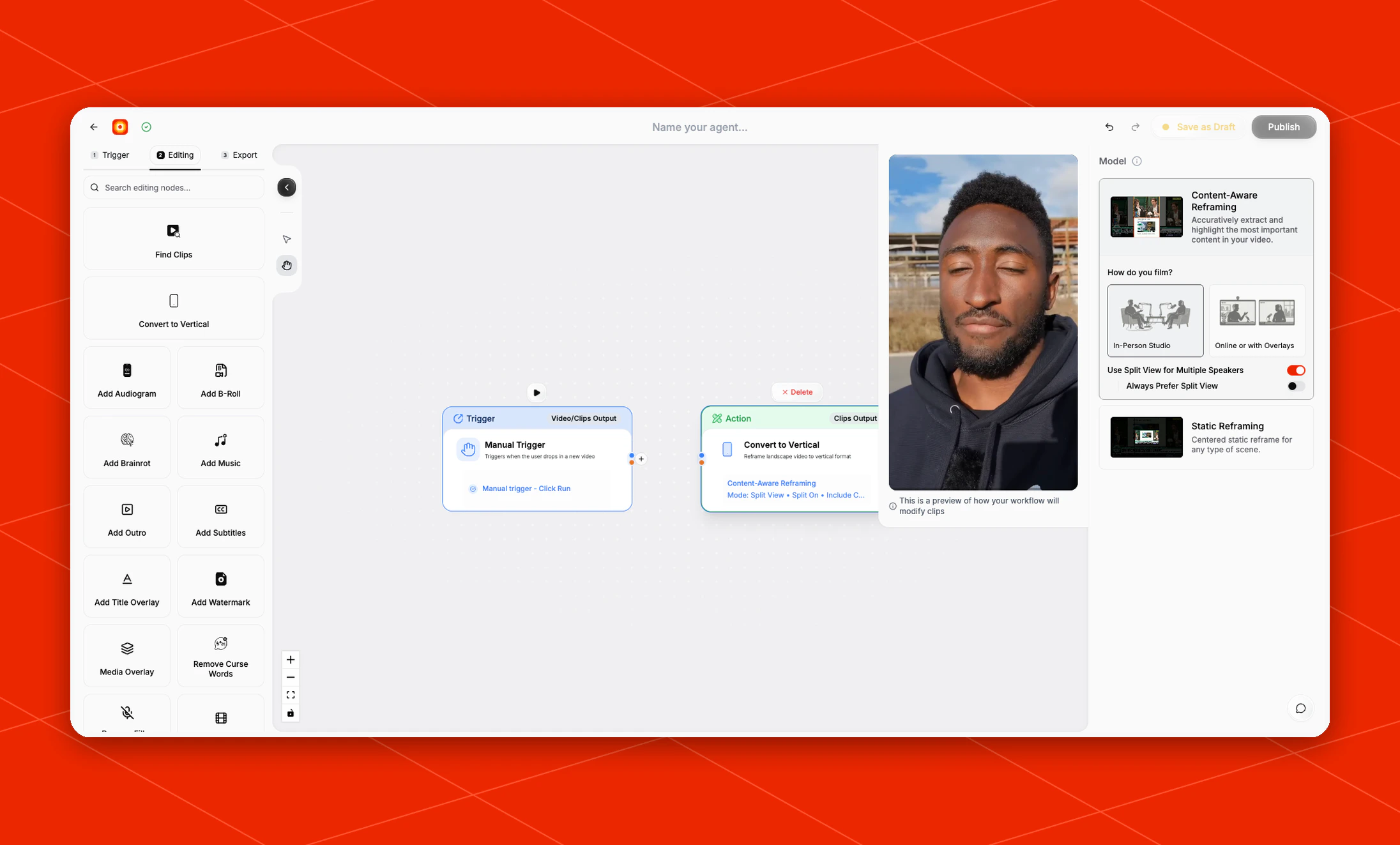
Add a trigger first, such as **Manual Trigger** or **New YouTube Video**. In the **Editing** stage, choose **Convert to Vertical**. Overlap adds the action node to the canvas and connects it to the workflow path.
Click the **Convert to Vertical** node on the canvas whenever you need to reopen its settings on the right side.
 ## Choose a model
Use **Model** to decide how Overlap should build the vertical composition.
* **Content-Aware Reframing**: extracts and highlights the most important content in the video. This is the default model.
* **Static Reframing**: creates a centered static reframe for scenes where a fixed composition is enough.
## Configure the reframe
When **Content-Aware Reframing** is selected, set **How do you film?** to match the source footage:
* **In-Person Studio**: use this for filmed conversations, interviews, panels, or other studio-style recordings.
* **Online or with Overlays**: use this for screen recordings, remote calls, or videos where overlays are part of the layout.
When **Static Reframing** is selected, **Zoom Level** starts at `1x`. API values below `1` are normalized to `1x` before the reframe request is sent.
The default settings also include:
* **Use Split View for Multiple Speakers**: keeps multiple speakers visible when Overlap detects that the scene needs a split layout.
* **Always Prefer Split View**: favors split view even when Overlap might otherwise choose a single focused crop.
Use the preview beside the settings panel to check how the workflow will modify clips before you publish the workflow.
## Build the rest of the workflow
Place **Convert to Vertical** after the node that provides the video or clips you want to reframe. If your workflow finds moments first, connect [Find Clips](/nodes/findclips) before this node. Add finishing nodes such as [Add Subtitles](/nodes/subtitles), [Watermarks, Outros, etc.](/nodes/branding), or an export node after the vertical conversion.
## Choose a model
Use **Model** to decide how Overlap should build the vertical composition.
* **Content-Aware Reframing**: extracts and highlights the most important content in the video. This is the default model.
* **Static Reframing**: creates a centered static reframe for scenes where a fixed composition is enough.
## Configure the reframe
When **Content-Aware Reframing** is selected, set **How do you film?** to match the source footage:
* **In-Person Studio**: use this for filmed conversations, interviews, panels, or other studio-style recordings.
* **Online or with Overlays**: use this for screen recordings, remote calls, or videos where overlays are part of the layout.
When **Static Reframing** is selected, **Zoom Level** starts at `1x`. API values below `1` are normalized to `1x` before the reframe request is sent.
The default settings also include:
* **Use Split View for Multiple Speakers**: keeps multiple speakers visible when Overlap detects that the scene needs a split layout.
* **Always Prefer Split View**: favors split view even when Overlap might otherwise choose a single focused crop.
Use the preview beside the settings panel to check how the workflow will modify clips before you publish the workflow.
## Build the rest of the workflow
Place **Convert to Vertical** after the node that provides the video or clips you want to reframe. If your workflow finds moments first, connect [Find Clips](/nodes/findclips) before this node. Add finishing nodes such as [Add Subtitles](/nodes/subtitles), [Watermarks, Outros, etc.](/nodes/branding), or an export node after the vertical conversion.