> ## Documentation Index
> Fetch the complete documentation index at: https://docs.overlap.ai/llms.txt
> Use this file to discover all available pages before exploring further.
> Remove or silence profanity and custom words in workflow outputs.
# Remove curse words
> Clean up profanity and other blocked words before clips move on to finishing or export.
The **Remove Curse Words** node is an **Editing** action node for processing profanity and inappropriate language in a workflow. Use it after the workflow has a video or clips to process, and before any downstream node that should use the cleaned result.
### Schema
* **Input**: Video or clips from an earlier workflow node
* **Output**: Video/clips output with the selected profanity cleanup applied
## Add the node
Open **Workflows** from the left sidebar and click **New** to open the workflow builder.
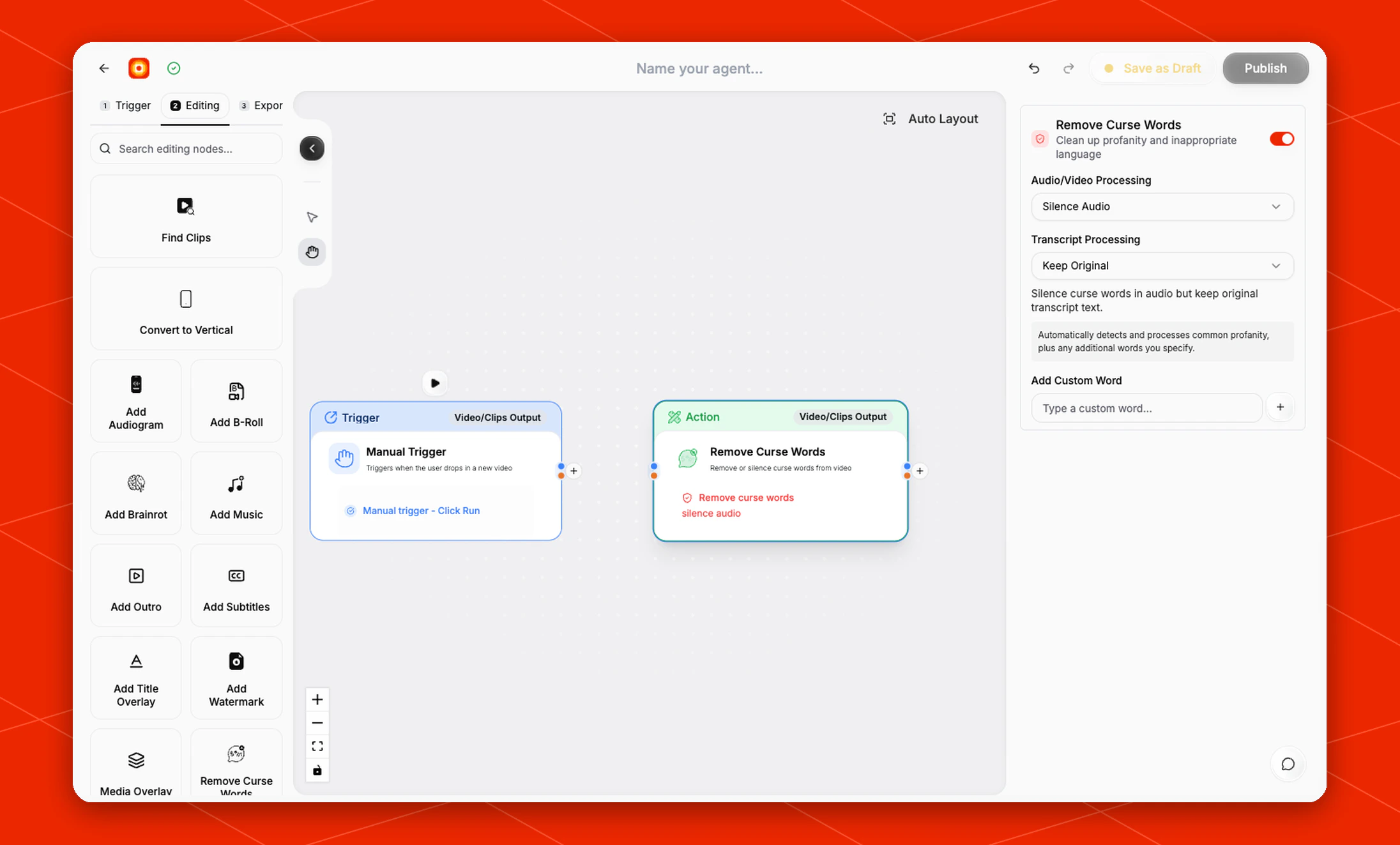
Add a trigger or source node first. When the builder moves to the **Editing** stage, choose **Remove Curse Words** from the left node panel. Overlap adds it as an action node on the canvas.
Click the **Remove Curse Words** node on the canvas whenever you need to reopen its settings on the right side.
 ## Choose how profanity is processed
The node is enabled by default and automatically detects common profanity. Use the right-side settings panel to decide how Overlap should process the video/audio and transcript.
* **Audio/Video Processing**: The default setting is **Silence Audio**.
* **Transcript Processing**: The default setting is **Keep Original**.
With the default settings, Overlap silences curse words in the audio while keeping the original transcript text.
## Add custom words
Use **Add Custom Word** when the workflow should also process words beyond the default profanity list.
Type a word in the custom word field, then click the **+** button to add it to the node. The settings panel notes that Overlap automatically detects common profanity plus any additional words you specify.
## Place it in the workflow
Place **Remove Curse Words** after the node that produces the video or clips you want to clean.
For a clip workflow, a common order is:
* **Find Clips** -> **Remove Curse Words** -> **Add Subtitles** -> export
For a manual cleanup workflow, you can place it directly after **Manual Trigger** and then continue into subtitles, reframing, branding, or export.
## Build the rest of the workflow
After profanity cleanup is configured, continue with finishing nodes such as [Add Subtitles](/nodes/subtitles), [Reframe](/nodes/reframe), [Watermarks, Outros, etc.](/nodes/branding), or an export node. Click **Publish** when the workflow is ready to run.
## Choose how profanity is processed
The node is enabled by default and automatically detects common profanity. Use the right-side settings panel to decide how Overlap should process the video/audio and transcript.
* **Audio/Video Processing**: The default setting is **Silence Audio**.
* **Transcript Processing**: The default setting is **Keep Original**.
With the default settings, Overlap silences curse words in the audio while keeping the original transcript text.
## Add custom words
Use **Add Custom Word** when the workflow should also process words beyond the default profanity list.
Type a word in the custom word field, then click the **+** button to add it to the node. The settings panel notes that Overlap automatically detects common profanity plus any additional words you specify.
## Place it in the workflow
Place **Remove Curse Words** after the node that produces the video or clips you want to clean.
For a clip workflow, a common order is:
* **Find Clips** -> **Remove Curse Words** -> **Add Subtitles** -> export
For a manual cleanup workflow, you can place it directly after **Manual Trigger** and then continue into subtitles, reframing, branding, or export.
## Build the rest of the workflow
After profanity cleanup is configured, continue with finishing nodes such as [Add Subtitles](/nodes/subtitles), [Reframe](/nodes/reframe), [Watermarks, Outros, etc.](/nodes/branding), or an export node. Click **Publish** when the workflow is ready to run.