> ## Documentation Index
> Fetch the complete documentation index at: https://docs.overlap.ai/llms.txt
> Use this file to discover all available pages before exploring further.
> Add quick emphasis zooms to the important parts of workflow clips.
# Smart zoom
> Periodically zoom in on the most important part of the video for emphasis.
The **Smart Zoom** node is an editing action that adds short emphasis zooms to incoming video or clips. Use it when you want Overlap to automatically draw attention to important visual moments before the workflow exports the result.
### Schema
* **Input**: Video or clips from an upstream trigger or editing node
* **Output**: Clips with Smart Zoom applied
## Add the node
Open **Workflows** from the left sidebar and click **New** to open the workflow builder.
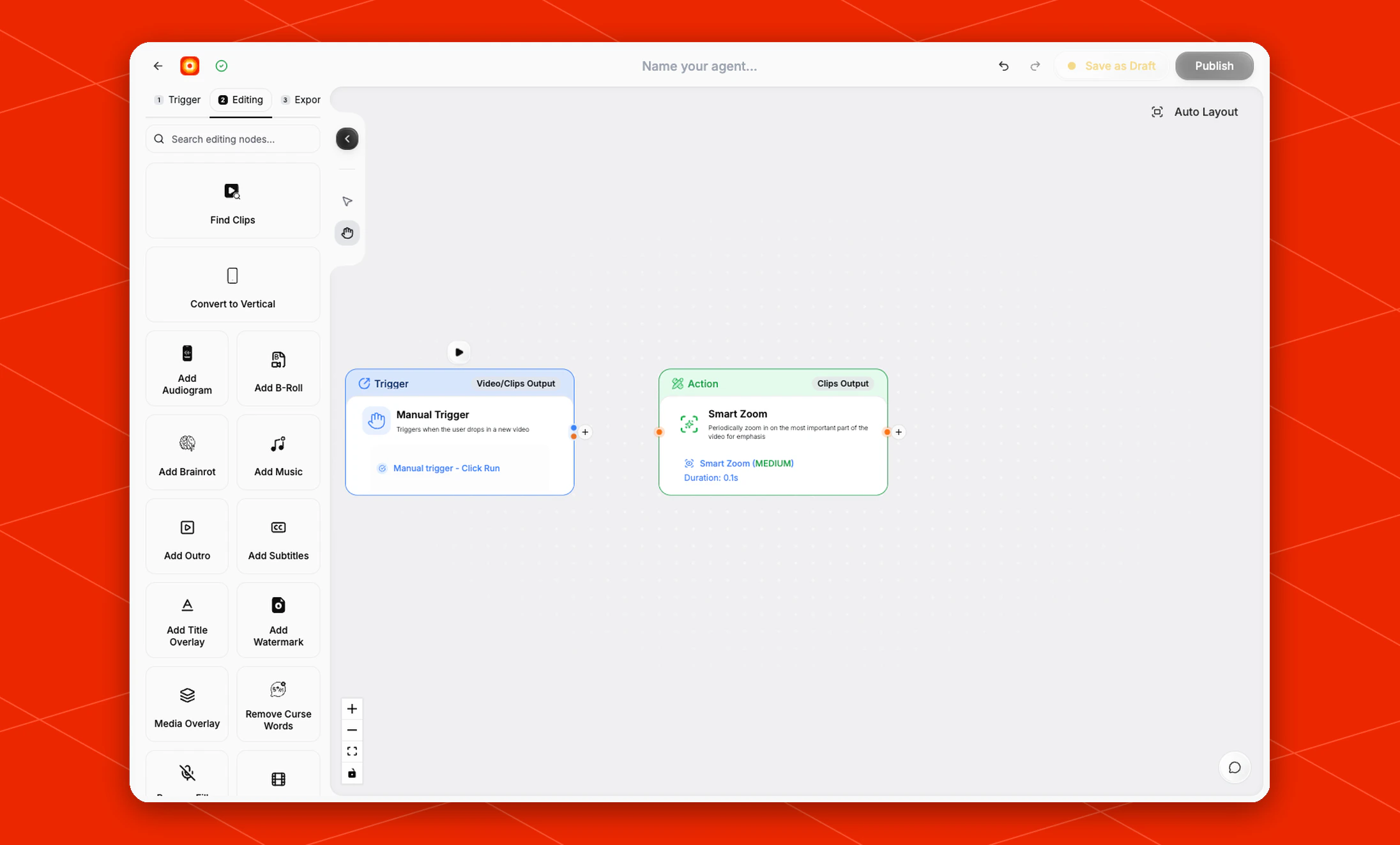
Add a trigger first, such as **Manual Trigger** or **New YouTube Video**. In the **Editing** stage, choose **Smart Zoom**. Overlap adds the action node to the canvas and connects it to the workflow path.
 ## Review the zoom behavior
The current Smart Zoom node applies the default **Smart Zoom (MEDIUM)** behavior. The node card shows the effect summary and a default **Duration** of `0.1s`.
Smart Zoom does not expose additional configuration controls in the current builder. To change the surrounding edit, place it before or after other editing nodes depending on what should happen first.
## Build the rest of the workflow
Place **Smart Zoom** after the node that provides the video or clips you want to emphasize. A common flow is [New YouTube Video](/nodes/youtube) -> [Find Clips](/nodes/findclips) -> **Smart Zoom** -> [Add Subtitles](/nodes/subtitles) -> **Post to Social**.
Finish the workflow with an export node, then click **Publish** when the workflow is ready.
## Review the zoom behavior
The current Smart Zoom node applies the default **Smart Zoom (MEDIUM)** behavior. The node card shows the effect summary and a default **Duration** of `0.1s`.
Smart Zoom does not expose additional configuration controls in the current builder. To change the surrounding edit, place it before or after other editing nodes depending on what should happen first.
## Build the rest of the workflow
Place **Smart Zoom** after the node that provides the video or clips you want to emphasize. A common flow is [New YouTube Video](/nodes/youtube) -> [Find Clips](/nodes/findclips) -> **Smart Zoom** -> [Add Subtitles](/nodes/subtitles) -> **Post to Social**.
Finish the workflow with an export node, then click **Publish** when the workflow is ready.