> ## Documentation Index
> Fetch the complete documentation index at: https://docs.overlap.ai/llms.txt
> Use this file to discover all available pages before exploring further.
> Generate styled subtitles for clips in a workflow.
# Subtitles
> Generate and style subtitles for every clip that reaches this node.
### Schema
* **Input**: Video or clips from an upstream trigger or editing node
* **Output**: Video or clips with generated subtitles applied
## Add the node
Open **Workflows** from the left sidebar and click **New** to open the workflow builder.
Add a trigger first, then continue in the **Editing** stage. Choose **Add Subtitles** from the editing node panel. Overlap adds an action node to the canvas and opens the subtitle style panel on the right.
Click the **Add Subtitles** node on the canvas whenever you need to reopen its settings.
 ## Choose a subtitle style
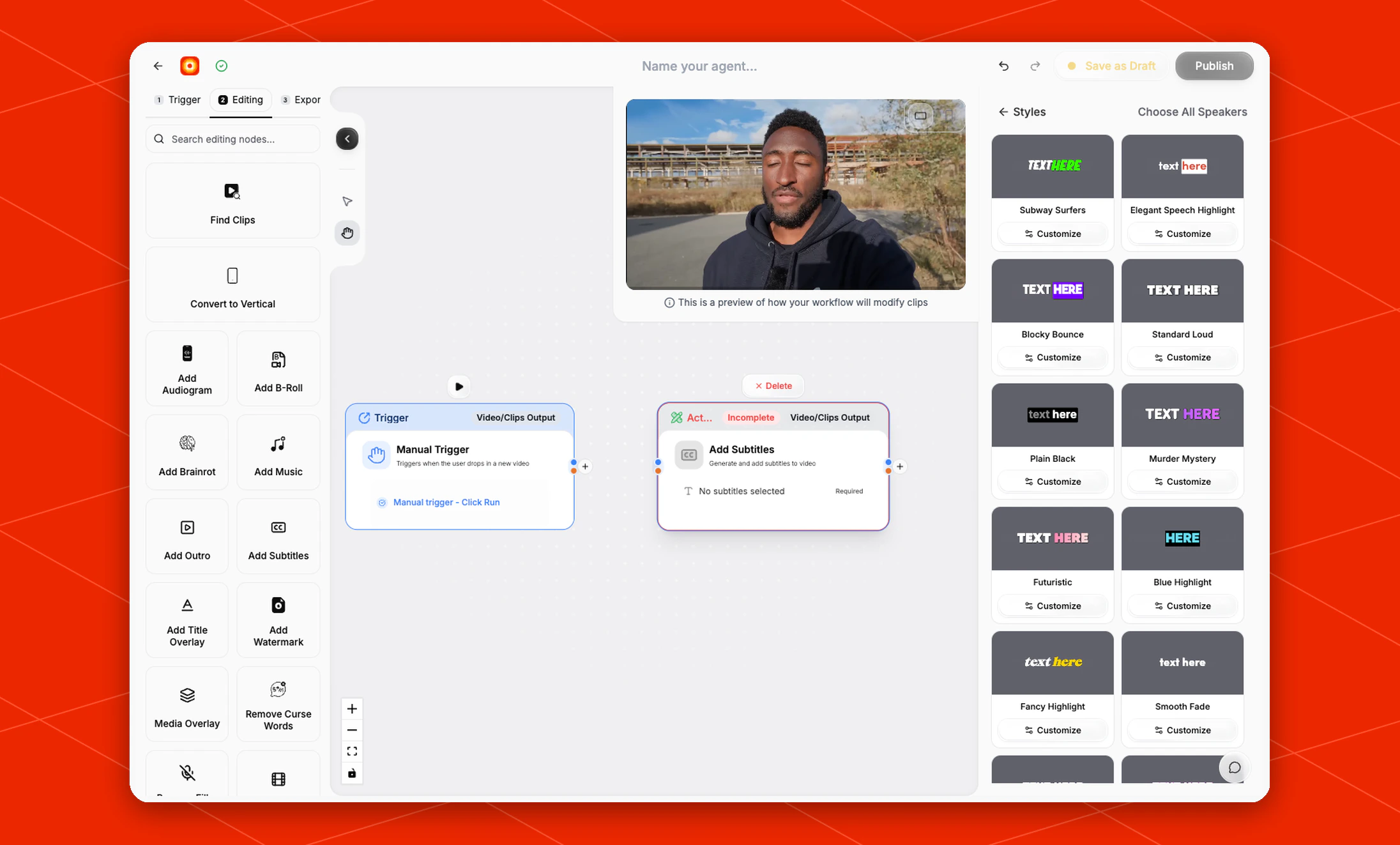
The right-side panel opens to **Styles** with a clip preview and preset subtitle looks. Current presets include options such as **Subway Surfers**, **Elegant Speech Highlight**, **Blocky Bounce**, **Standard Loud**, **Plain Black**, **Murder Mystery**, **Futuristic**, **Blue Highlight**, **Fancy Highlight**, and **Smooth Fade**.
Until a style is selected, the node shows **No subtitles selected** and marks the setting as required. Select a preset to apply it, or click **Customize** on a preset when you want to adjust the style before using it.
Use **Choose All Speakers** when the same subtitle style should apply across detected speakers.
## Customize the style
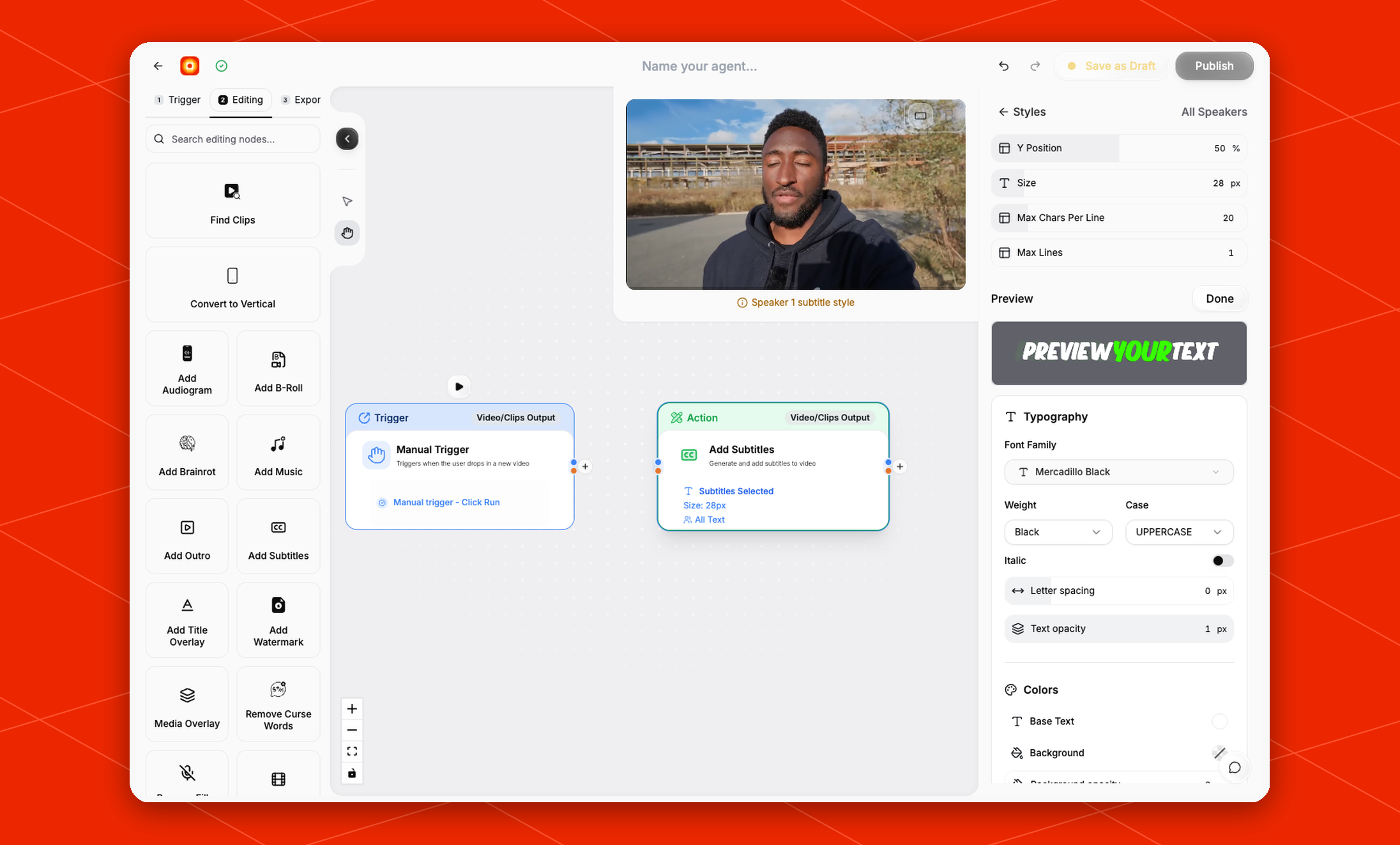
Click **Customize** on a preset to open the subtitle editor. The current controls include:
* **Y Position**
* **Size**
* **Max Chars Per Line**
* **Max Lines**
* **Typography** controls such as font family, weight, case, italic, letter spacing, and text opacity
* **Colors** controls such as base text and background
The **Preview** area updates the selected style as you adjust these values. Click **Done** when the subtitle style is ready.
## Choose a subtitle style
The right-side panel opens to **Styles** with a clip preview and preset subtitle looks. Current presets include options such as **Subway Surfers**, **Elegant Speech Highlight**, **Blocky Bounce**, **Standard Loud**, **Plain Black**, **Murder Mystery**, **Futuristic**, **Blue Highlight**, **Fancy Highlight**, and **Smooth Fade**.
Until a style is selected, the node shows **No subtitles selected** and marks the setting as required. Select a preset to apply it, or click **Customize** on a preset when you want to adjust the style before using it.
Use **Choose All Speakers** when the same subtitle style should apply across detected speakers.
## Customize the style
Click **Customize** on a preset to open the subtitle editor. The current controls include:
* **Y Position**
* **Size**
* **Max Chars Per Line**
* **Max Lines**
* **Typography** controls such as font family, weight, case, italic, letter spacing, and text opacity
* **Colors** controls such as base text and background
The **Preview** area updates the selected style as you adjust these values. Click **Done** when the subtitle style is ready.
 ## Build the rest of the workflow
Use **Add Subtitles** after the workflow has a video or clip source. A common flow is [New YouTube Video](/nodes/youtube) -> [Find Clips](/nodes/findclips) -> **Add Subtitles** -> **Post to Social**.
Finish the workflow with an export node, then click **Publish** when the workflow is ready.
## Build the rest of the workflow
Use **Add Subtitles** after the workflow has a video or clip source. A common flow is [New YouTube Video](/nodes/youtube) -> [Find Clips](/nodes/findclips) -> **Add Subtitles** -> **Post to Social**.
Finish the workflow with an export node, then click **Publish** when the workflow is ready.