> ## Documentation Index
> Fetch the complete documentation index at: https://docs.overlap.ai/llms.txt
> Use this file to discover all available pages before exploring further.
> Start a workflow when a new video appears on a YouTube channel or playlist.
# Youtube
> Start a workflow automatically when a YouTube channel or playlist publishes a matching video.
The **New YouTube Video** trigger is for always-on workflows that should watch a YouTube source and send new videos into the rest of your workflow. Use it when a channel or playlist should start the workflow for you. If you want to run one video by hand, use **Manual Trigger** instead.
### Schema
* **Input**: A YouTube channel URL or playlist URL
* **Output**: The new YouTube video that starts the workflow
## Add the node
Open **Workflows** from the left sidebar and click **New** to open the workflow builder.
In the **Trigger** stage, choose **New YouTube Video**. Overlap adds the trigger node to the canvas, selects it, and moves the left panel forward to **Editing** so you can continue building the workflow.
Click the **New YouTube Video** node on the canvas whenever you need to reopen its settings on the right side.
 ## Configure the source
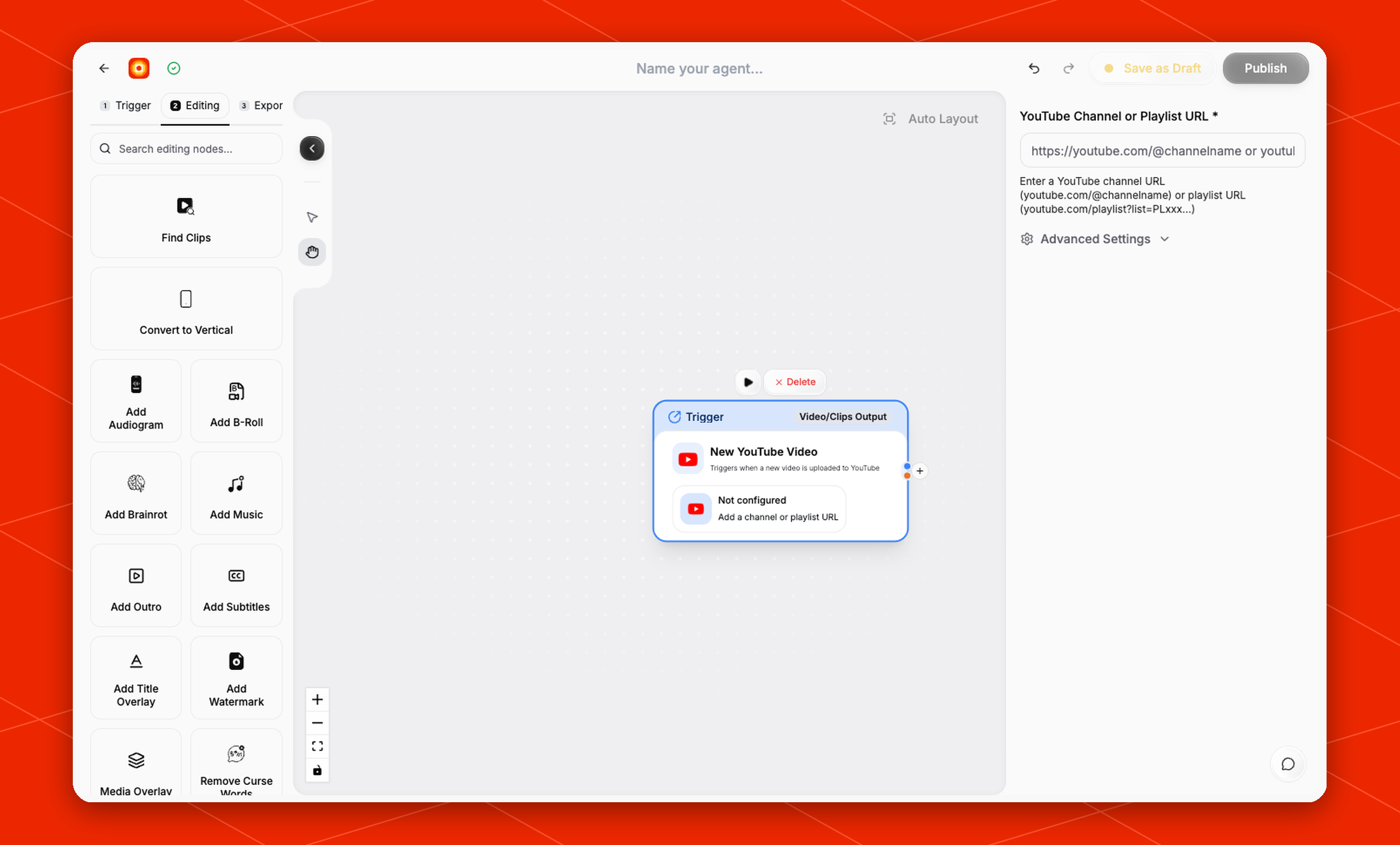
In the right-side settings panel, fill in **YouTube Channel or Playlist URL**.
The field accepts:
* a channel URL, such as `https://youtube.com/@channelname`
* a playlist URL, such as `https://youtube.com/playlist?list=PLxxxx...`
Until a source is added, the node shows **Not configured** and prompts you to add a channel or playlist URL.
## Advanced settings
Expand **Advanced Settings** to control which videos are allowed to start the workflow.
## Configure the source
In the right-side settings panel, fill in **YouTube Channel or Playlist URL**.
The field accepts:
* a channel URL, such as `https://youtube.com/@channelname`
* a playlist URL, such as `https://youtube.com/playlist?list=PLxxxx...`
Until a source is added, the node shows **Not configured** and prompts you to add a channel or playlist URL.
## Advanced settings
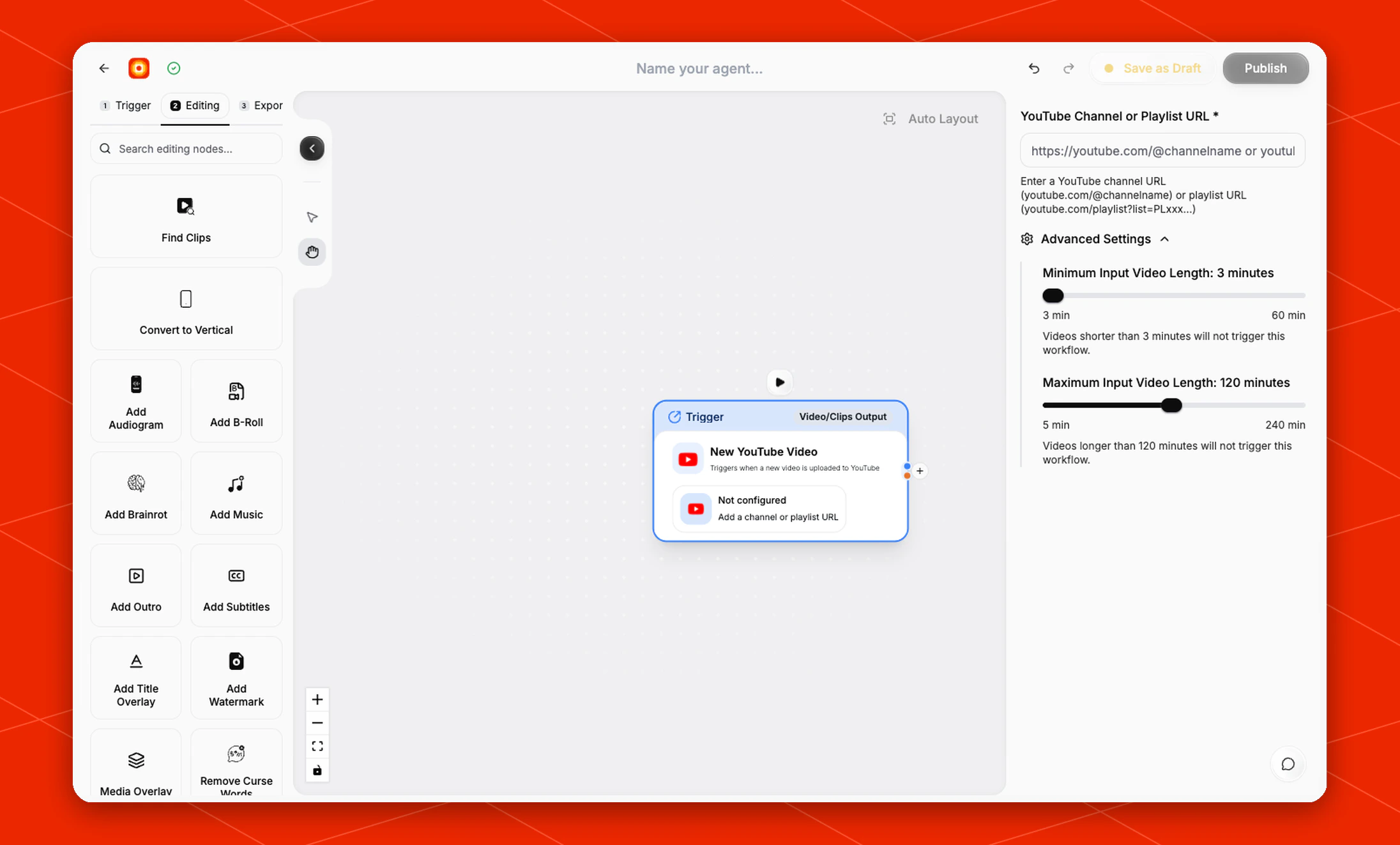
Expand **Advanced Settings** to control which videos are allowed to start the workflow.
 The current settings are:
* **Minimum Input Video Length**: defaults to `3 minutes`. Videos shorter than this will not trigger the workflow.
* **Maximum Input Video Length**: defaults to `120 minutes`. Videos longer than this will not trigger the workflow.
Use these filters when the source publishes a mix of Shorts, livestreams, or other videos that should not all enter the same workflow.
## Build the rest of the workflow
After the trigger is configured, continue in **Editing** with nodes such as [Find Clips](/nodes/findclips), [Add Subtitles](/nodes/subtitles), or [Reframe](/nodes/reframe). Finish with an export node, then click **Publish** when the workflow is ready to listen for matching YouTube videos.
The current settings are:
* **Minimum Input Video Length**: defaults to `3 minutes`. Videos shorter than this will not trigger the workflow.
* **Maximum Input Video Length**: defaults to `120 minutes`. Videos longer than this will not trigger the workflow.
Use these filters when the source publishes a mix of Shorts, livestreams, or other videos that should not all enter the same workflow.
## Build the rest of the workflow
After the trigger is configured, continue in **Editing** with nodes such as [Find Clips](/nodes/findclips), [Add Subtitles](/nodes/subtitles), or [Reframe](/nodes/reframe). Finish with an export node, then click **Publish** when the workflow is ready to listen for matching YouTube videos.