
Use the Reframe editor in Studio to adjust cropping and zoom, either as a fixed crop or an animated camera move.
Opening the Reframe editor
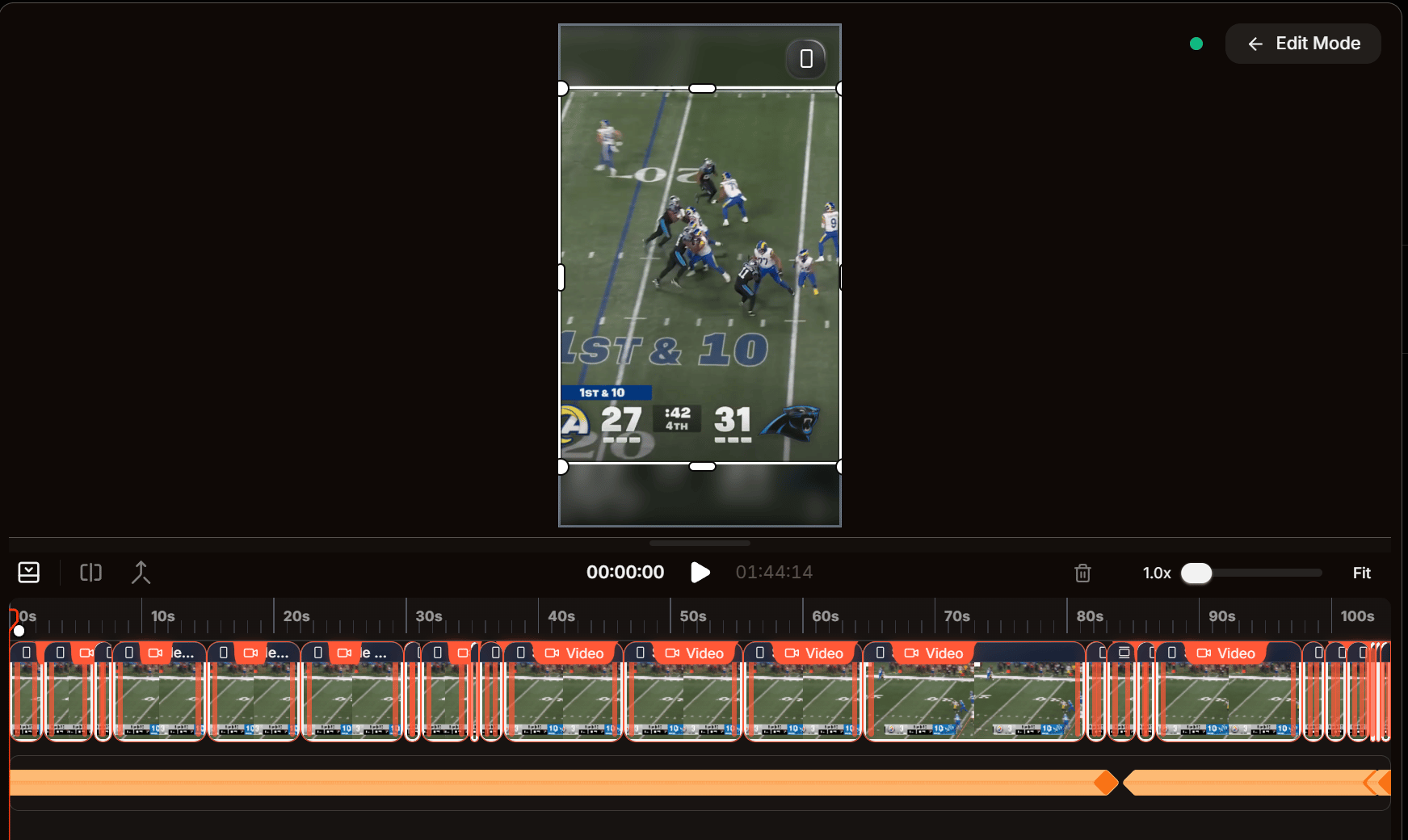
The Reframe editor lives inside Studio. Open a clip and clickReframe beside the preview to enter Edit Mode.
Landscape clips also show Reframe when they have no existing reframe data. They start with the full frame in Static mode for the entire video, with no scene groups or keyframes. Adjust position and zoom to apply one crop throughout the video; your changes save as reframe data.
Static vs. Pan
Scene Mode at the top of the panel decides how the current scene’s crop behaves over time.
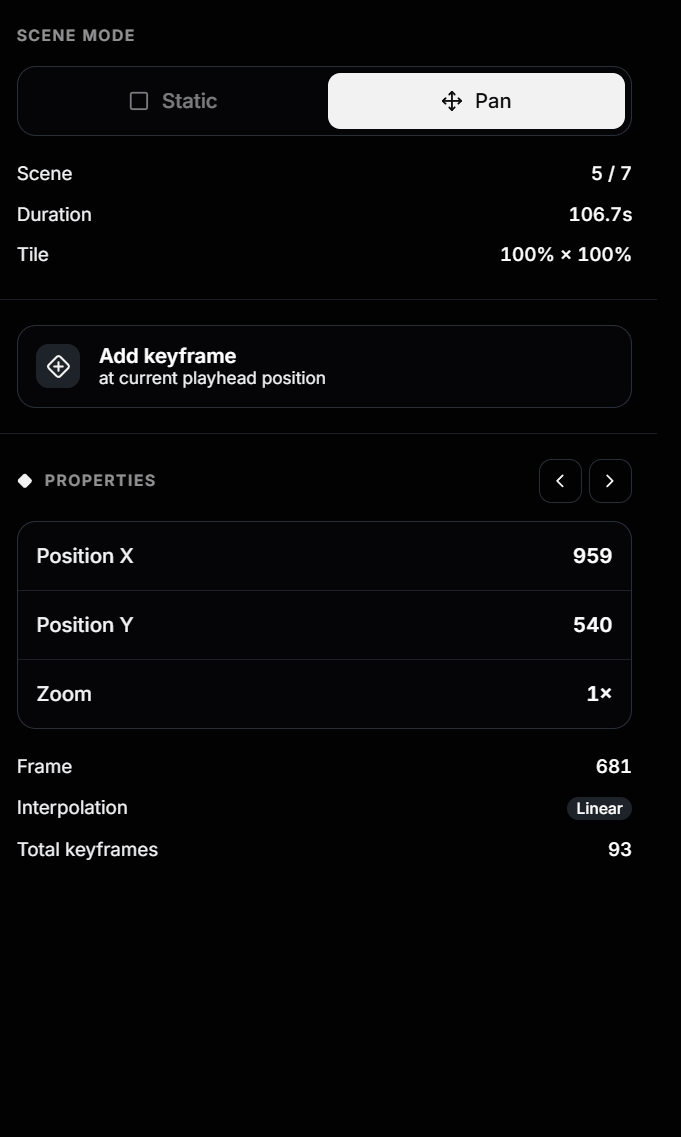
- Static — one fixed crop for the whole scene. Set Position X, Position Y, and Zoom once. Best for steady shots; there are no keyframes in this mode.
- Pan — an animated camera move driven by keyframes, which Overlap smoothly interpolates between. Best when the subject moves or you want a push-in. The
Add keyframeand keyframe-navigation controls only appear here.
Scene layouts
Drag across the scene strip in the timeline to select one or more scenes, then pick a layout from the menu in the timeline controls. It applies to every selected scene at once — including when you pick the layout the selection is already showing, which is how you re-fit scenes that are in the right layout but not filling the frame.
Changing layout keeps each scene’s framing: the crop stays on whoever it was pointed at and is resized to fit its new slot.
Wide shots turned into Single
Some scenes are Padded because the original is a wide or panel shot with several people in it — no single vertical crop can hold them all, so Overlap shows the whole frame instead. Those scenes have no subject to crop towards, so when you convert them to a cropped layout Overlap looks at the video itself: it finds whoever is speaking in each scene and frames the crop on them. You’ll seeFinding speakers beside the save indicator while it works, then a summary of how many scenes were reframed.
Only scenes that actually need it are moved. A padded close-up already fills the frame with its subject, so it’s left exactly as it is — the crop is only repositioned when the speaker sits well off-centre, which in practice means the wide shots with people to either side. Scenes where no one could be found also stay centred; drag those crops in the preview to place them yourself.
The whole pass is a single undo step, so ⌘Z puts everything back.
Keyframes
Each keyframe pins a crop Position X, Position Y, and Zoom to a single frame. As the clip plays, Overlap animates the crop between them. A scene needs at least two keyframes to move. Add a keyframe: inPan mode, scrub to the frame you want, reframe the crop, and click Add keyframe (it’s created at the playhead).
Edit a keyframe: move the playhead onto it — the Properties header then shows which keyframe you’re on (e.g. Keyframe 3 of 6 in scene). If the playhead isn’t on a keyframe, the panel prompts you to move onto one. Adjust each value by dragging to scrub or clicking to type:
Read-only details below show the keyframe’s Frame, the scene’s Interpolation (e.g.
Linear), and Total keyframes for the clip.
Navigate and delete: use the ‹ / › arrows in the Properties header to jump between keyframes. Select keyframes to reveal the Delete bar at the bottom of the panel.
Reading the keyframe timeline
The timeline under the preview stacks the scene strip on top and keyframe diamonds below.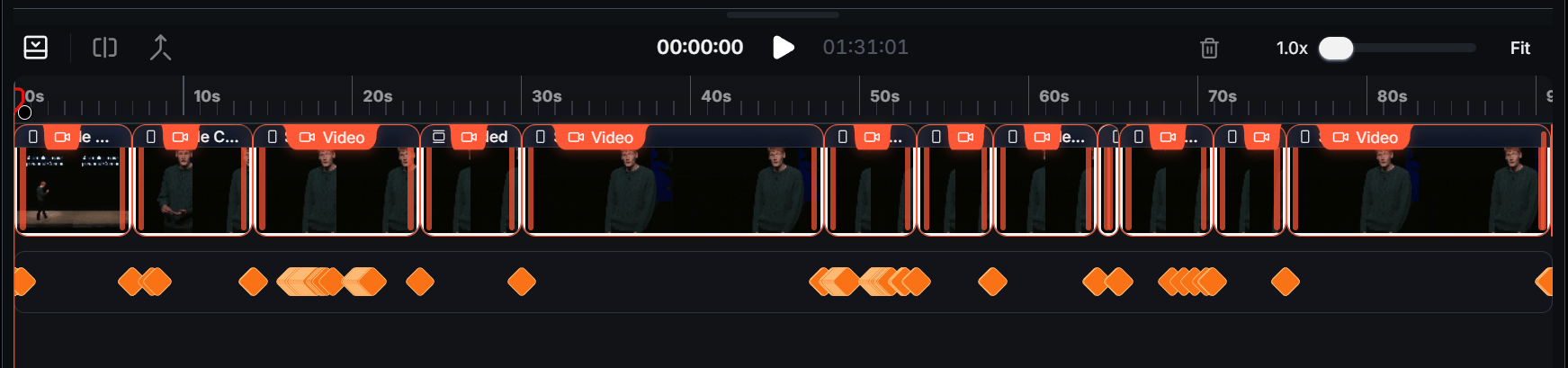
- Each tile in the top row is one scene.
- Each diamond below is a keyframe; clusters mean several close together.
- The playhead selects the scene the panel edits. Use the zoom /
Fitcontrol (top right) to spread out tightly packed keyframes. - Right-click a scene tile and choose Copy Reframe Layout, then right-click another tile and choose Paste Reframe Layout to reuse crop positions, layout, and pan keyframes across that scene’s duration.
- When two crop regions touch in the preview, click the small swap arrow between them to switch their positions in the current scene.
A practical reframing flow
- Click
Reframeto enter Edit Mode. - For each scene, choose
Static(fixed crop) orPan(camera move). - For Static, set position and zoom once.
- For Pan, scrub to each key moment, reframe, and click Add keyframe.
- Step through with
‹/›to check the move, then play the clip before exporting.