
Use Social Calendar to manage everything that is already scheduled, waiting for approval, or ready to be created from scratch.
What Social Calendar is for
Open Social Calendar from the left sidebar when you want one place to manage outgoing posts across your connected accounts. This is the final publishing layer in Overlap. Workflows and posting setups can generate post-ready drafts for you, butSocial Calendar is where you review the schedule, make last-mile edits, approve posts when needed, and manually add new posts.
Shuffle an existing schedule
Use Shuffle Posts to reorder upcoming posts. The modal loads every future post that matches the calendar’s current filters, including account, platform, status, and episode filters, even when those posts are off screen. All future covers the whole matching upcoming schedule. Check Prioritize Virality to schedule the highest virality scores first within each account and platform. Posts without a score go last, and equal scores keep their existing order. Leave it unchecked for random ordering. Choose Current cadence to preserve each account’s existing time slots on each platform, or schedule up to one, two, or three posts per day per account on that platform. Two accounts on Instagram each receive their own daily cadence. Accounts never exchange slots with one another. Posts excluded by your filters or date range still count toward that account’s daily limit. A daily cadence extends across as many future dates as needed; the selected date range chooses which posts are reorganized, not the last date they can be scheduled. Random ordering keeps each post’s local time of day when creating cadence dates; virality ordering assigns the highest scores to the earliest available times. The server checks the cadence before applying the schedule.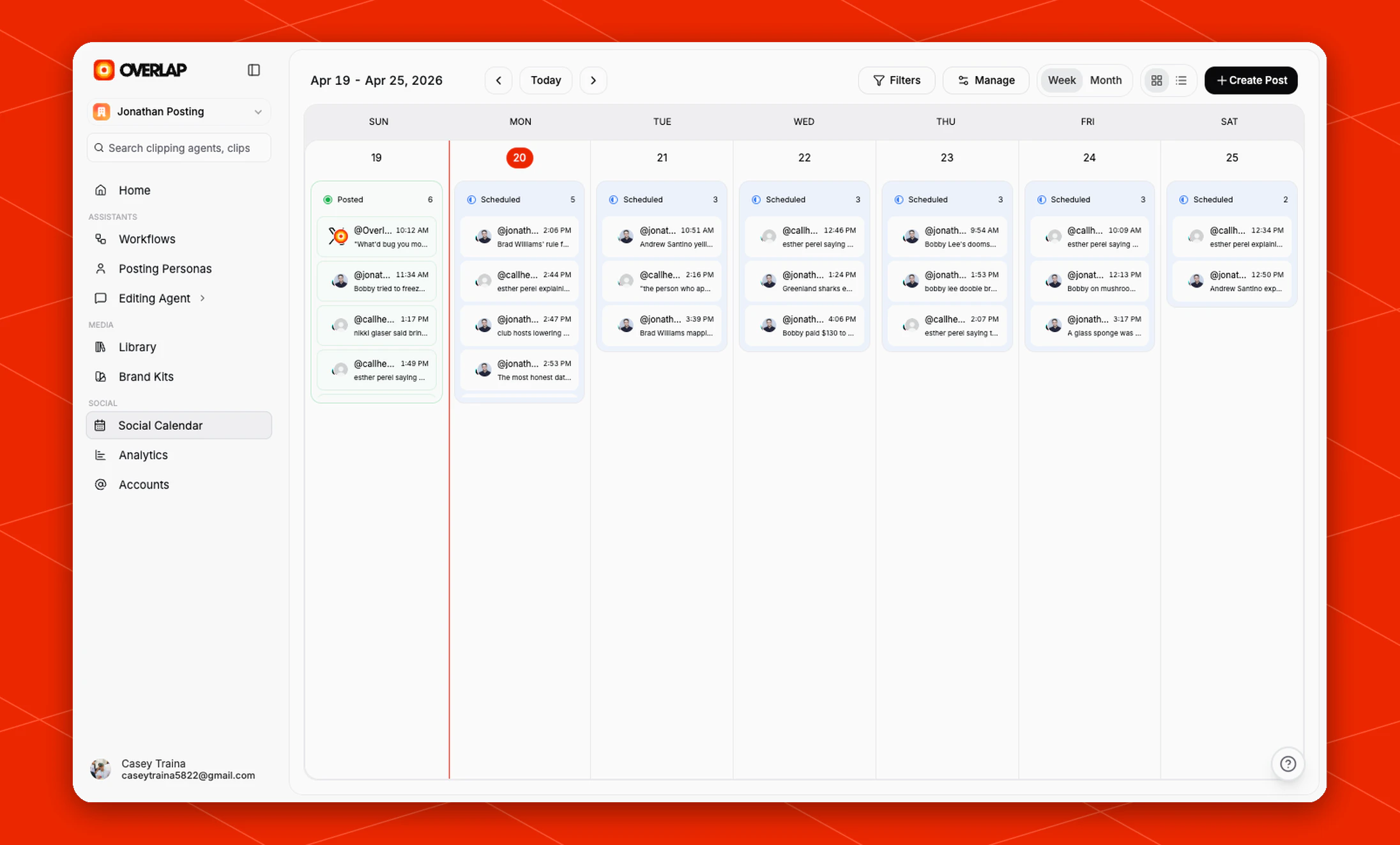
Understanding the calendar view
In the current live calendar view, Overlap gives you a few top-level controls for managing the schedule:Todayjumps you back to the current weekFiltersnarrows the set of posts you are looking at by account, platform, episode, or status. The Episode list includes every episode in your organization, newest first, even if none of its posts fall in the week you’re viewing; move to the weeks where that episode’s posts are scheduled to see themManageopens bulk schedule actionsWeekandMonthchange the calendar layout- the grid and list toggles switch between calendar and list-style management
Create Poststarts a brand-new post manually
Turn a draft into a regular post
Open a draft and select Schedule Post. Review the destination account and content, then choose a date and time at least five minutes ahead. Times are shown in your local timezone. Save any pending edits before scheduling. Leave Require approval before publishing off to put the post in Scheduled, or turn it on to put the post in Needs Approval. Confirming replaces the draft with the regular post in your calendar. If the draft’s planned time has passed, choose a new future time or select Publish Now. Confirm Publish Now approves the post and queues it for publishing in about five minutes; rendering and platform processing may take longer. A past date alone never publishes a draft automatically. Selecting Approve on a draft, for example one Claude created through Overlap MCP, also converts it: the post is approved and scheduled at the draft’s planned time. This needs a planned time at least five minutes away; otherwise use Schedule Post to choose a new time or Publish Now. The status dropdown at the top of the details panel switches between groups of posts. Use Schedule Post or Publish Now to convert the selected draft.Repost an Unverified post
Unverified means Overlap could not confirm whether the platform published the post. Check the destination account before selecting Repost, because the original may already be live. Repost starts publishing immediately and shows the Posting animation. The details panel follows that attempt: a confirmed success becomes Posted, and a confirmed rejection becomes Failed to Post with its reason. If the platform does not confirm an outcome, the attempt can still become Unverified. Repeated clicks follow the existing attempt; they do not create duplicate copies. If the repost failed, fix the reported problem before retrying it. For a Failed to Post item, Try Posting Again immediately shows a spinner. The post moves through Rendering or Posting, then shows the new outcome. The previous error is hidden while the retry is running.Choose an account after replacing one
Scheduled posts stay tied to the account they were created for. If you unlink that account and link a different one in its place, Overlap never moves those posts to the new account on its own. They move to Action Required, and the post details say the original account is no longer linked. An account that needs to be reconnected also puts its scheduled posts in Action Required. Reconnect it from Accounts, or select another connected account for the post. Open the post, pick an account from Account, and select Save. The post returns to Scheduled on the account you chose. Until you choose, the post cannot publish: Publish Now and Approve read Select Account First. If its scheduled time arrives before you choose an account, Overlap skips publishing and keeps the post on the calendar under Action Required with Select Account. It stays there until you choose a connected account. The Home top bar shows X posts require action when posts scheduled for today need an account, including posts whose scheduled time has already passed. Open the notification to review the posts by platform and choose which connected account they should use. You can also open an individual post in the calendar or select Link account to connect another account. The count updates as you resolve the posts. If the post already reached its scheduled time and shows Failed to Post, choose an account the same way, then select Try Posting Again. Relinking the same account you unlinked normally keeps its posts where they were. A workflow still pointed at the old account shows Account unlinked on its Post to Social step; choose the new account there so its future posts go to it.Editing an existing post
Click any post card to open its details.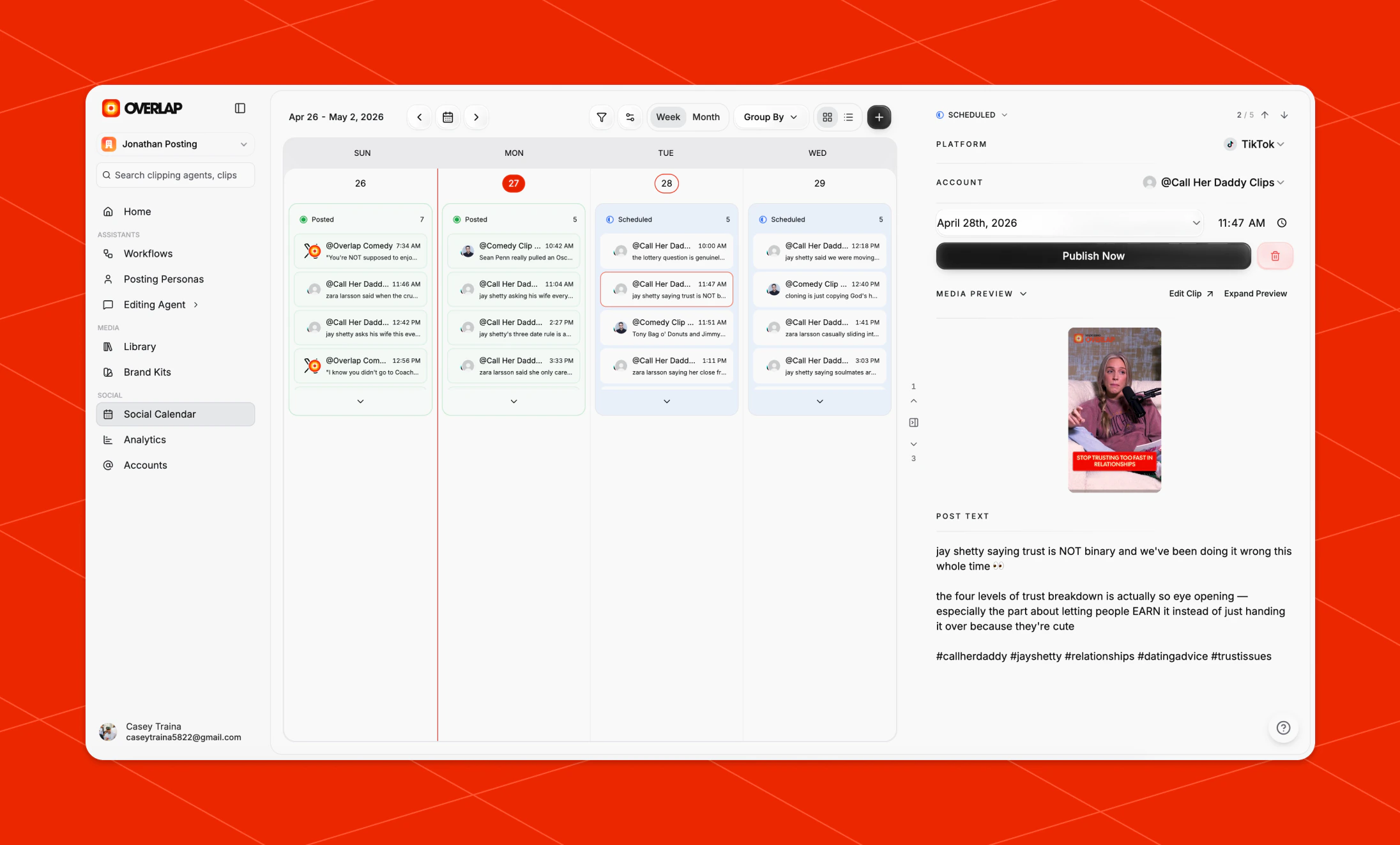
Social Calendar to make the final changes before something goes live:
- update the post copy
- preview the clip from its saved cover, select
Coverto pause and return to the beginning, selectReplaceto upload a cover, or selectDesignto open the Thumbnail Editor - open and revise the clip
- change the scheduled time
- switch the destination account
- approve the post if your workflow requires user approval before publishing
- for YouTube, change Visibility (Public, Unlisted or Private) under Platform Options
YouTube visibility
A YouTube post keeps the visibility it was created with — from the workflow’s Post to Social node, Compose, or the Create Post modal. Editing the title or description never changes it. You can see and change it under Platform Options in the post details, on the post card in the clip scroll view and on the Home page, and in Compose. After the video is posted, the calendar still shows the visibility it was published with, but it can no longer be changed from Overlap. This makesSocial Calendar useful for both automated and manual workflows. Even if a workflow created the draft, you still have a clean place to review the exact post that is queued to publish.
When you choose Design, the editor loads the clip’s current cut and authored
layers. Pick a frame, add or restyle text and images, remove unwanted overlays
from the cover only, and adjust the colour treatment. Save thumbnail stores
the composited image on the clip and preserves the editable design so reopening
it restores the same frame and layers. Thumbnail-only changes do not alter the
video timeline.
Creating a post from scratch
ClickCreate Post in the top-right corner when you want to add something manually instead of waiting for a workflow to generate it.
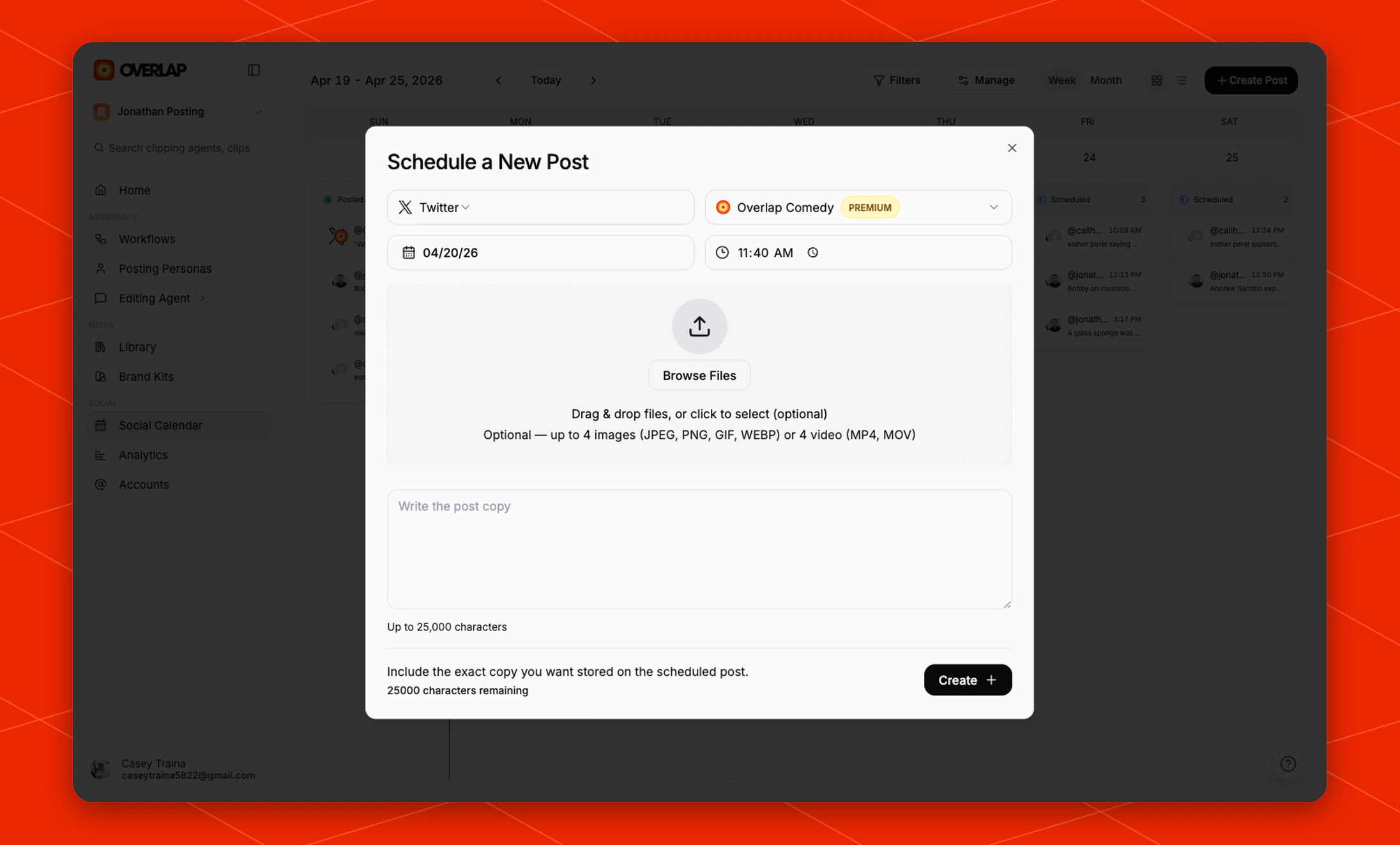
- clip posts
- carousel posts
- text posts
Approving and adjusting scheduled posts
As posts move toward publishing,Social Calendar gives you one place to confirm the final version.
A practical review pass is:
- Open the post from the calendar.
- Check the account and scheduled time.
- Review or refine the copy.
- Update the clip if the creative needs changes.
- Approve the post if approval is required.
Approving a post whose scheduled time has already passed — or is due within
the current minute — publishes it within a few minutes rather than instantly.
Overlap gives the post a fresh slot a short way out, so approving a backlog
fans the posts out instead of firing them all on the same minute. A post far
past its scheduled time — roughly two days or more — is published straight
away when you approve it instead.
Overlap also re-checks every approved post whose scheduled time has passed
without a result, every 15 minutes for three days. A post that was never sent
is given a fresh slot automatically. A post that has shown
Rendering... for
more than 45 minutes with no publish in progress is retried automatically,
including one you sent with Publish now days after its original slot. A
post that was handed to the platform but never confirmed is not retried — it
is shown with an error asking you to check the account before scheduling it
again, so nothing is ever published twice.Publish now reports a failure immediately if the post could not be handed to
the publishing pipeline, instead of leaving the post showing Rendering....
A post that shows an error after Publish now was not sent; fix the reported
problem and try again.For Facebook or Instagram permission errors, disconnected accounts, rejected videos, or missing analytics, see Facebook & Instagram Publishing and Analytics.
Mass rescheduling future posts
UseManage, then Reschedule, when you need to move a whole set of upcoming posts at once.
Reschedule Future Posts applies to all future posts matching your active filters, including posts outside the week or month on screen. The modal waits for the complete matching set before you can apply changes. Reschedule Past Posts likewise includes all matching overdue, unpublished posts, even those off screen. Posts whose publish result we couldn’t confirm, or that are still posting, are left out and counted in the modal description. Check the platform, then use Repost on those posts if they didn’t go out. If some posts can’t be moved when you apply, the rest are still rescheduled and a message tells you how many were moved.
In cadence mode, all available platform icons are selected by default. Toggle platforms on or off to choose which schedules are affected, then apply one shared posts-per-day amount, repeat interval, and start date to those platforms. The cadence is calculated independently for each account on each selected platform, while unselected platforms remain unchanged. If you enable Count today’s posted posts, each account uses its own remaining capacity on that platform.
- Filter down to the accounts or posts you want to change.
- Confirm you are looking at the right future posts.
- Open
Manage. - Choose
Reschedule Future Postsand review the full matching post count before applying.
Switching to List view
The list toggle is helpful when you want broader schedule management instead of a calendar scan. UseList view when you want to:
- review many upcoming posts in one pass
- compare timing, account, and status more quickly
- make bulk management decisions without moving day by day
Using the calendar on your phone
The calendar, the post editor, and clip approvals are built to work on a phone:- Week view shows a few days at a time. Use the arrows to move a few days at a time, or tap Today to jump back.
- Month view shows a count for each day, with an amber dot when a post needs approval. Tap a day to open it in week view.
- Tap a post to open it full screen. From there you can edit the caption and title, change the date, time, or account, and approve, deny, publish, or delete it. Dragging posts between days is only available with a mouse.
- Filters open as a sheet from the bottom of the screen.
- On a clip page, a button under the clip shows how many posts are waiting for approval. Tap it to review and approve them one by one.
How this fits with workflows
Workflows and posting setups decide how content gets generated and scheduled. Social Calendar is where you manage the outgoing result.
That division is useful:
- use workflows to automate clip creation and draft scheduling
- use
Social Calendarto review, edit, approve, create, and reschedule posts before they publish