
Documentation Index

Fetch the complete documentation index at: https://docs.overlap.ai/llms.txt

Use this file to discover all available pages before exploring further.

Add background music to every clip that reaches this node.

Schema

  • Input: Video or clips from an upstream trigger or editing node
  • Output: Video or clips with background music applied

Add the node

Open Workflows from the left sidebar and click New to open the workflow builder. Add a trigger first, then continue in the Editing stage. Choose Add Music from the editing node panel. Overlap adds an action node to the canvas. Click No music selected inside the node to open the music picker on the right side.
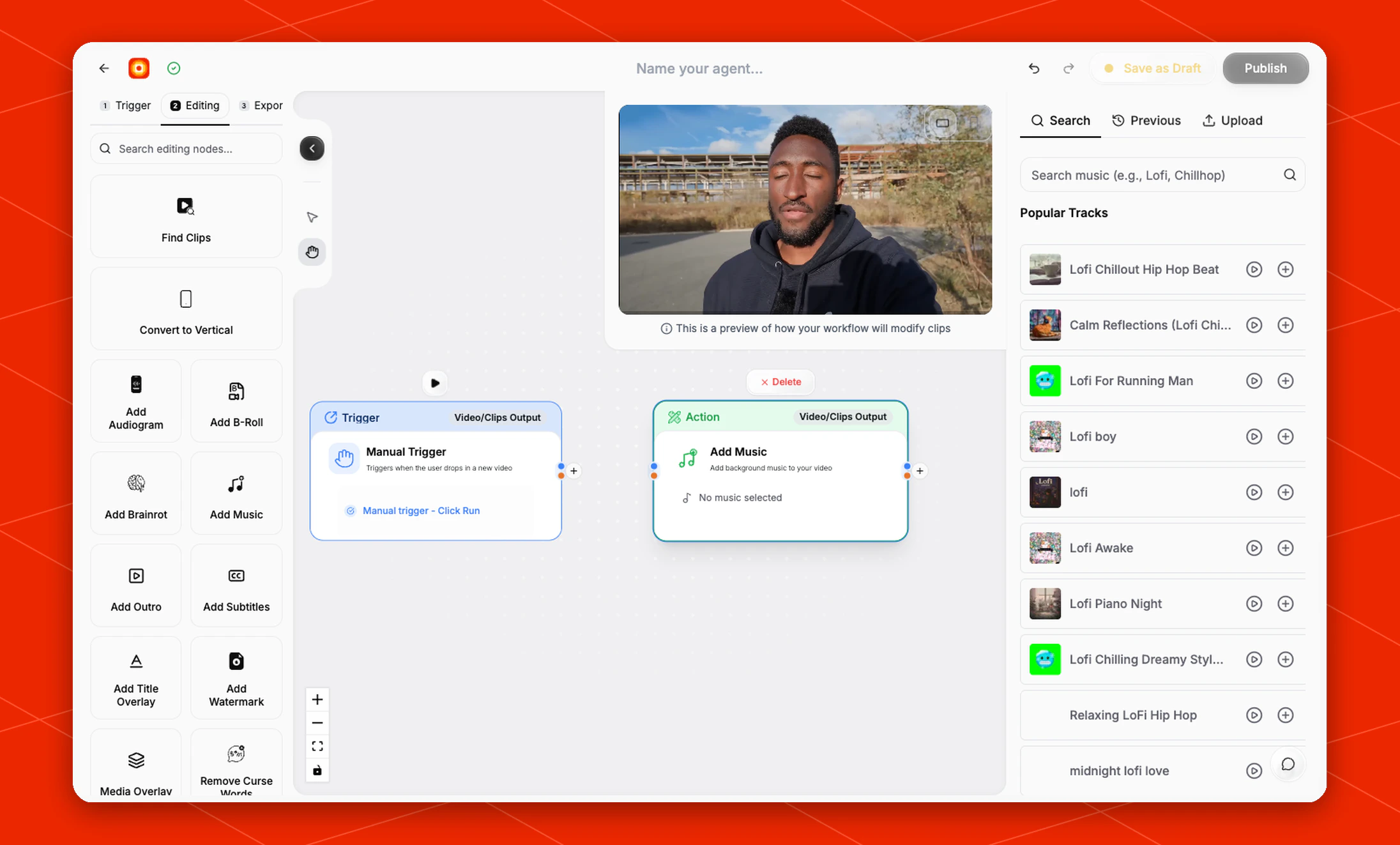
Add Music node settings panel

Choose music

The music picker opens with a clip preview and three tabs:
  • Search
  • Previous
  • Upload
Use Search to find a track by style or mood. The current search field suggests examples such as Lofi and Chillhop, and the panel also lists Popular Tracks. Click the play button on a track to preview it. Click the plus button to add that track to the node.

Upload music

Use Upload when you want to use your own music instead of a track from the picker. After music is selected, the node updates from No music selected to the chosen music, and downstream nodes receive clips with the background music applied.

Build the rest of the workflow

Use Add Music after the workflow has a video or clip source. A common flow is Manual Trigger -> Find Clips -> Add Music -> Add Subtitles -> Post to Social. Finish the workflow with an export node, then click Publish when the workflow is ready.