
Share the clips produced by a workflow through connected social accounts.The Post to Social export node is for workflows that should end by sending finished clips toward social publishing. Use it after the workflow has created or edited clips and you want those clips to become outgoing posts in Overlap.
Schema
- Input: Clips Output
- Output: Social posts for connected accounts
Add the node
Open Workflows from the left sidebar and click New to open the workflow builder. After you have a trigger and any editing nodes in place, open the Export stage and choose Post to Social. Overlap adds the export node to the canvas with Clips Output as its input. Click the node on the canvas to open its settings on the right side.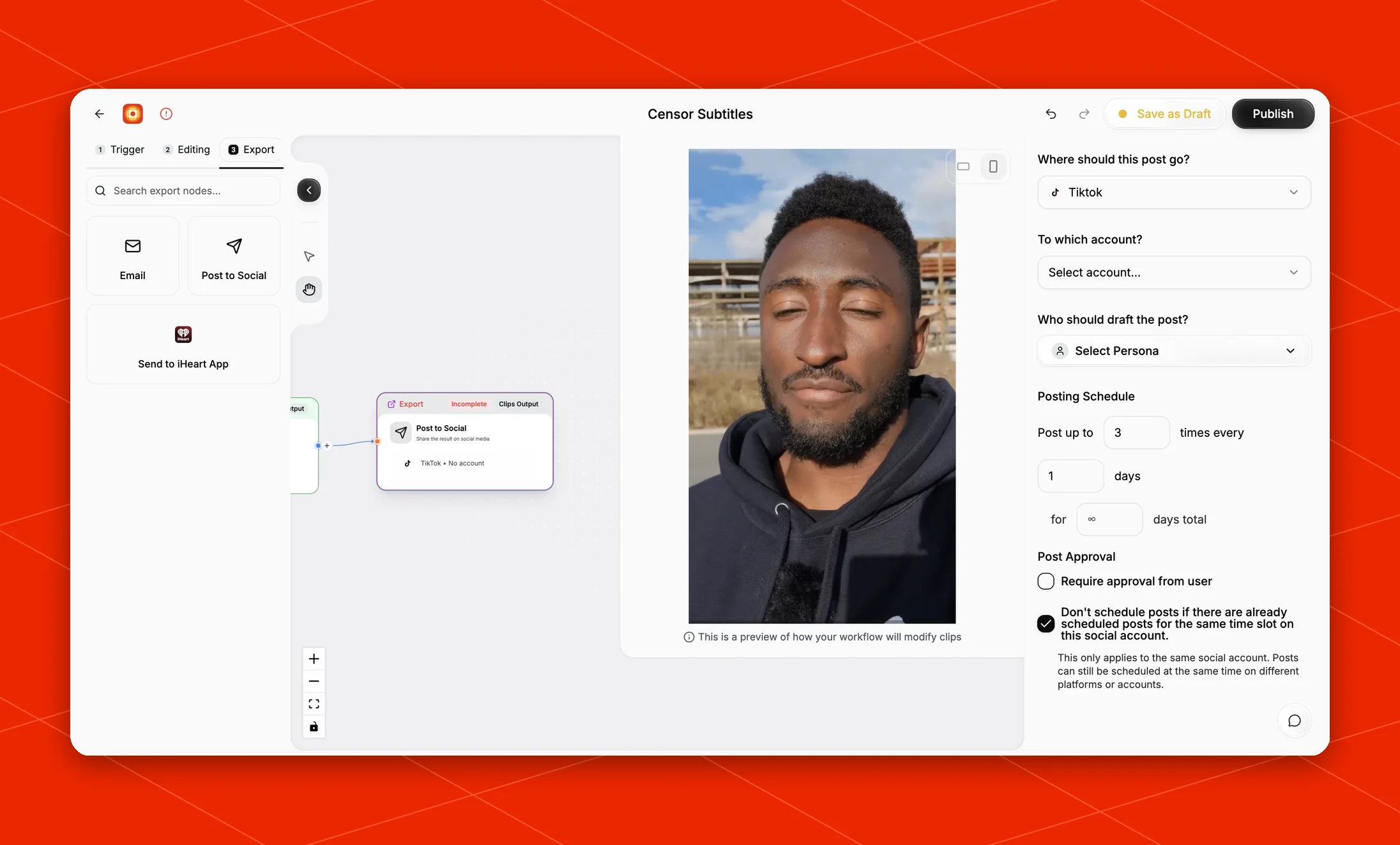
Configure the destination
In the right-side settings panel, choose where the generated posts should go. The current settings include:- Where should this post go?: choose the social platform, such as TikTok.
- To which account?: choose the connected account that should publish the posts.
- Who should draft the post?: choose the posting persona that should draft the post copy.
Visibility
Some platforms add a Visibility control below the destination settings. It applies to every post this node creates.- YouTube and YouTube Shorts: choose Public, Unlisted, or Private.
- Facebook: choose Public or Draft.
- Facebook keeps drafts and published posts in separate places, so a draft has no public link and reports no views, likes, or comments. Overlap does not collect analytics for it.
- Because the draft is not live, it does not count as a published post on the Page.
Facebook Reels and collaborators
When the destination is Facebook, two extra controls appear. Post as Facebook Reel publishes each clip to the Reels tab rather than as a normal feed video. Leave it off and nothing changes — posts keep going to the feed exactly as before. Collaborator invites one other Facebook Page to co-author every Reel this node posts. Once that Page accepts, the Reel appears on both Pages and they share the same view and engagement counts. Search for the Page by name and pick it from the list. Facebook’s Page search matches on name, so several similar Pages can come back — use the link beside each result to open a Page and confirm before choosing it. A verified badge marks the official Page. If the Page is too new to appear in search, paste its full Facebook Page URL instead and Overlap will resolve it directly. Things to know:- Collaborators only work on Reels. The control stays disabled until Post as Facebook Reel is on.
- A collaborator cannot be added to a Draft post — Facebook holds the Reel unpublished, so there is nothing for the other Page to accept.
- One collaborator per Reel.
- Facebook allows roughly 10 collaborator invites per Page per day, shared across every workflow posting from that Page. Beyond that Facebook declines the invite.
- The invite is separate from the post. A Reel can publish successfully while Facebook declines the invite — most often because the collaborator Page is in the same Meta Business portfolio as the posting Page, or has collaboration turned off. When that happens the post still succeeds and Overlap records why the invite did not land.
- Acceptance is up to the other Page and can take a while; until they accept, the Reel appears only on your Page.
Thumbnail preset
The Thumbnail section lets you pick one of your Thumbnail Presets, or None. When a preset is selected, every post this node schedules gets its own generated thumbnail: Overlap picks a frame from the clip (or uses the fixed time / clip thumbnail the preset asks for), cuts out the subject and prepares the background if the preset uses them, writes the headline from the preset’s instruction, and renders the result with the same engine the editor uses. Presets are sized for one aspect ratio, and the picker only shows the ones that fit this route: if a Convert to Vertical node runs before this one, the clips arriving here are vertical and only 9:16 presets are offered; without one they stay the source’s 16:9 and only 16:9 presets are offered. If none of your presets match, the section says so — create one in that shape from Brand Kits → Thumbnail Presets. A preset chosen before the route changed shape stays selected and is flagged, so you can swap it or fall back to the clip thumbnail rather than have it silently cropped. Two things to know:- YouTube Shorts do not accept custom thumbnails; the preset applies to long-form YouTube uploads only.
- If generation fails for a clip, the post is still scheduled and uses the clip’s regular thumbnail. The generated thumbnail belongs to the scheduled post, not the clip — the clip’s own thumbnail is untouched, and you can Edit thumbnail from the post’s card on the Social Calendar.
Posting Cadence
Use Posting Schedule to control how aggressively the workflow schedules posts. The cadence is written as:- Post up to: the maximum number of posts Overlap should schedule in each cadence window
- times every: the length of the cadence window
- for: how long the workflow should keep scheduling posts from the generated output
Reposting
Reposting is rolled out per organization. If you do not see Repost clips intermittently in the node’s Posting Schedule, the feature is not enabled for your organization yet — contact Overlap support to have it turned on.
- reuses the original post’s caption, title, and platform options, and posts to the same account
- is scheduled at the same time of day as the original, offset by the number of days you chose — if that day is already full under your posting schedule, the repost moves to the next day that has room
- appears on the Social Calendar as its own post, so you can edit its copy, move it, or cancel it individually without affecting the original
- follows the same approval rule as the original — if Require approval from user is on, reposts also wait for approval