
Use the General Editor to tighten clip pacing with editorial cuts.The Remove Fluff node is an Editing action node for making clips feel tighter before export. Use it after the workflow has a video or clips to process, and before downstream finishing nodes that should receive the tightened result.
Schema
- Input: Video or clips from an earlier workflow node
- Output: Clips output with Remove Fluff editorial cuts applied
Add the node
Open Workflows from the left sidebar and click New to open the workflow builder. Add a trigger or source node first. When the builder moves to the Editing stage, choose Remove Fluff from the left node panel. Overlap adds it as an action node on the canvas. Click the Remove Fluff node on the canvas whenever you need to review its state.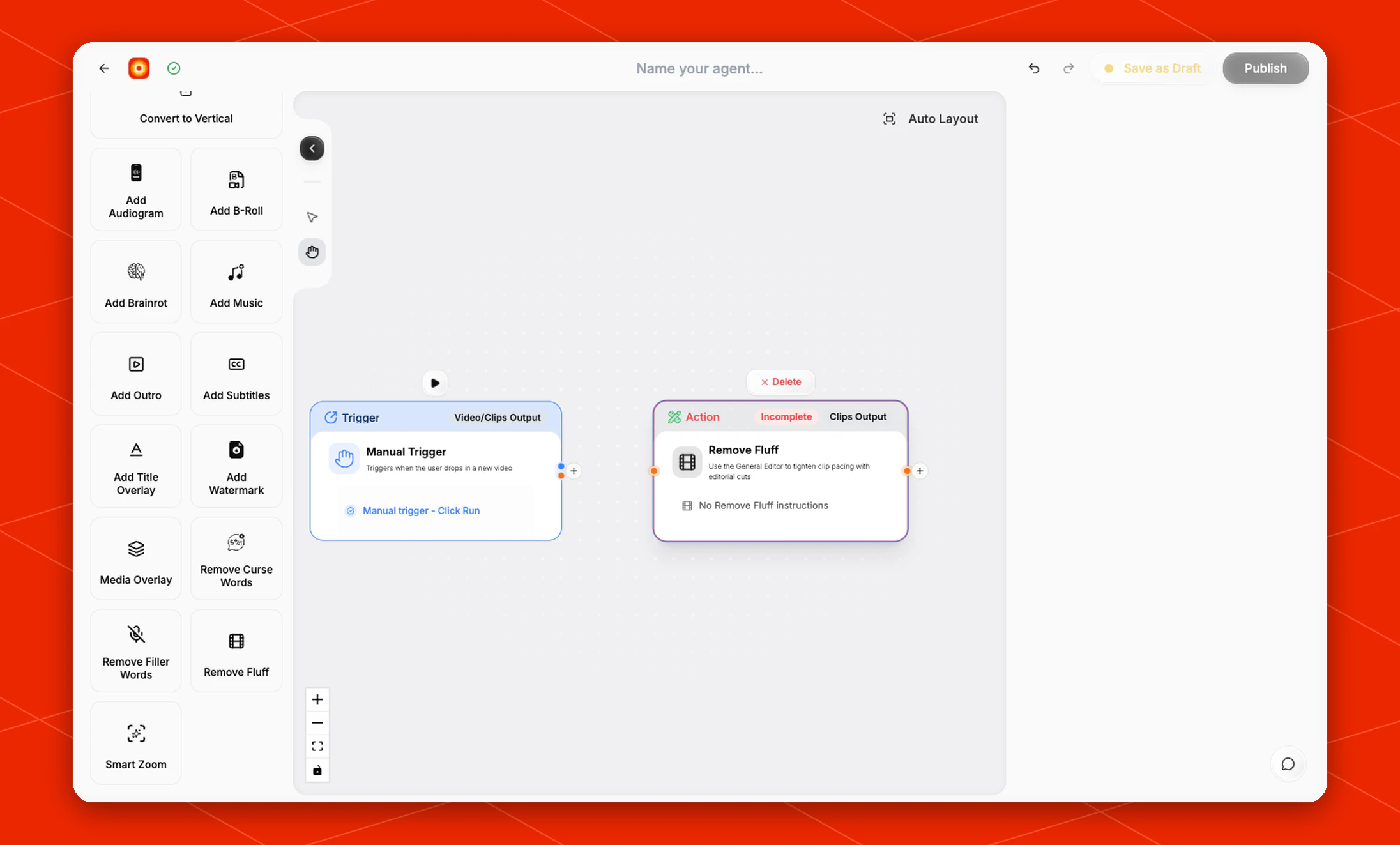
Review the node state
The node card describes the action as Use the General Editor to tighten clip pacing with editorial cuts. By default, the card shows No Remove Fluff instructions and marks the node as Incomplete. Keep the node after the step that produces the clips you want to tighten.Place it in the workflow
Use Remove Fluff when the clip has the right moment but needs tighter pacing. For a clip workflow, a common order is:- Find Clips -> Remove Fluff -> Style Video -> export