
Clean up profanity and other blocked words before clips move on to finishing or export.The Remove Curse Words node is an Editing action node for processing profanity and inappropriate language in a workflow. Use it after the workflow has a video or clips to process, and before any downstream node that should use the cleaned result.
Schema
- Input: Video or clips from an earlier workflow node
- Output: Video/clips output with the selected profanity cleanup applied
Add the node
Open Workflows from the left sidebar and click New to open the workflow builder. Add a trigger or source node first. When the builder moves to the Editing stage, choose Remove Curse Words from the left node panel. Overlap adds it as an action node on the canvas. Click the Remove Curse Words node on the canvas whenever you need to reopen its settings on the right side.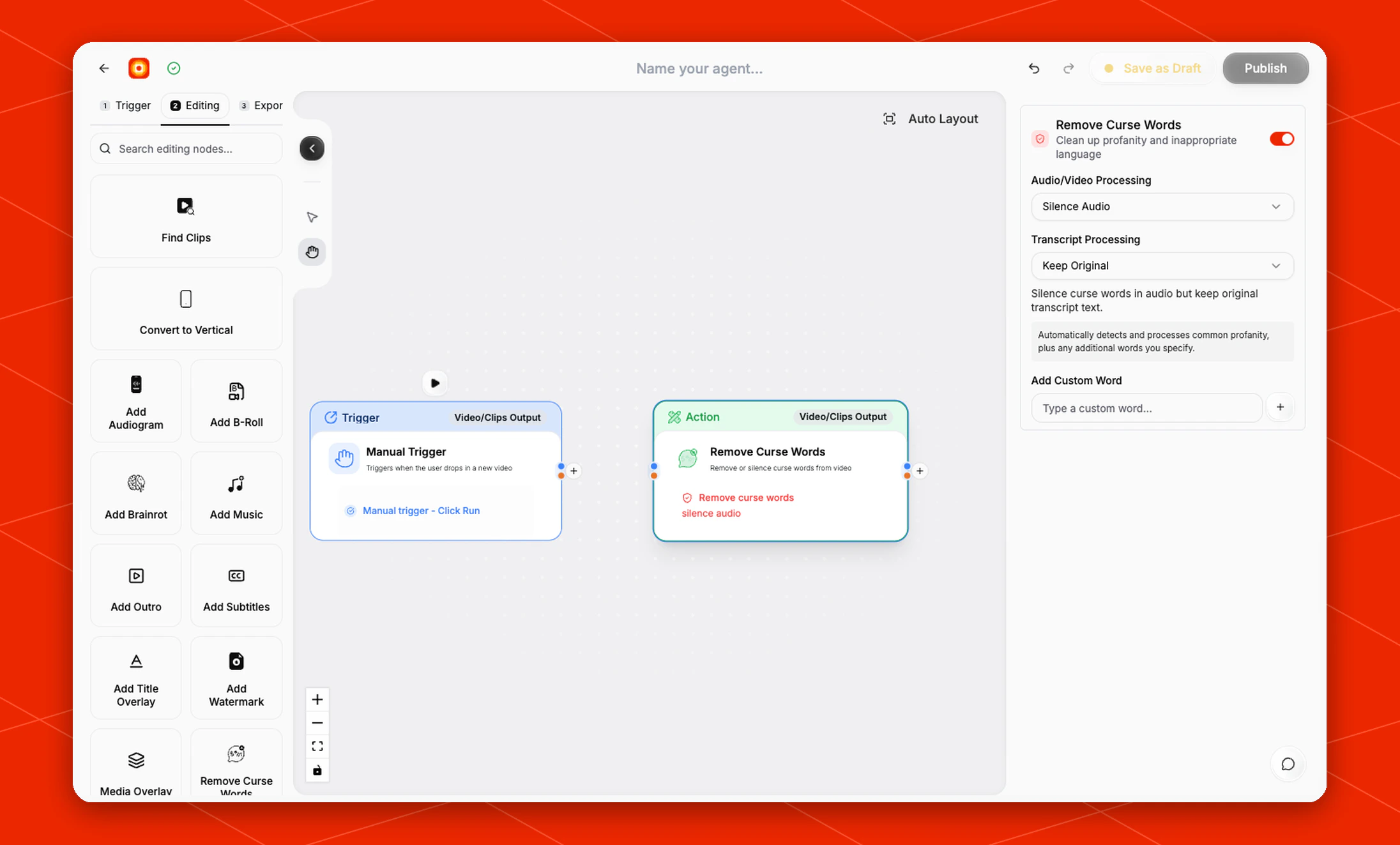
Choose how profanity is processed
The node is enabled by default and automatically detects common profanity. Use the right-side settings panel to decide how Overlap should process the video/audio and transcript.- Audio/Video Processing: The default setting is Silence Audio.
- Transcript Processing: The default setting is Keep Original.
Add custom words
Use Add Custom Word when the workflow should also process words beyond the default profanity list. Type a word in the custom word field, then click the + button to add it to the node. The settings panel notes that Overlap automatically detects common profanity plus any additional words you specify.Place it in the workflow
Place Remove Curse Words after the node that produces the video or clips you want to clean. For a clip workflow, a common order is:- Find Clips -> Remove Curse Words -> Style Video -> export