
Reframe landscape video into vertical clips for Shorts, Reels, TikTok, and other 9:16 channels.The Convert to Vertical node is an editing action that changes the visual composition of incoming video or clips. Use it when your workflow starts with landscape footage and should produce vertical output before export.
Schema
- Input: Video or clips from an earlier workflow node
- Output: Vertically reframed clips
Add the node
Open Workflows from the left sidebar and click New to open the workflow builder. Add a trigger first, such as Manual Trigger or New YouTube Video. In the Editing stage, choose Convert to Vertical. Overlap adds the action node to the canvas and connects it to the workflow path. Click the Convert to Vertical node on the canvas whenever you need to reopen its settings on the right side.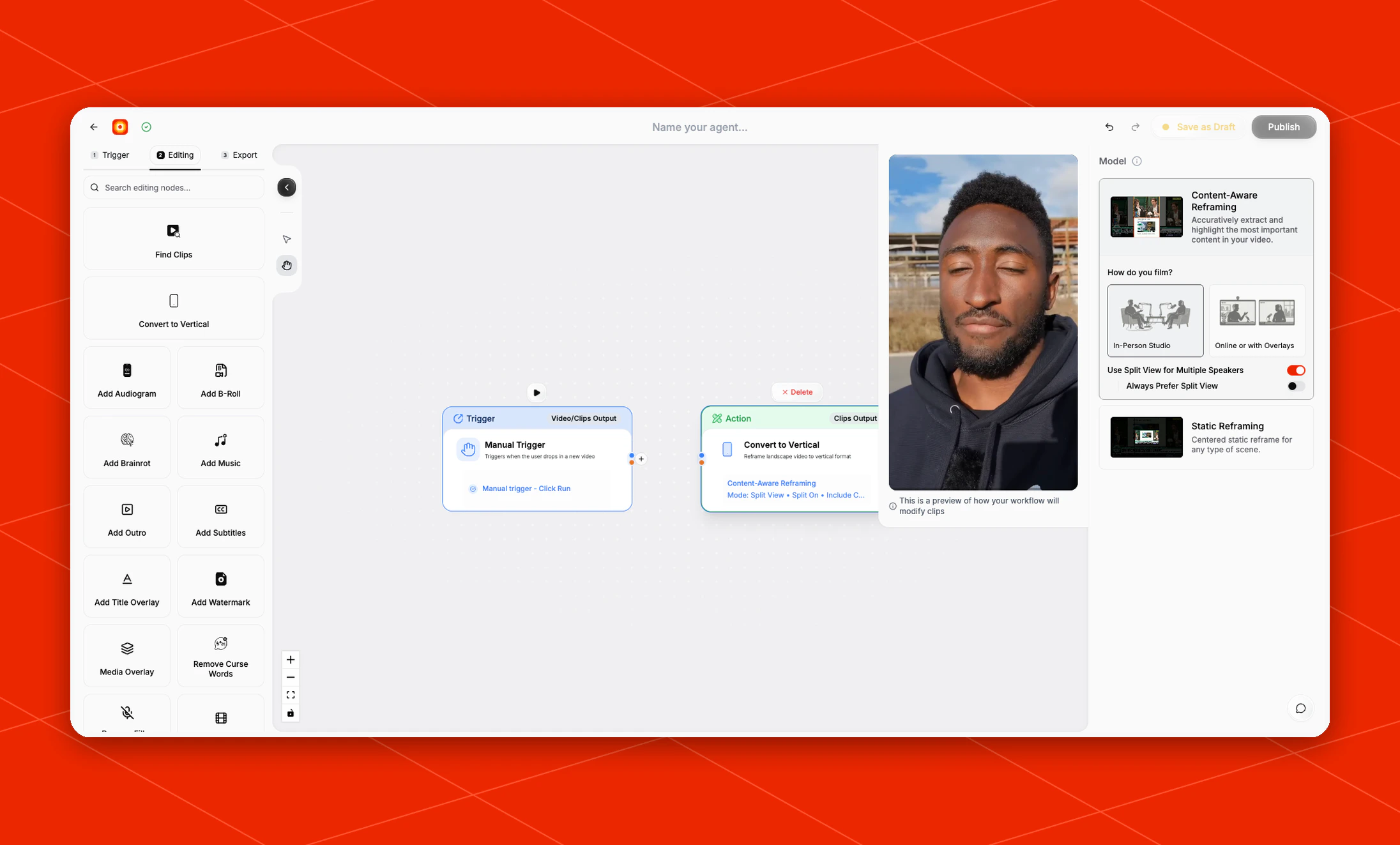
Choose a model
Use Model to decide how Overlap should build the vertical composition.- Content-Aware Reframing: follows the active speaker and updates the crop or layout as the scene changes. This is the default model and corresponds to the API’s content-aware styles, including
adaptive. - Static Reframing: keeps the source centered in the vertical frame instead of following speakers. This corresponds to
style_threein the API.
Content-Aware Reframing (adaptive)
Use adaptive for speaker-following reframes, especially webinars, remote recordings, screen shares, or other footage with on-screen content. Overlap can switch focus as the active speaker changes and can combine speakers with shared content in the vertical layout.
- Use Split View for Multiple Speakers (
split_view): allows a split layout when multiple speakers are visible. Turn it off to keep the reframe in a single-speaker layout. - Always Prefer Split View (
force_split_view): when split view is enabled and at least two people are visible, keeps them in a split layout instead of switching to a single focused speaker. - Always fill the frame (
full_frame_single): single-speaker scenes fill the whole vertical frame instead of sitting in a shorter band with blurred bars above and below. The crop stays on whoever it was following and widens to reach the edges. Wide shots with several people are left padded, since no single vertical crop can hold them all. - Include on-screen content is the inverse of
ignore_content_tiles. When content is included (ignore_content_tiles: false), Overlap can detect a webinar slide, screen share, gameplay, or other content shown beside the speakers and place that content in the lower part of the vertical frame. Setignore_content_tiles: trueto leave those content tiles out and frame the speakers instead.
Static Reframing (style_three)
Use style_three for a fixed composition. The horizontal source stays centered in the vertical canvas and does not follow the active speaker. At lower zoom levels, the unused space above and below the source is black when Background Blur is off, or filled with a blurred version of the video when it is on. Increase Zoom Level to crop more of the source and fill more of the 9:16 frame; Vertical Position moves the centered source composition up or down.
Configure the reframe
When Content-Aware Reframing is selected, set How do you film? to match the source footage:- In-Person Studio: use this for filmed conversations, interviews, panels, or other studio-style recordings.
- Online or with Overlays: use this for screen recordings, remote calls, or videos where overlays are part of the layout.
1x. API values below 1 are normalized to 1x before the reframe request is sent.
Video game sources
Video-game reframing is rolling out to selected accounts. If you do not see the Gaming option under How do you film?, the feature is not enabled for your organization yet — contact Overlap support to request access. Workflows from accounts without access are reframed as camera footage even if the setting was applied earlier.
- Player-view games — first-person and over-the-shoulder games such as shooters, survival sandboxes, and cockpit driving views — get a fixed, centered crop. The game already frames its own action, so there is no camera animation.
- World-camera games — MOBAs, real-time strategy, isometric and top-down strategy, and sports or management sims — keep following the action, because it moves around the frame.
- Racing footage, including racing games, keeps its vehicle tracking.
- Streams with a facecam get the stacked layout: the webcam above the game feed, both held as fixed boxes. Overlap looks for the webcam inset directly on video-game sources, so a small corner cam is still found even when it does not read as a separate panel.