Record an audio livestream while the workflow is active and send the recording into the rest of your workflow.
The Audio Livestream trigger is for workflows that should listen to a live audio source instead of waiting for an uploaded file or a published feed item. Use it for always-on streams, live radio, Icecast/Shoutcast sources, direct audio URLs, or playlist-based streams.
Schema
- Input: A livestream URL
- Output: Recorded livestream content for downstream workflow nodes
If no recording schedule is set, the workflow records continuously whenever it is active. Add a schedule when you only need specific live windows.
Add the node
Open Workflows from the left sidebar and click New to open the workflow builder.
In the Trigger stage, choose Audio Livestream. Overlap adds the trigger node to the canvas, selects it, and moves the left panel forward to Editing so you can continue building the workflow.
Click the Audio Livestream field inside the node on the canvas whenever you need to reopen its settings on the right side.
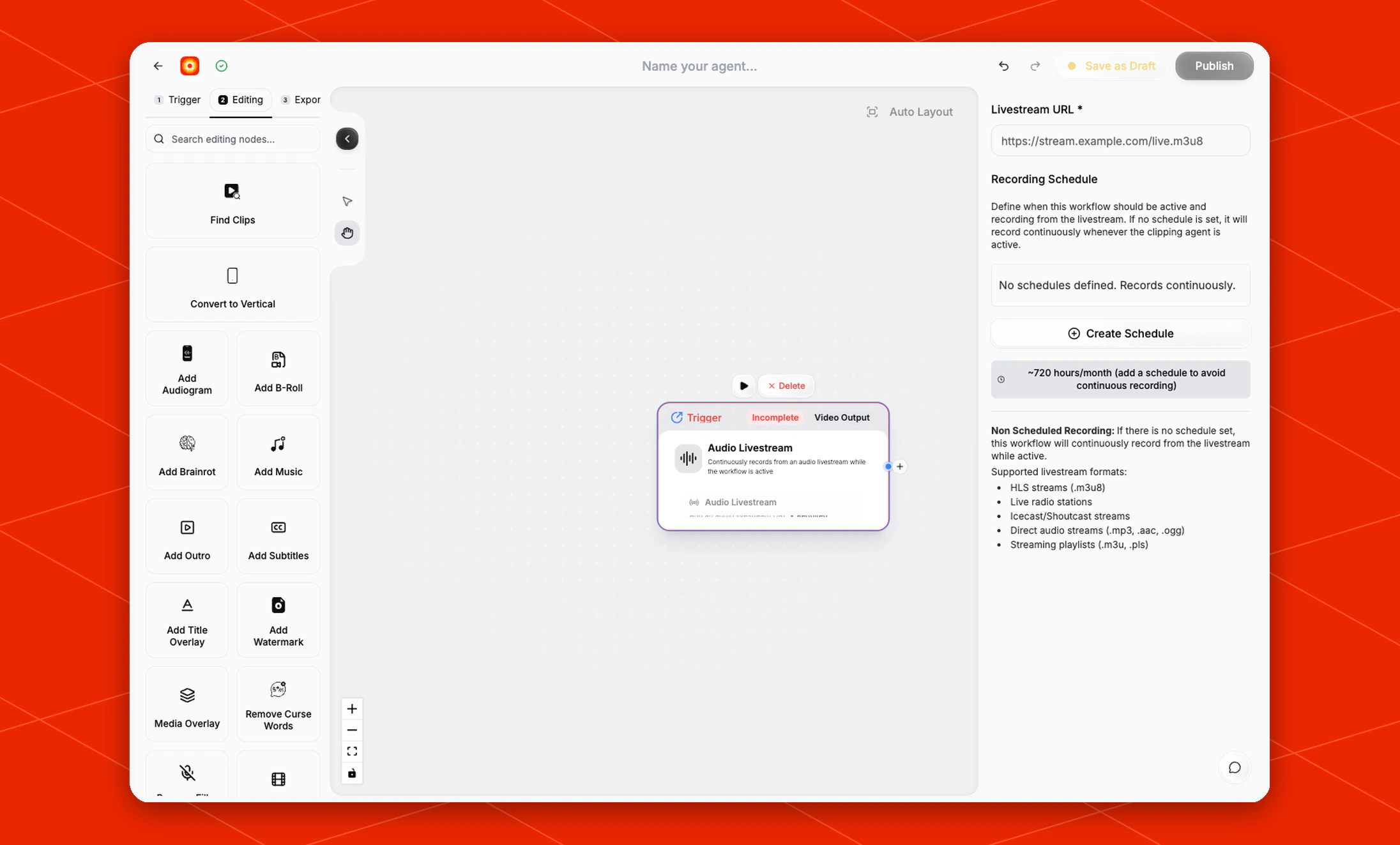
In the right-side settings panel, fill in Livestream URL.
The current settings panel lists these supported livestream formats:
- HLS streams, such as
.m3u8
- Live radio stations
- Icecast/Shoutcast streams
- Direct audio streams, such as
.mp3, .aac, or .ogg
- Streaming playlists, such as
.m3u or .pls
Until the URL is added, the node shows Incomplete on the canvas.
Set a recording schedule
By default, the settings panel shows No schedules defined. Records continuously. It also estimates about 720 hours/month for continuous recording and recommends adding a schedule to avoid recording all the time.
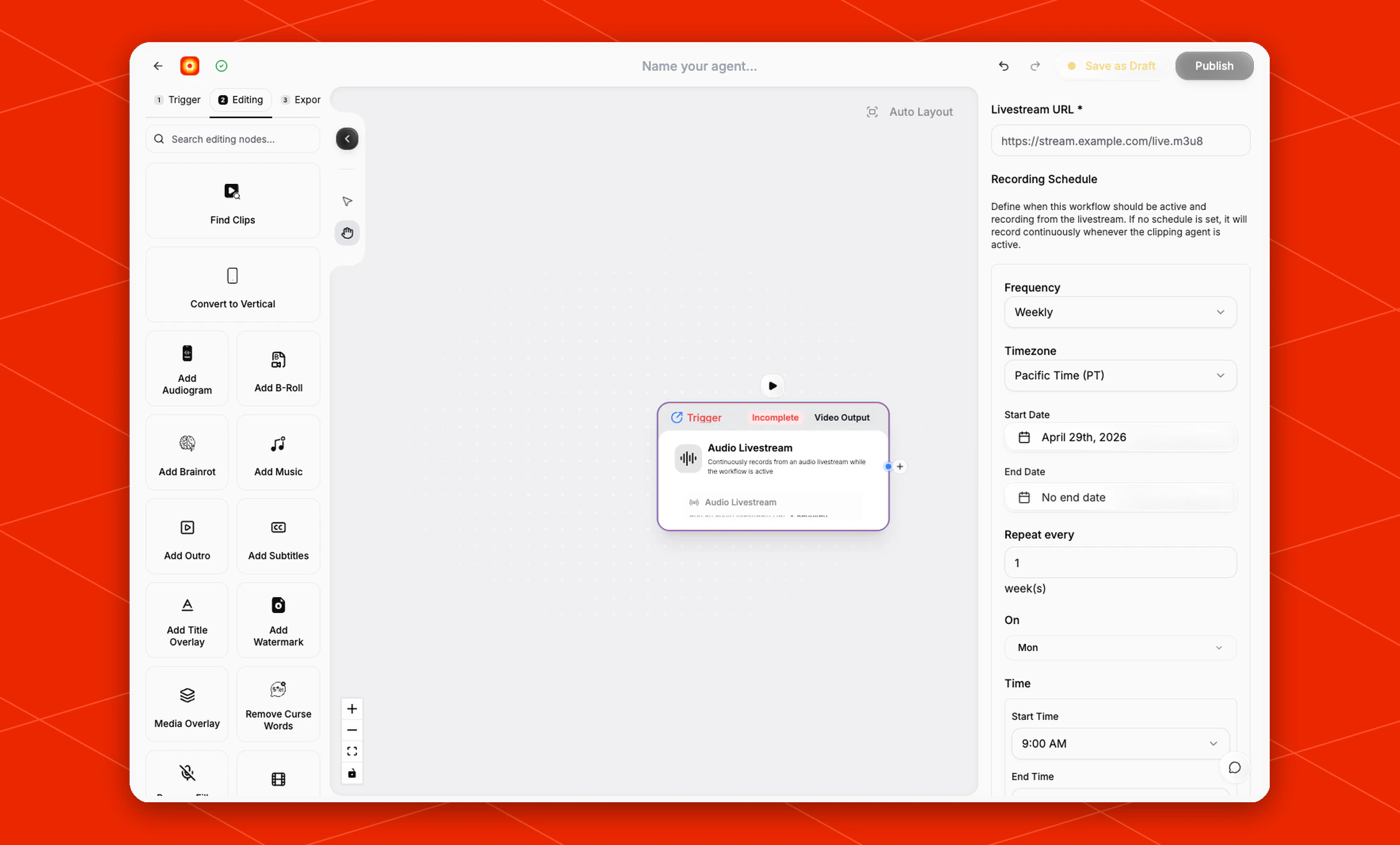
Click Create Schedule when the stream should only record during planned windows.
The schedule form lets you define the recording cadence with fields such as Frequency, Timezone, Start Date, End Date, Repeat every, On, and Time.
Build the rest of the workflow
After the trigger is configured, continue in Editing with nodes such as Find Clips, Add Audiogram, Style Video, or Reframe. Finish with an export node, then click Publish when the workflow is ready to record from the livestream.